
The QwenWork Premium admin console manages enterprise users, sign-in methods, administrator permissions, models, AI assets, subscriptions, usage, and audit logs.
The QwenWork Premium admin console manages enterprise users, sign-in methods, administrator permissions, models, AI assets, subscriptions, usage, and audit logs. Available pages and actions depend on the enterprise's enabled capabilities and your administrator role. Start with the setup steps below or use the directory to find a feature.
Installers and Release plans require app customization and the relevant permissions. Environment packages uses its own permission without the same app-customization condition. Adding custom models requires enterprise BYOK access. Expert suites is hidden in the international service environment.
A paginated list shows its total, page number, rows per page, and a page-number input. Enter an integer and press Enter or move focus away. Where offered, select 10, 20, 50, or 100 rows per page.
Menu paths use arrows, such as Users → Authentication. Bold text identifies controls and options. The desktop app is the user-facing QwenWork application; the admin console is the administrator's website.
Organizations, users, domains, and values in screenshots are examples. Use your enterprise's information. Copy callback URLs, service addresses, and identifiers from the current page. Open an image to inspect it at a larger size.
The console displays features and operations according to the administrator role. If another administrator can see an entry that you cannot, ask an authorized administrator to check your role. Read the explanation beside a disabled control. For example, when User sync is enabled, user creation and deletion must be handled in the source directory.
Installers and Release plans manage app installation files and upgrade releases. They require app customization and the corresponding permissions. Installer packages supply the download page; upgrade packages supply automatic updates and release plans.
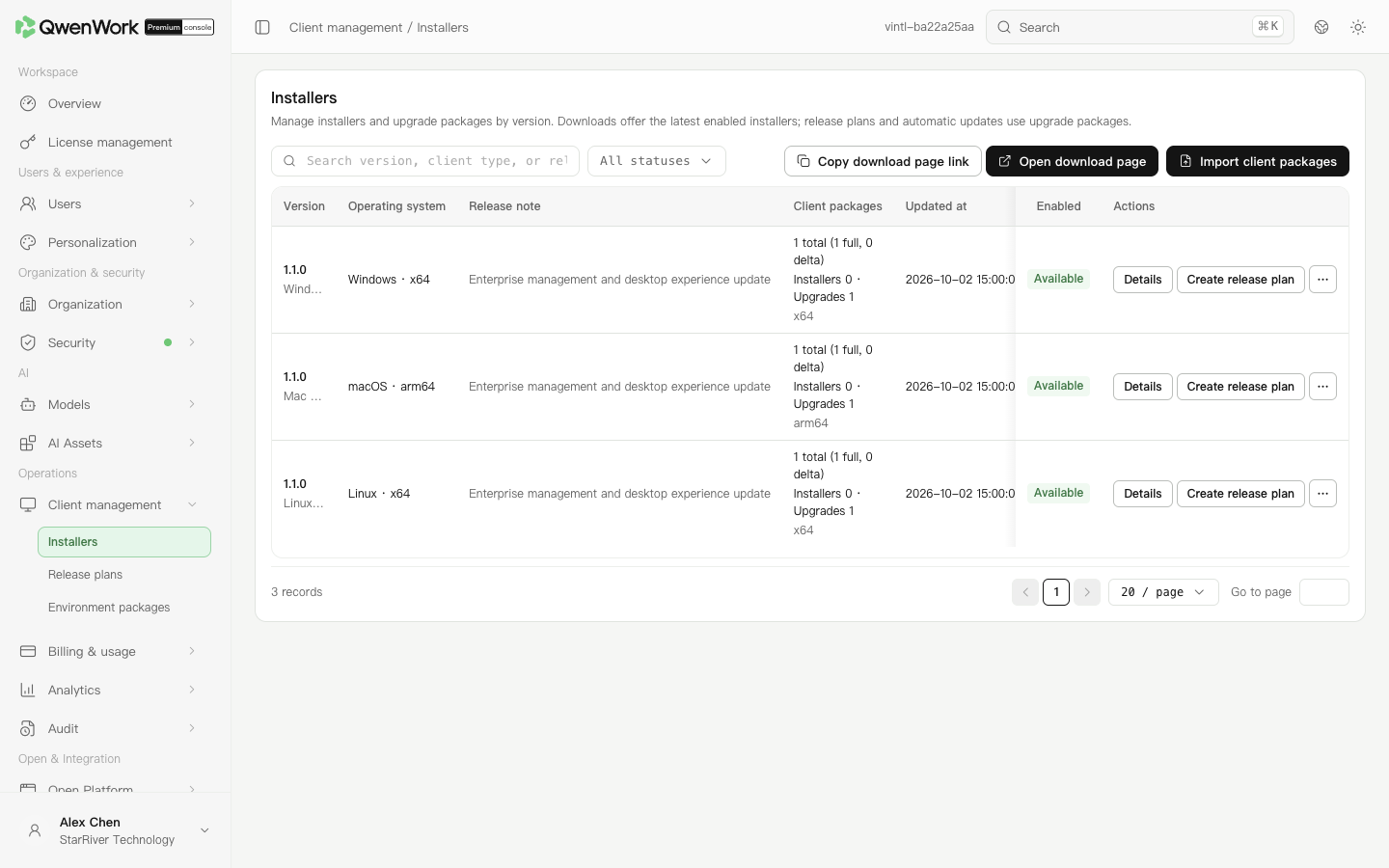 Admin console: maintain installer and upgrade packages by version.
Open Client management → Release plans. With automatic updates enabled, a client obtains the highest available version compatible with its operating system and CPU architecture. With automatic updates disabled, upgrades follow published plans. The force-upgrade option for automatic updates requires clients with a matching new version to upgrade.
For a pilot release:
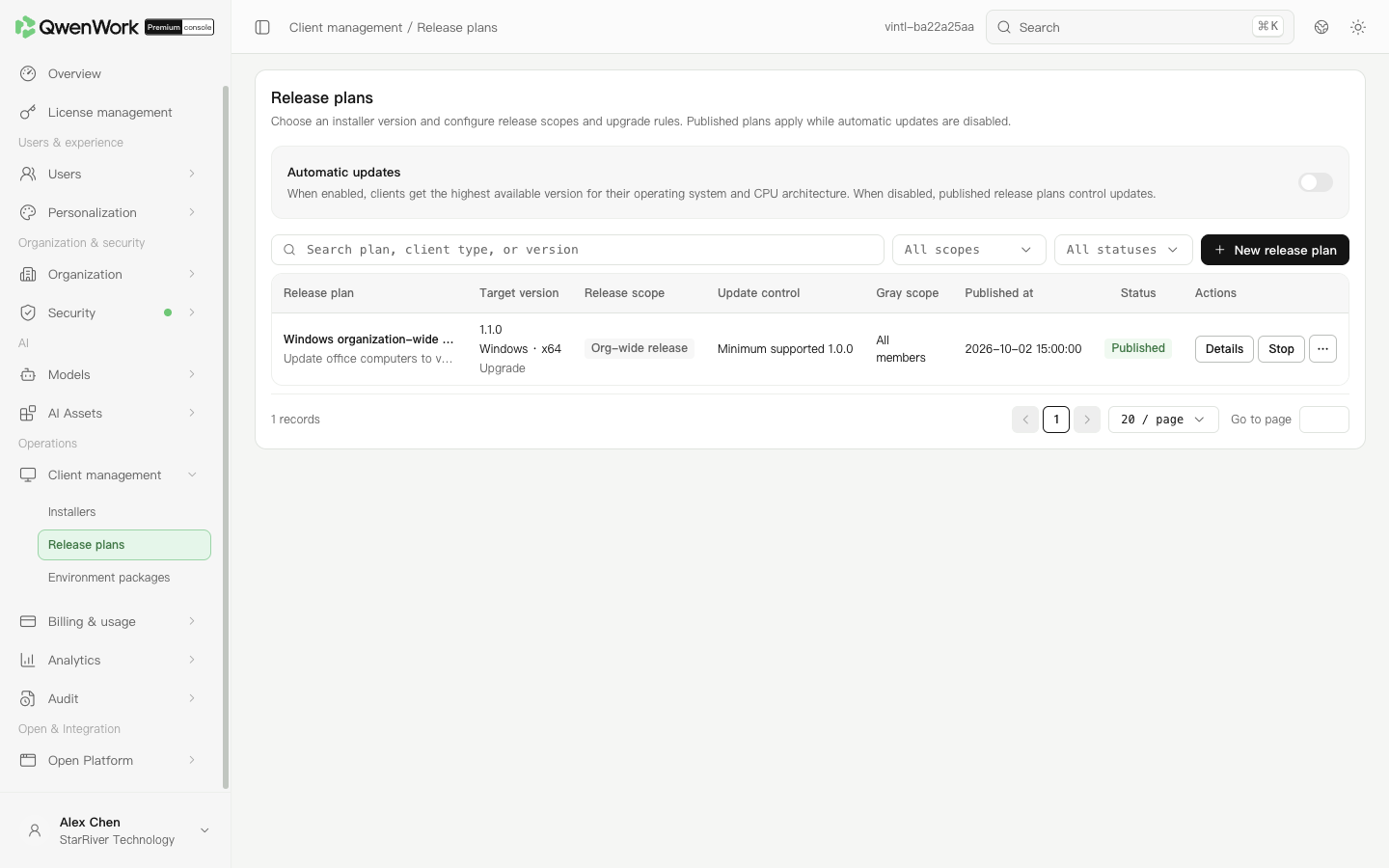 Admin console: manage automatic updates and release plans.
Adding installer files to a version later does not add them to saved plans automatically. Recheck each plan's installer selection. A published plan still requires the client to check for updates and complete installation.
Admin console: manage automatic updates and release plans.
Adding installer files to a version later does not add them to saved plans automatically. Recheck each plan's installer selection. A published plan still requires the client to check for updates and complete installation.
Documentation directory
- Overview
- Users / Users overview
- Personalization / Personalization overview
- Organization / Organization overview
- Security / Security overview
- Models / Models overview
- AI Assets / AI Assets overview
- Billing & usage / Billing & usage overview
- Analytics / Analytics overview
- Audit / Audit overview
- Open Platform / Open Platform overview
Set up an enterprise for the first time
- Open Organization information, confirm the enterprise, and copy its admin console and client service addresses.
- Decide how users will be maintained. Configure User sync for an existing enterprise directory, or add and invite users manually.
- Configure Authentication for password, email code, or enterprise SSO sign-in.
- Assign seats, then configure the models and AI assets users need.
- Sign in with an ordinary user account, select a model, and use a resource. Check Usage and Audit afterward.
Find a task
| Task | Article |
|---|---|
| Connect DingTalk, Feishu, or an identity platform | Users / Authentication / Authentication overview |
| Synchronize departments and joiners or leavers | Users / User sync / User sync overview |
| Assign seats and review joining requests | Users / Users |
| Delegate administration | Organization / Admin roles |
| Control device sign-in or task operations | Security / Trusted devices; Security / Automation |
| Change the home page and navigation | Personalization / Personalization overview |
| Allocate credits and investigate usage | Billing & usage / Quota management; Analytics / Usage |
| Let an enterprise app call management APIs | Open Platform / App authorization |
| Configure models, skills, and connectors | Models / Models overview; AI Assets / AI Assets overview |
| Review usage, changes, and user issues | Analytics / Analytics overview; Audit / Audit overview |
| Manage app installation and upgrades | Installation and upgrades below |
Browse paginated lists
A paginated list shows its total, page number, rows per page, and a page-number input. Enter an integer and press Enter or move focus away. Where offered, select 10, 20, 50, or 100 rows per page.
- The page input remains visible when there is one page. It is disabled when there are no records.
- Zero or a negative number takes you to the first page. A number above the last page takes you to the last page.
- Blank and non-integer values do not navigate.
Reading conventions
Menu paths use arrows, such as Users → Authentication. Bold text identifies controls and options. The desktop app is the user-facing QwenWork application; the admin console is the administrator's website.
Organizations, users, domains, and values in screenshots are examples. Use your enterprise's information. Copy callback URLs, service addresses, and identifiers from the current page. Open an image to inspect it at a larger size.
Resolve a missing menu or unavailable action
The console displays features and operations according to the administrator role. If another administrator can see an entry that you cannot, ask an authorized administrator to check your role. Read the explanation beside a disabled control. For example, when User sync is enabled, user creation and deletion must be handled in the source directory.
Manage installation and upgrades
Installers and Release plans manage app installation files and upgrade releases. They require app customization and the corresponding permissions. Installer packages supply the download page; upgrade packages supply automatic updates and release plans.
Prepare installers
- Open Client management → Installers and click Import client packages. Download the JSON template and prepare metadata.json with the referenced files.
- Put metadata.json and its referenced files in one ZIP. Set package_purpose for each file: installer for the download page, or upgrade for release plans and automatic updates. Select the ZIP, click Upload and import, and check the import result.
- Open the version details and check each file’s purpose, operating system, CPU architecture, and enabled state. A device needs a compatible available file.
- Copy or open the download-page address and check the enterprise download entry. It lists enabled, available versions.
Choose automatic updates or a release plan
Open Client management → Release plans. With automatic updates enabled, a client obtains the highest available version compatible with its operating system and CPU architecture. With automatic updates disabled, upgrades follow published plans. The force-upgrade option for automatic updates requires clients with a matching new version to upgrade.
For a pilot release:
- Create a release plan and enter its name and description.
- Select an enabled version whose purpose is Upgrade. Check its platform, architecture, and files. Every target platform and architecture needs a matching upgrade package.
- Choose a subset of users and add departments, users, or user groups. Choose all users for an enterprise-wide release.
- Set the upgrade rules and choose immediate or scheduled publication. A scheduled time must be in the future.
- Save and publish. Check the target version, scope, publication time, and status in the list.
- Ask users in scope to check for updates and confirm the version. Check users outside the scope before expanding the release.