
Skills package instructions and materials for a type of work.
Skills package instructions and materials for a type of work. Administrators can offer official skills, maintain a dedicated enterprise market, or connect an existing private market.
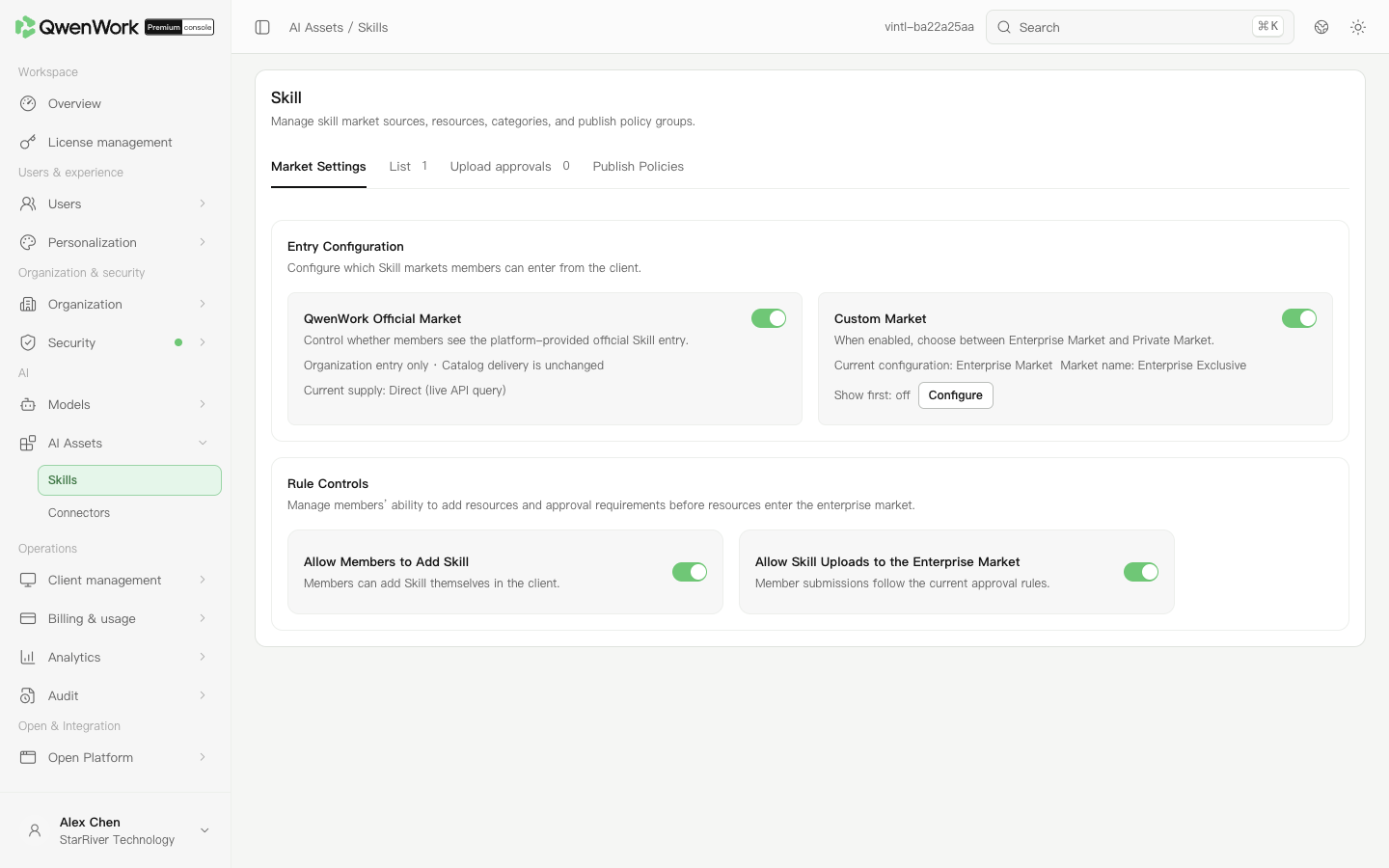 Admin console: select market sources and member upload permissions.
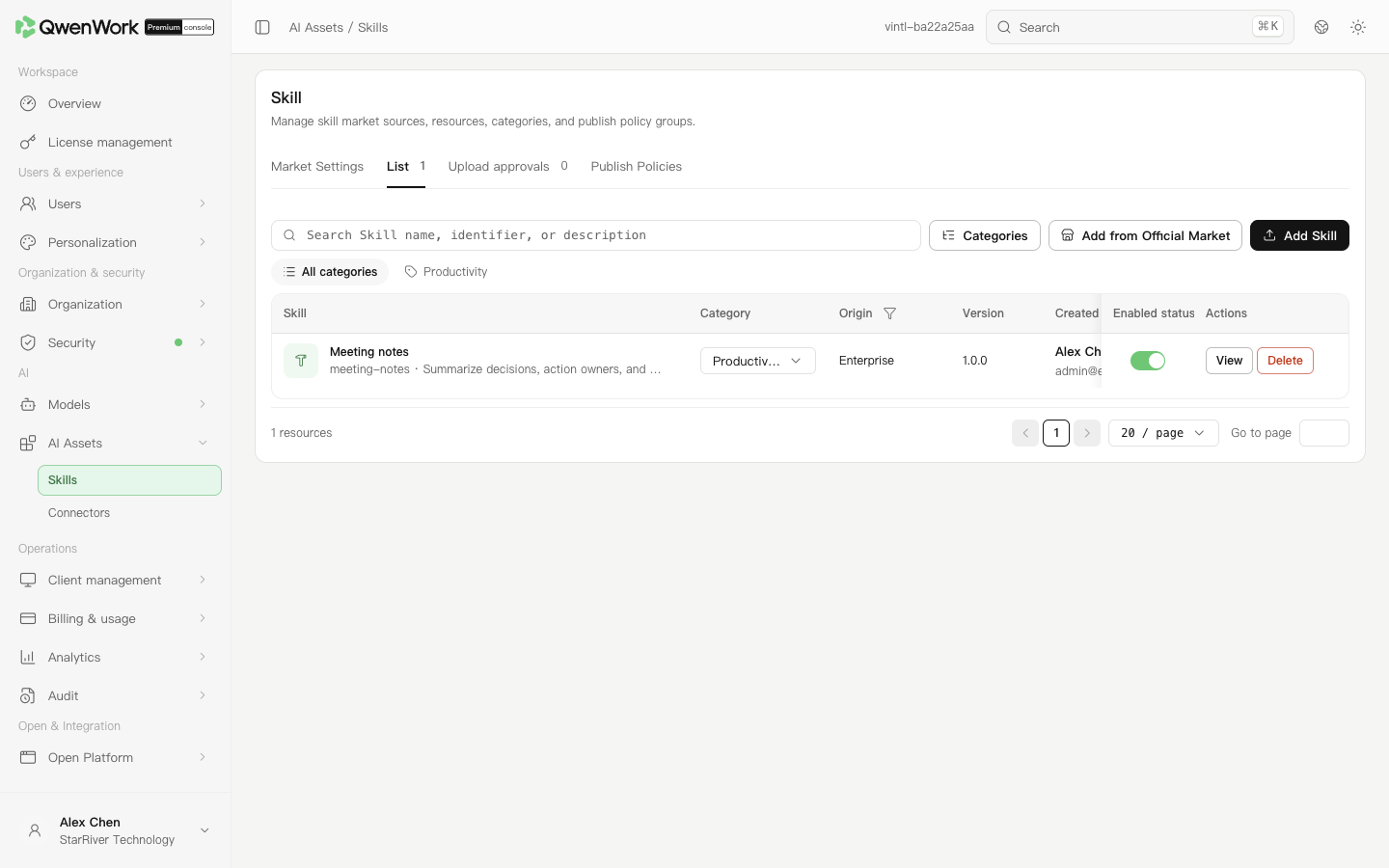 Admin console: maintain skill resources and their categories.
To reuse an official resource, use the add-from-official-market action.
Admin console: maintain skill resources and their categories.
To reuse an official resource, use the add-from-official-market action.
In market management, configure permission to add skills themselves separately from permission to upload skills to the dedicated market. Allowing client uploads does not automatically publish them in the enterprise market.
In upload approvals, open pending submissions and inspect their contents. Approve a usable submission, choose its dedicated-market category, and submit. Reject unsuitable content with a reason that helps the member revise it.
Edit categories or enabled states in the list. Before deletion, check policy references. Deleting a resource clears related references; deleting a policy retains the resource. After changes, ask a target member to check visibility, installation, and a representative task.
Return to: AI Assets overview
Choose a skill market
- Open AI → AI Assets → Skills and select market management.
- Enable the official or enterprise market as needed and read the confirmation.
- After enabling the enterprise market, open its configuration. A dedicated market is maintained in this console; a private market uses an existing enterprise market address and allowed origin.
- Enter a full page URL for the private market address. Its allowed origin contains the scheme, domain, and necessary port, such as
https://market.example.com. Save, then verify loading and sign-in in the client.
Add a skill to the dedicated market
- With the dedicated market enabled, open the list. Create categories using category management if needed.
- Add a skill and enter its name, unique identifier, version, category, and description. The name is shown to members; the identifier distinguishes resources.
- Optionally attach an icon and a ZIP package. Icons must be square PNG, JPEG, or WebP files of up to 2 MB. A skill ZIP is limited to 10 MB. Both attachments are optional.
- Click Save and publish, then verify the resource, category, and enabled state in the list.
- Configure publication policies for the intended members, then have a member verify installation and use in the client.
Review member submissions
In market management, configure permission to add skills themselves separately from permission to upload skills to the dedicated market. Allowing client uploads does not automatically publish them in the enterprise market.
In upload approvals, open pending submissions and inspect their contents. Approve a usable submission, choose its dedicated-market category, and submit. Reject unsuitable content with a reason that helps the member revise it.
Control member access
- Open publication policies and add a policy group.
- Enter its name, mode, user scope, skill scope, and client targets.
- Allowlists permit visibility; blocklists deny it and take precedence. Selecting all resources includes future additions.
- For automatic installation, use an allowlist with specific resources before enabling the option. All resources and automatic installation cannot be enabled together; blocklists do not support automatic installation.
- Save, enable, and ask a target member to check client visibility.