
Model Catalog maintains models offered by the enterprise.
Model Catalog maintains models offered by the enterprise. Primary models are selected for everyday work. Specialized models serve vision, speech, and multimedia tasks. After configuring a connection, check whether model policies allow the intended members to use it.
Only enterprises with BYOK (bring your own key) enabled can add custom models. Otherwise, Catalog provides official models without the custom-model add capability. Check QwenWork credits separately from external model charges; external usage and costs are recorded by the model provider.
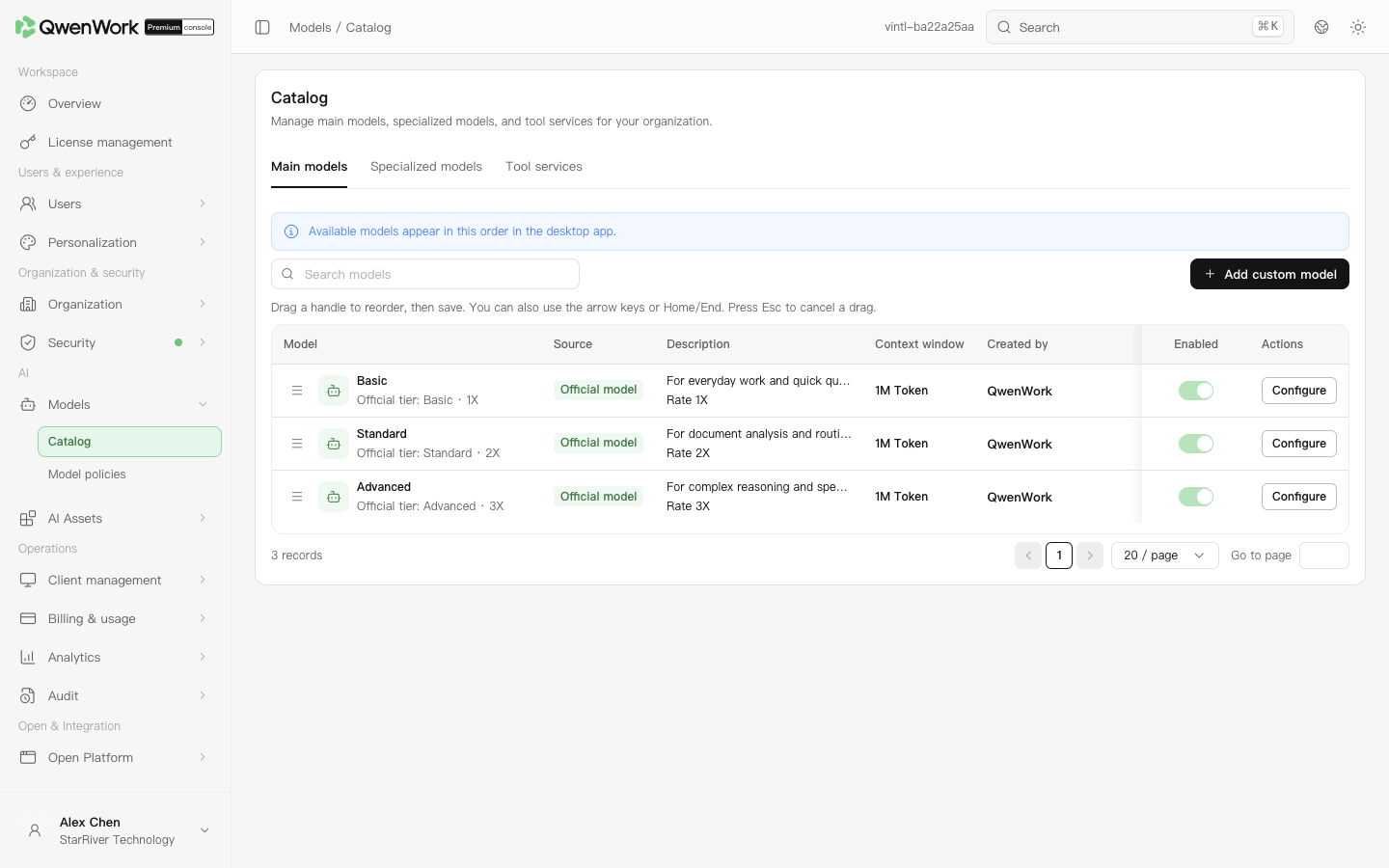 Admin console: check model sources, context limits, and enabled states.
Prerequisites: enterprise BYOK is enabled and the current administrator has model management permission.
Obtain the complete endpoint, API Key, model key, and supported capabilities from the provider. The API Key is the calling credential. The server-side model key identifies the model in requests and is different from its display name.
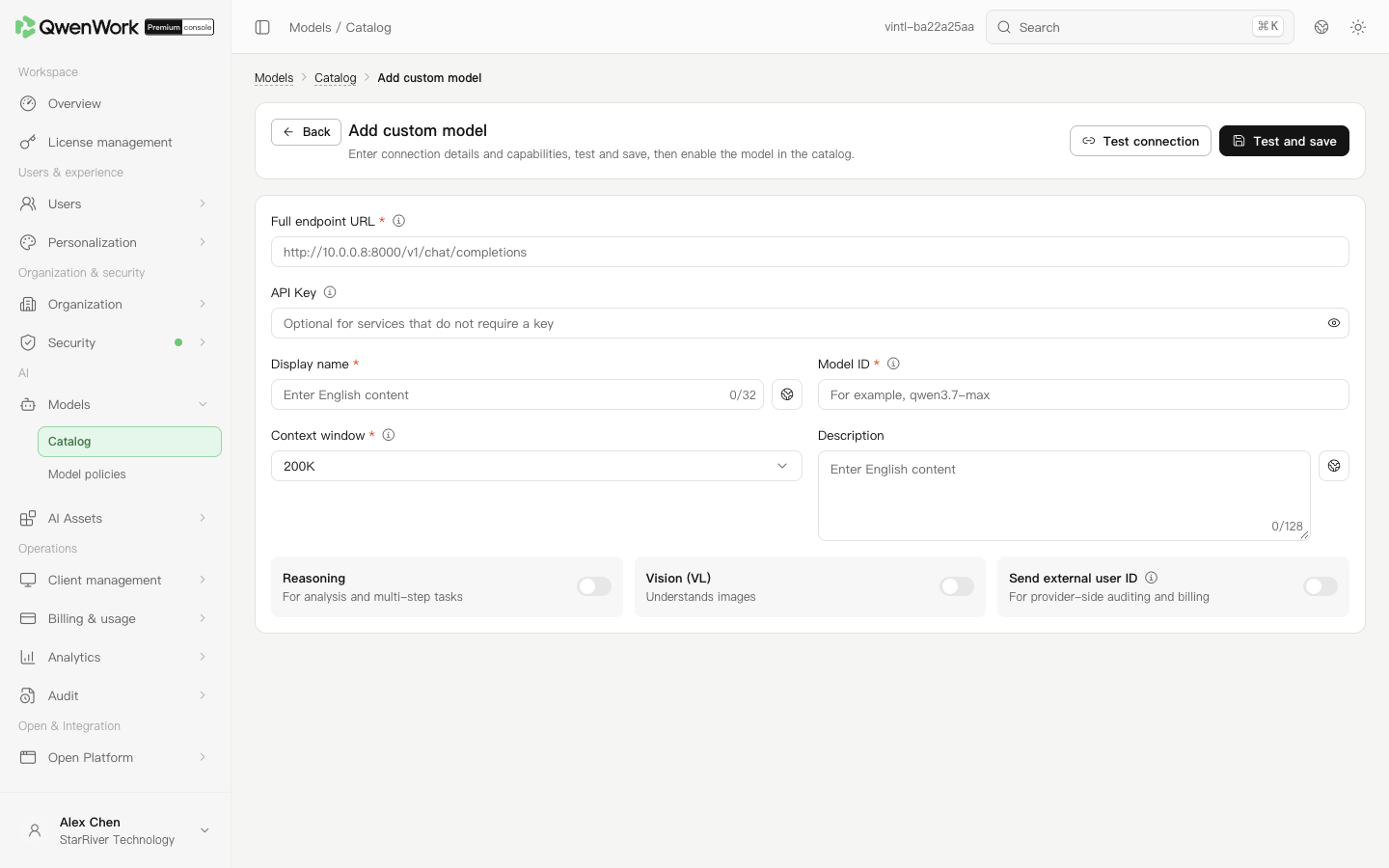 Admin console: distinguish the endpoint, display name, and server-side model key.
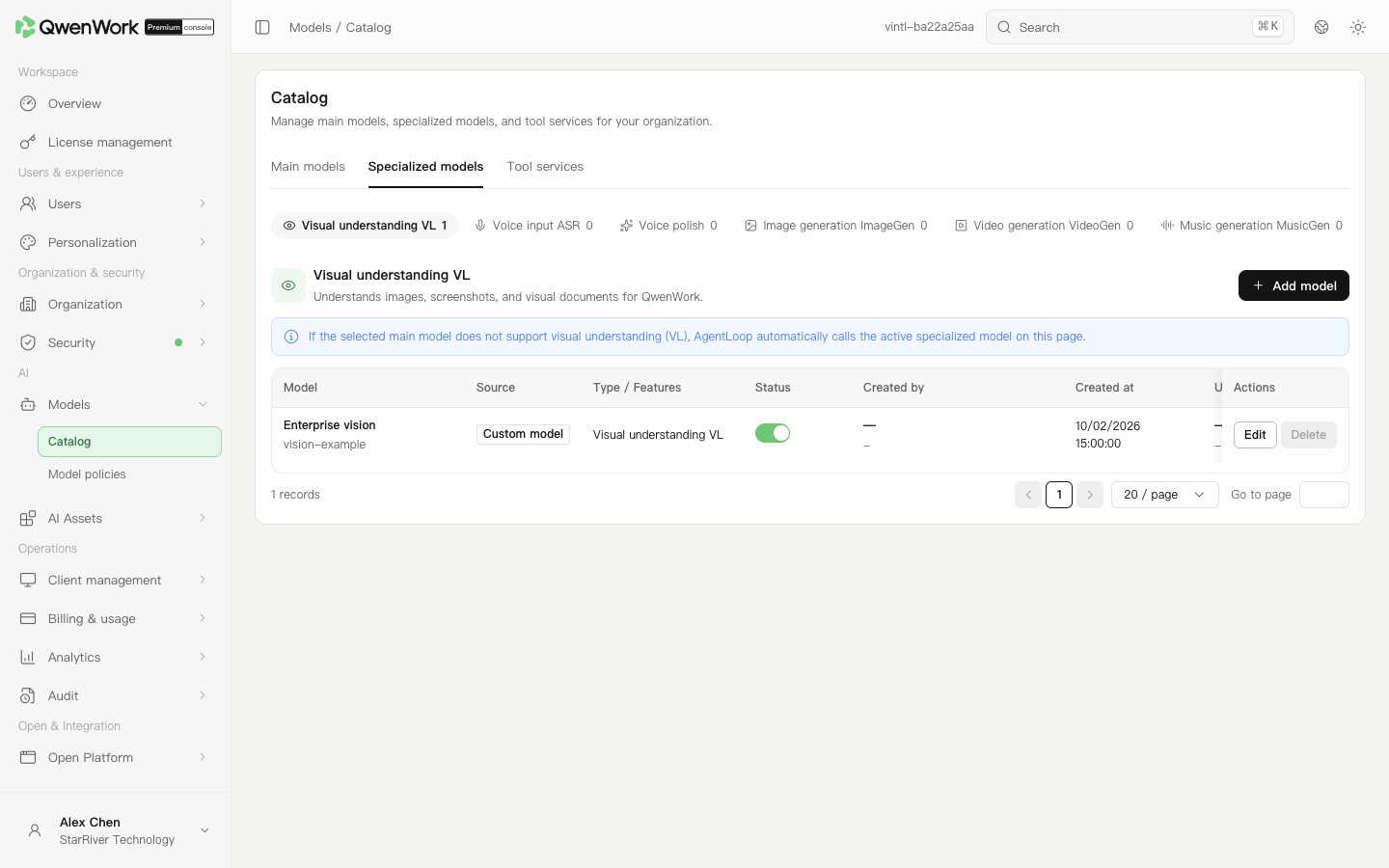 Admin console: configure the model for each specialized capability.
After changing credentials, retest, save, and check an actual call. Deleting a custom primary model also removes its references from policies. Verify that affected members have another usable model. For a specialized model currently in use or restricted from deletion, switch to an available replacement as the page instructs.
Check that the model is enabled, the member's matching policies allow it, and no blocklist excludes it. A successful connection test covers that configuration test, not every member's access.
Return to: Models overview
View and configure primary models
- Open AI → Models → Catalog and select Main models.
- Find a model and check its source, maximum context size, description, and enabled state. Official primary models are provided by the platform; some state actions cannot be changed.
- Open Configure and edit the display name, description, and context limit where permitted.
- Save, check the list, then verify the name and description in the client.
Add a custom primary model
Prerequisites: enterprise BYOK is enabled and the current administrator has model management permission.
Obtain the complete endpoint, API Key, model key, and supported capabilities from the provider. The API Key is the calling credential. The server-side model key identifies the model in requests and is different from its display name.
- In Main models, click Add custom model.
- Enter the Full endpoint that directly accepts Chat Completions requests, such as
https://api.example.com/v1/chat/completions. A website home page or base URL may not work. - Enter the API Key, enterprise display name, and server-side model key. Select a context limit supported by the service.
- Configure reasoning, vision, and other capabilities to match the model. Do not enable capabilities the provider does not support merely to show an entry.
- If passing third-party user IDs to the model, first confirm that the enterprise needs to transmit that identifier.
- Click Test and save. Correct connection or credential errors and retest. After success, check the enabled state and access policies.
- Changing the scheme, host, or port requires reentering the API Key.
- Changing only the path under the same scheme, host, and port may retain the stored credential.
Configure specialized models
- Switch to Specialized models and select vision, speech input, speech polishing, image generation, video generation, or music generation.
- Check the current official or enterprise model. Enterprises with BYOK enabled can add custom specialized models using the group's add action, required fields, and test.
- After switching the effective model, run a relevant task. For vision, upload an image; a plain-text question does not test vision capability.