
Model policies control primary-model availability for users, departments, and user groups.
Model policies control primary-model availability for users, departments, and user groups. Allowlists grant access and blocklists deny access. A blocklist takes precedence when both match the same member.
BYOK (bring your own key) is available according to the capabilities enabled for your enterprise. Credits and limits in this guide refer to QwenWork credits. Check external model usage and charges on the model provider’s platform.
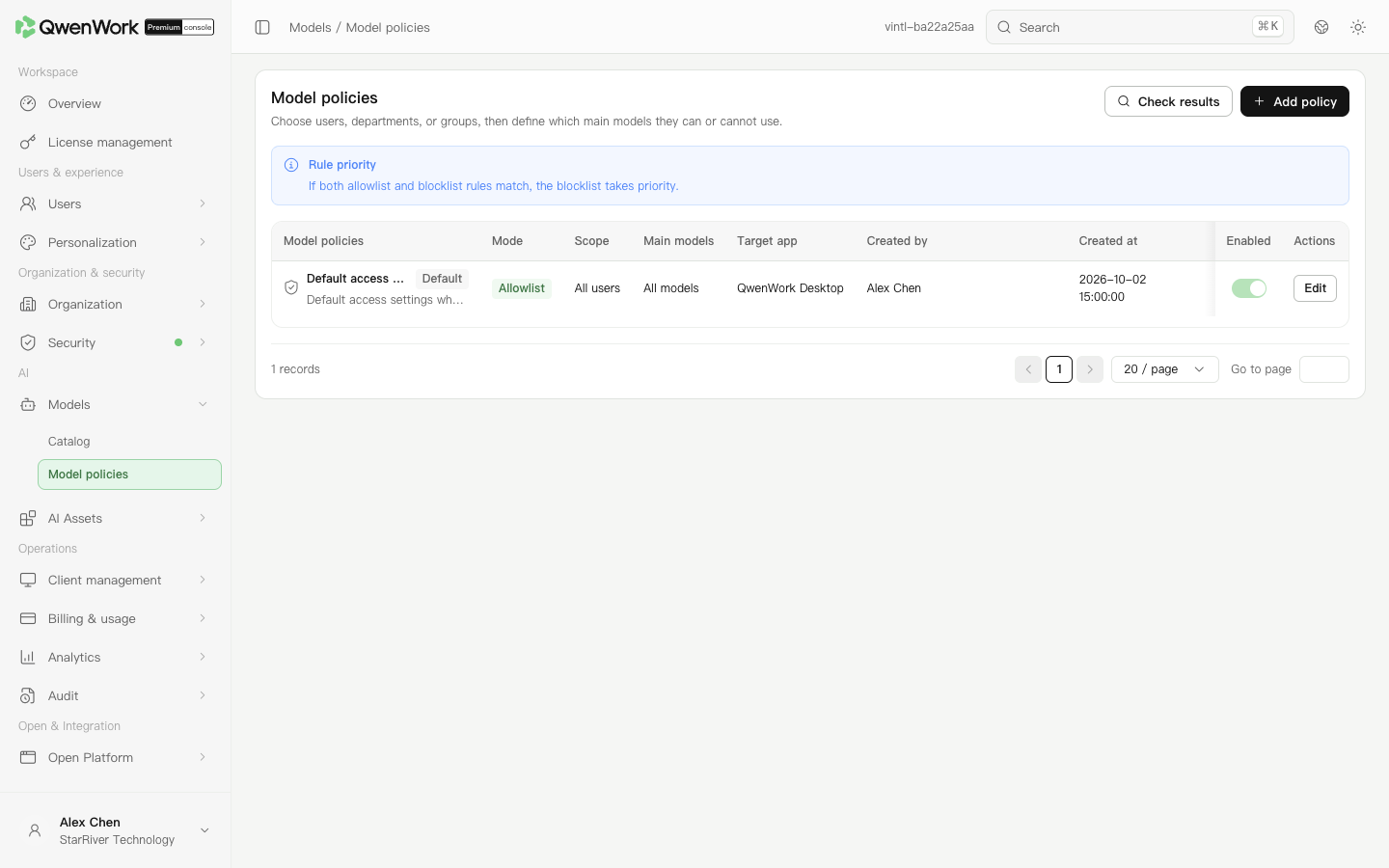 Admin console: select a user scope and model scope.
The default allow policy is always enabled and cannot be deleted. You can edit its permitted model set. Before adding a pilot allowlist, also check the default policy so it does not continue exposing the same model to other members.
Create an allow or block policy
- Open AI → Models → Model policies and add a policy group.
- Enter its name and choose allowlist or blocklist.
- Select all users or specified users, departments, or groups, then check the selected scope.
- Select primary models. All models includes models added in the future. Select specific models when only reviewed models should be available.
- Check client targets and the impact message, save, and verify that the policy is enabled.
Adjust the default policy
The default allow policy is always enabled and cannot be deleted. You can edit its permitted model set. Before adding a pilot allowlist, also check the default policy so it does not continue exposing the same model to other members.
Verify a member's available models
- Open match verification and choose a member.
- Inspect matched policies and the final rules, then open those policies to check their selected models.
- Verify a member outside the intended scope to check that access has not expanded.
- Have the test member open the client's model selector and check available options.