
Admin roles determine who can enter the console and which features they can manage.
Admin roles determine who can enter the console and which features they can manage. Decide what work to delegate, then assign the relevant permissions. Ordinary user seats and model availability are managed separately.
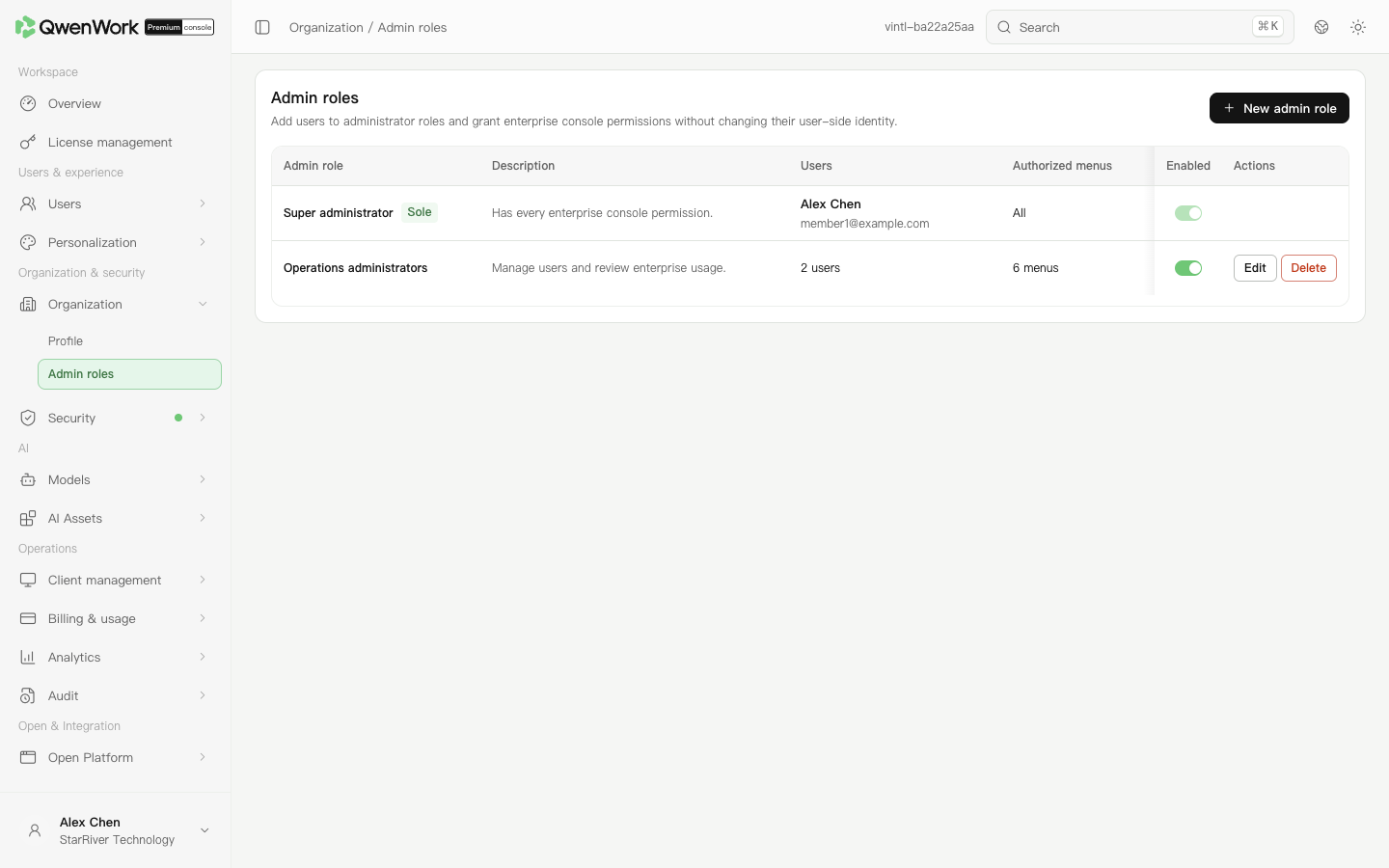 Admin console: maintain role users and page permissions.
Ask a role member to reenter the console and verify that they can open the required menus and perform the delegated work. Also check a page they should not access through the menu, search, and a direct link. Roles grant permissions by page; a page cannot be split into read-only and editable permissions. Open Platform application API permissions are configured separately.
If a member has several roles, check them together. Removing a permission from one role may leave it granted by another.
Open the role, change its users or permissions, and save. Disable the role to pause the assigned work, or follow the deletion prompt when it is no longer needed. Removing console access does not delete the person's ordinary user account or reclaim their seat.
There is one super administrator. The recipient receives all management permissions after transfer. The original administrator's remaining console access depends on their other roles.
Create an admin role
- Open Organization & security → Organization → Admin roles, then click New admin role.
- Enter a name and description, such as “User operations” and “Maintains members and seats”.
- Click Add users in the role's user area, then search for and select existing enterprise members.
- Switch to management permissions and select the required pages. Selecting a page grants access to all of its capabilities. An unselected page is unavailable through the sidebar, search, and direct links.
- Check the role's state and save. Verify its name, users, and enabled state in the list.
Check the permissions
Ask a role member to reenter the console and verify that they can open the required menus and perform the delegated work. Also check a page they should not access through the menu, search, and a direct link. Roles grant permissions by page; a page cannot be split into read-only and editable permissions. Open Platform application API permissions are configured separately.
If a member has several roles, check them together. Removing a permission from one role may leave it granted by another.
Adjust or revoke access
Open the role, change its users or permissions, and save. Disable the role to pause the assigned work, or follow the deletion prompt when it is no longer needed. Removing console access does not delete the person's ordinary user account or reclaim their seat.
Transfer the super administrator
There is one super administrator. The recipient receives all management permissions after transfer. The original administrator's remaining console access depends on their other roles.
- Click Transfer at the super administrator entry and choose a recipient whose account is active.
- Check the recipient, enter the confirmation text requested by the dialog, and click Continue.
- Read the sign-out and reauthentication message, then continue and sign out.
- Reauthenticate using the current super administrator's own account. The transfer is executed after this authentication succeeds. Do not sign in as the recipient at this step.
- Check the result, then have the recipient sign in to verify their permissions.