
The Users page manages users and departments, invitations, joining and seat requests, account status, and seat assignment.
The Users page manages users and departments, invitations, joining and seat requests, account status, and seat assignment. An existing account, an active account, and an assigned seat are separate conditions. Check each one when a user cannot use the enterprise service.
Open Users → Users and select Organization.
When User sync is enabled, manual user creation, invitations, new-user imports, and deletion are disabled across the organization. Import updates remains available.
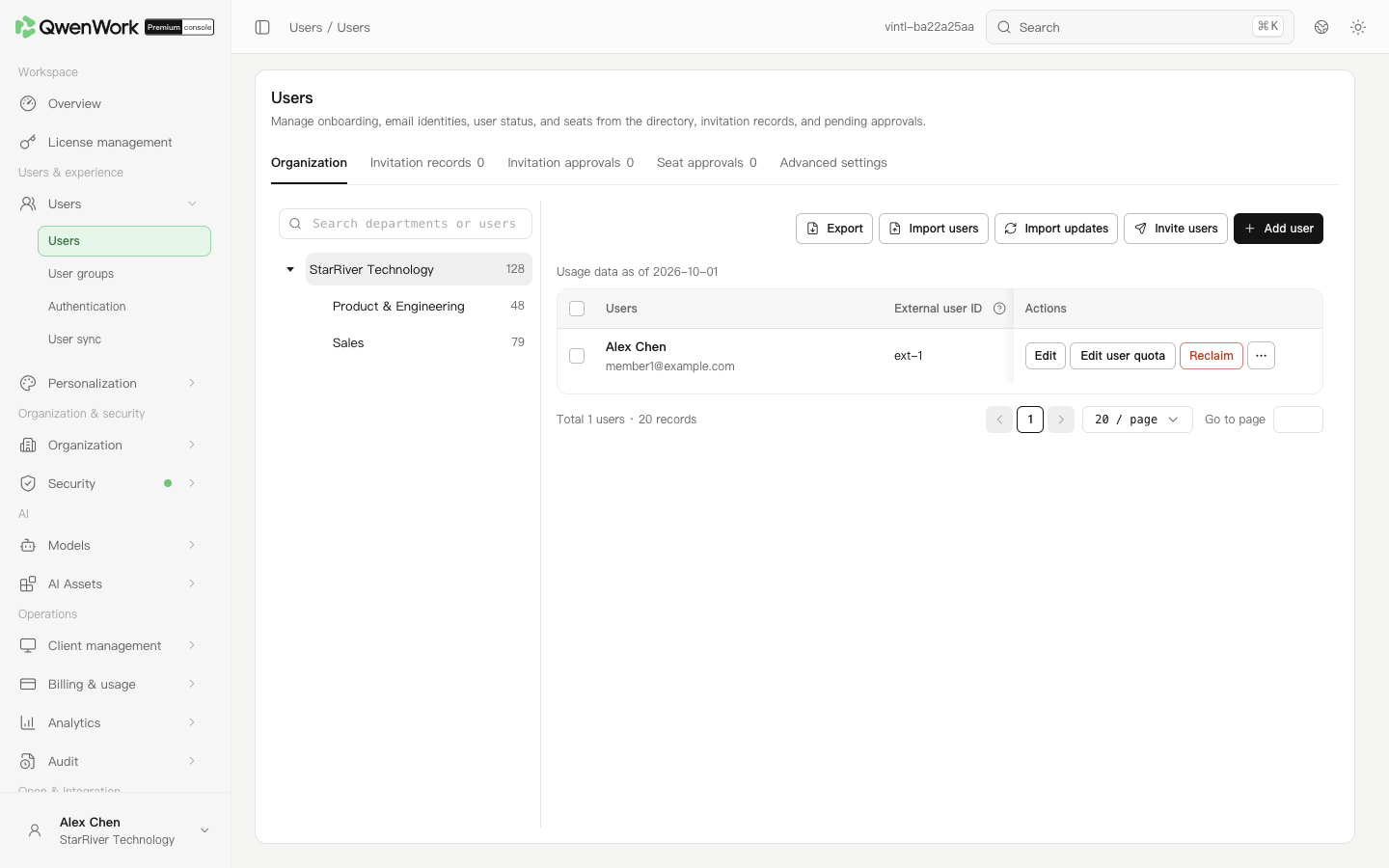 Admin console: select a department and review its users.
The department tree and user list scroll separately. Search, action controls, table headers, and pagination remain visible. Use the horizontal scrollbar at the bottom of the list for columns on the right. Enter a page number and press Enter or move focus away; zero opens the first page and a number above the total opens the last page. Changing departments, filters, or pages returns the list to the top. Closing the editor preserves your browsing position.
The console has a minimum width of 1280 pixels. In a narrower window, use the horizontal scrollbar at the bottom of the page. A short window may also require vertical page scrolling.
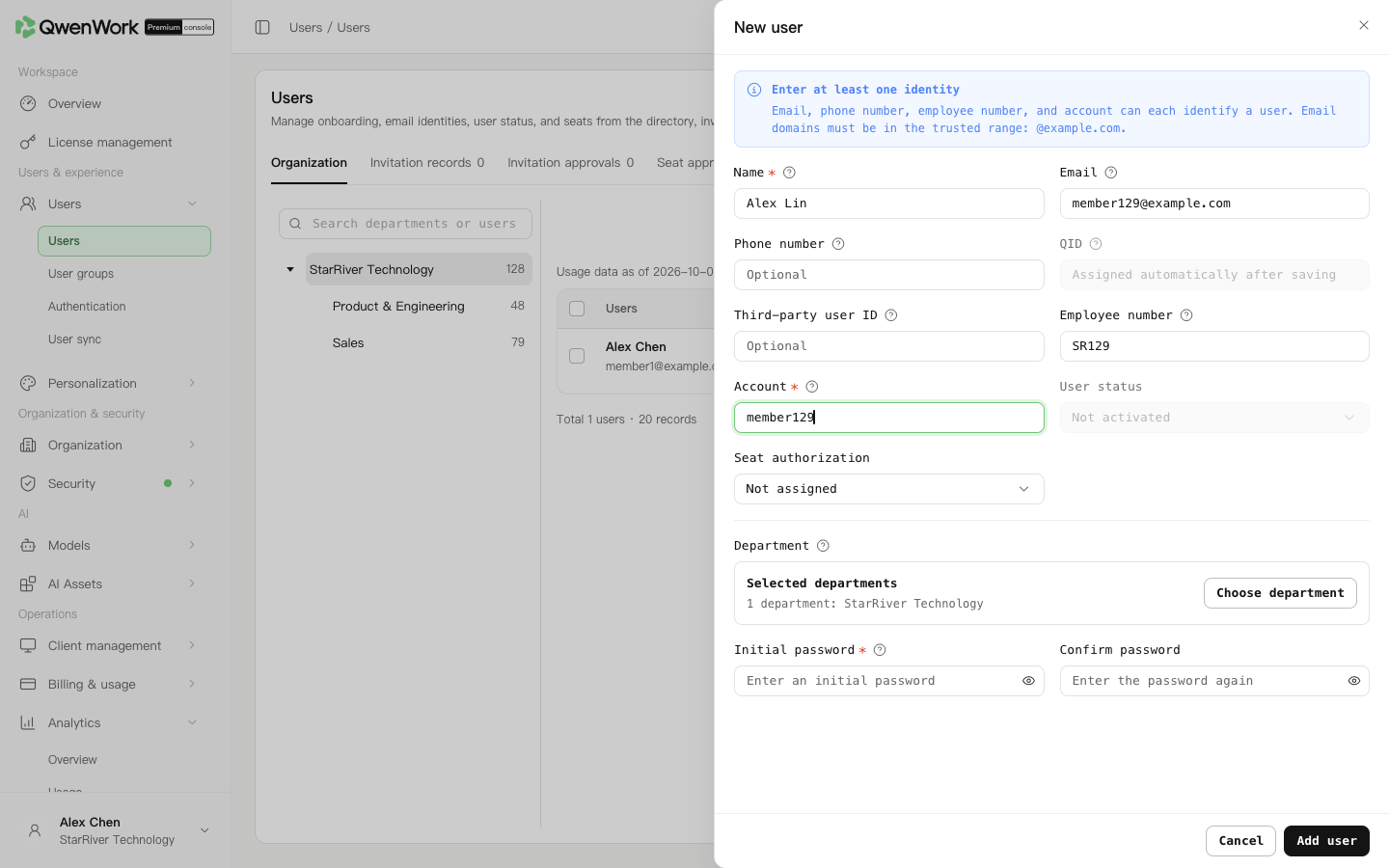 Admin console: enter the new user’s identity information.
A duplicate value causes the whole operation for that user to fail. In a batch, all related rows using the same non-empty unique value fail.
Find the user in Organization. Assign a seat to an unassigned user or click Reclaim for an assigned user. For a batch, select the users and use the batch action. Reclaiming a seat affects access to enterprise services, so check the users first.
Enable seat requests in Seat approvals if users without seats should be able to apply from the post-sign-in prompt. Review the reason, account status, and remaining seats before approving and assigning, or rejecting. Status tabs show processed requests.
The user's More menu provides the available account actions. An inactive user cannot sign in. If status is mapped from the enabled sync source, change it at the source.
Deletion is logical: the previous record and history remain, while directly held seats, credentials, and sessions are reclaimed. The user cannot continue signing in and disappears from the list. Account, email, phone, and employee number values are released for reuse.
The list shows users that have not been deleted, without a deleted-user filter or detail entry. While User sync is enabled, deletion is controlled by the source. Disable sync before a manual deletion.
Deletion does not restore the previous QID or profile later. If sync receives the same external user ID again, it creates a new user and QID from the current source data and applies new-user seat rules. Previous history remains. Identity values already held by another current user cause that sync item to fail; correct the source data or mapping and sync again. SSO recreation also requires automatic user creation to be enabled and the returned identity values to be conflict-free. See Users / User sync / User sync overview and Users / Authentication / Authentication overview.
Choose and save the auxiliary identification field in Advanced settings to change the identifier shown beside names. This setting helps administrators recognize users and does not change sign-in methods.
Phone and employee number uniqueness is checked when saved. If historical duplicates exist, confirm each user by QID and correct the records in the ordinary editor or sync source. Users are not merged automatically.
Ask the user to sign in through the enterprise entry and confirm an active account and assigned seat. Complete first-sign-in password creation if prompted. If sign-in still fails, record the time and user identifier, then check Audit / User activity.
Return to: Users / Users overview.
Confirm how users are maintained
Open Users → Users and select Organization.
When User sync is enabled, manual user creation, invitations, new-user imports, and deletion are disabled across the organization. Import updates remains available.
- For a user managed by the currently enabled source, the source owns the name, email, account, phone number, external user ID, and employee number. Department and status are locked only when mapped.
- Users belonging to other sources can be edited according to your permissions.
Find and edit a user
The department tree and user list scroll separately. Search, action controls, table headers, and pagination remain visible. Use the horizontal scrollbar at the bottom of the list for columns on the right. Enter a page number and press Enter or move focus away; zero opens the first page and a number above the total opens the last page. Changing departments, filters, or pages returns the list to the top. Closing the editor preserves your browsing position.
The console has a minimum width of 1280 pixels. In a narrower window, use the horizontal scrollbar at the bottom of the page. A short window may also require vertical page scrolling.
- Search for a user or department, or expand the tree and select a department.
- Check the account, email, phone, employee number, or external user ID. Use the QID in the editor or exported file when necessary to confirm the user.
- Click Edit and check the current management source. An enabled source locks the six identity fields above; mapped department and status fields are also locked. A disabled source, a user no longer managed by that source, or removal of the department or status mapping restores editing of the affected fields. Users without a source are maintained under ordinary permissions.
- Save, search again, and check the name, departments, and changed values. A user may belong to several departments; inspect the complete set.
Add users manually or by import
Add a user
- Confirm User sync is disabled. Select the department and click Add user.
- Enter a name and at least one of account, email, phone number, or employee number. An external user ID does not satisfy this requirement.
- If account-and-password sign-in is enabled, enter both an account and an initial password. Otherwise, a password is optional; entering a password still requires an account.
Check unique identifiers
| Field | Uniqueness rule |
|---|---|
| Account, email, phone, employee number | Each is unique among users that have not been deleted. Inactive users still occupy these values. |
| External user ID | Unique among users that have not been deleted. Sync or SSO may reuse an ID from deleted history, creating a new record and QID. |
Import new users or update users
- Choose Import users for new users or Import updates for existing users.
- Download the current template, fill it in, and upload it. Updates identify existing users by QID, rather than their name, employee number, or external user ID.
- When changing departments, provide the complete set to retain. Omitting a department may remove that membership.
- Review the import result, correct failed rows, and resubmit. An uploaded file does not mean every row succeeded.
Invite users
- Confirm User sync is disabled, choose a department, and click Invite users.
- Choose the default department, enable its invitation, and confirm. Copy the invitation link or download its QR code for the invited users. Check the displayed expiry. Users must verify an identity email in a trusted domain.
- In Invitation records, search by department or initiator, check expiry, and open the details to review application results.
- In Invitation approvals, verify the applicant and invitation source before deciding.
| Decision | Result |
|---|---|
| Approve and assign a seat | Adds the user and assigns a seat; a free seat is required |
| Approve only | Adds the user; assign a seat separately afterward |
| Reject | Rejects the application; enter a reason if requested |