
A user group brings together users who need the same policy, such as an AI pilot group.
A user group brings together users who need the same policy, such as an AI pilot group. It can span departments without changing the users' department memberships.
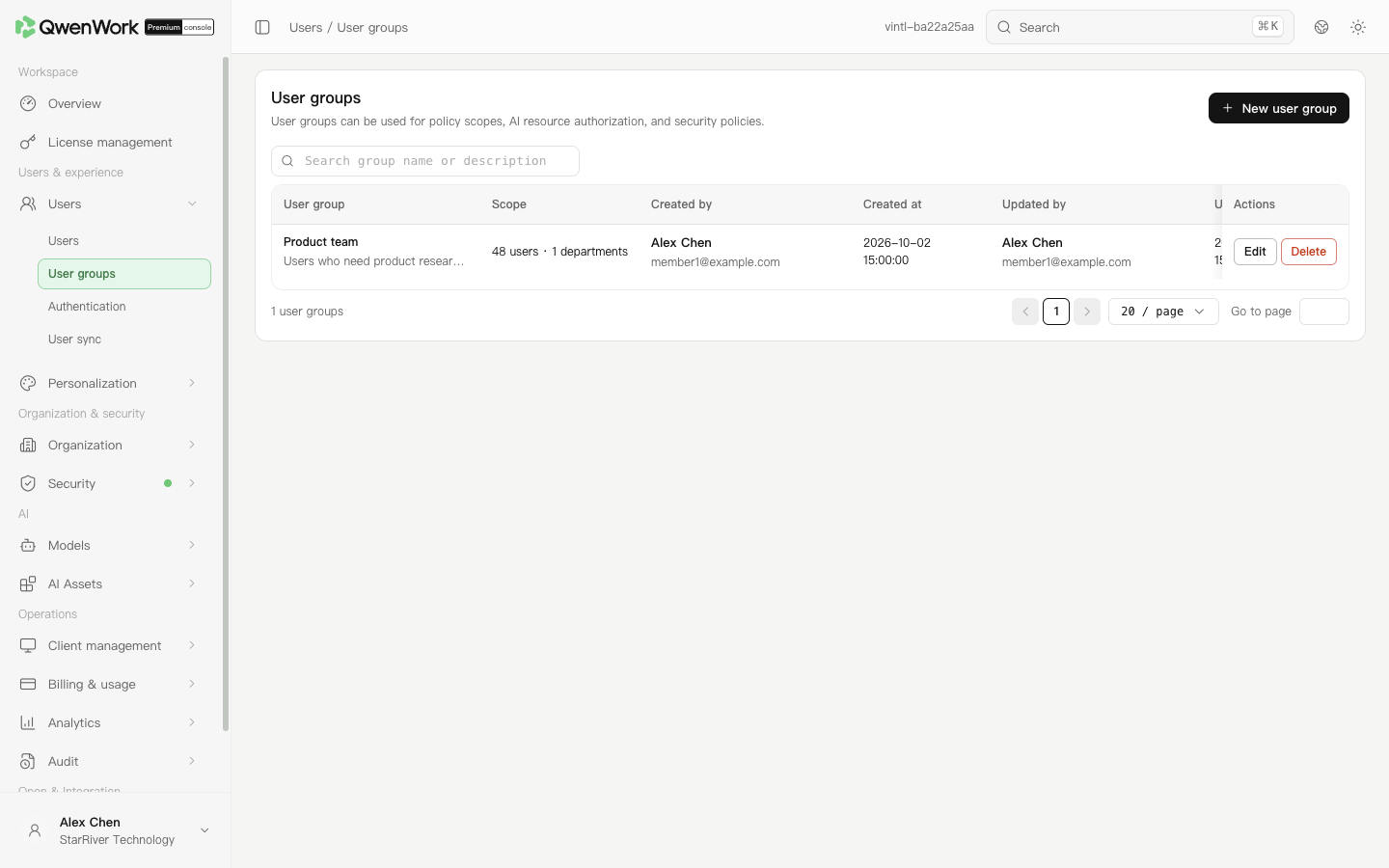 Admin console: user-group scope and maintenance information.
When configuring model, resource-access, quota, or device policies, choose user groups in the scope selector and select the group. After saving, ask a user in the group to check the result. Model and device policies also provide a policy-match check.
Search for the group, open Edit, add or remove members, and save. Membership changes may change the policies applied to those users. Recheck representative users afterward.
Before deleting a group, inspect policies that use it. Deleting the group does not delete enterprise users. Recheck policy scopes so users keep the intended configuration and do not unexpectedly fall back to a default policy.
Return to: Users / Users overview.
Create a user group
- Open Users → User groups and click New user group.
- Enter a name and description that explain its purpose, such as a contract-review pilot for the legal team.
- In the membership section, select users or departments, check the selected scope, and save the user group.
- Check the name and scope in the list. Open Edit to verify its membership.