
Authentication configures how enterprise users sign in to QwenWork: account and password, email verification code, or enterprise SSO (single sign-on).
Authentication configures how enterprise users sign in to QwenWork: account and password, email verification code, or enterprise SSO (single sign-on). It also manages trusted email domains, SSO providers, and user mappings. SSO and directory sync are configured separately; enabling SSO does not import the entire directory.
Open Users → Authentication. The tabs are Sign-in methods, Trusted e-mail domains, and SSO login.
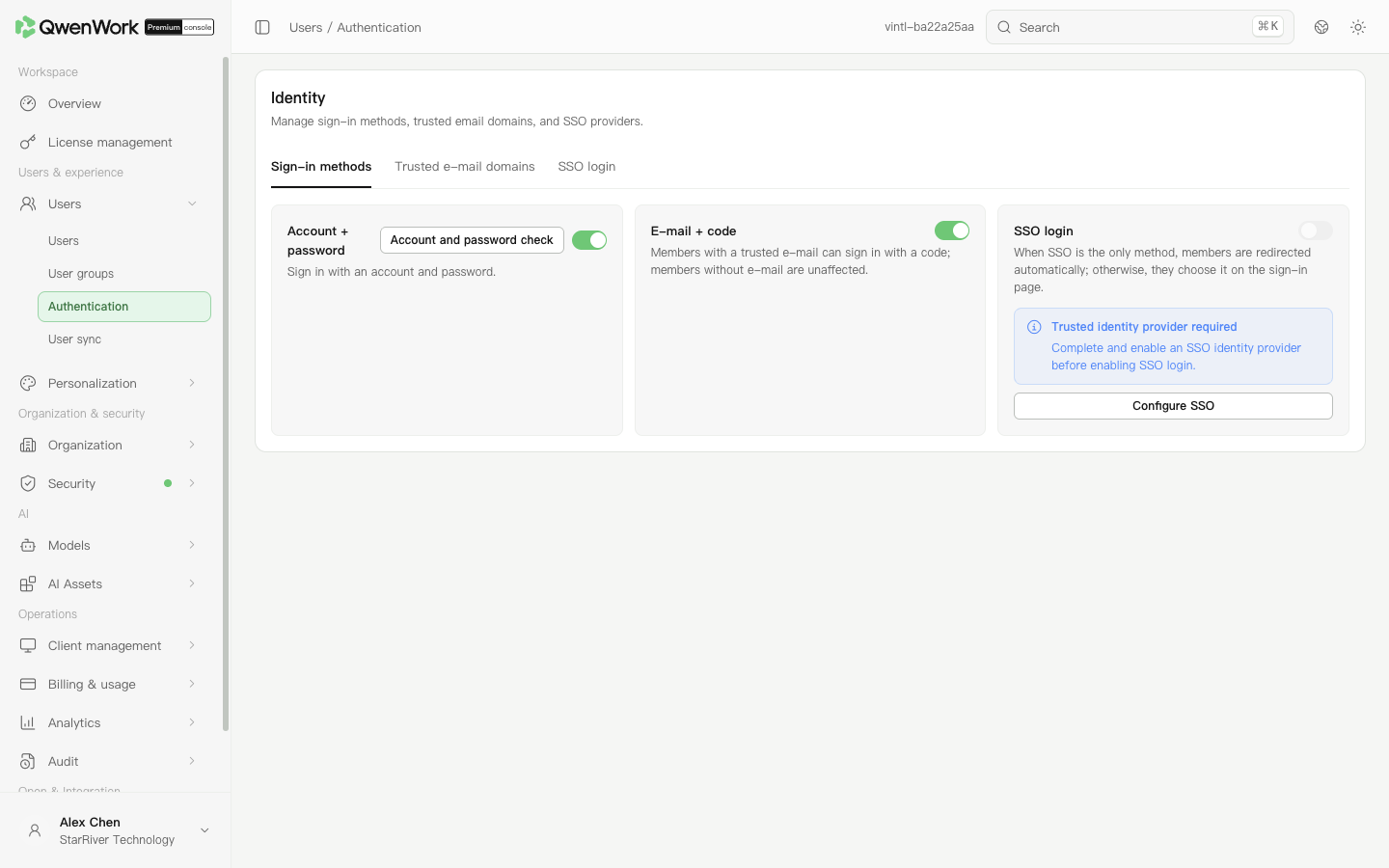 Admin console: available sign-in methods and their prerequisites.
Users with a trusted email address can sign in with an email code. SSO requires a complete, enabled provider first. When SSO is the only method, users are redirected to the enterprise identity platform. When other methods are available, users choose on the sign-in page.
Admin console: available sign-in methods and their prerequisites.
Users with a trusted email address can sign in with an email code. SSO requires a complete, enabled provider first. When SSO is the only method, users are redirected to the enterprise identity platform. When other methods are available, users choose on the sign-in page.
Use Account and password check at any time to inspect users that have not been deleted, including administrators and inactive users. Download missing-account or missing-password records and open import updates to complete them. The check and export do not change sign-in switches.
The enterprise identity platform verifies the user and returns the result to QwenWork. Each provider has its own app, credentials, and mappings.
To configure mappings:
Prepare the app and callback information, save the user mappings, optionally diagnose the configuration, enable the provider, enable SSO sign-in, and test with an ordinary user.
A connection test checks whether the service can obtain the vendor's access token with the credentials. Configuration validation checks the configuration and token-endpoint response. Neither verifies the callback, permissions, user scope, mappings, automatic creation, or complete sign-in. Verify delivery with an ordinary user's actual sign-in. Only one SSO provider can be active at a time; check the provider named in the switch confirmation.
Automatic creation requires successful authentication, no existing external user ID match, and no account, email, phone, or employee-number conflicts. Choose a default department and decide whether to assign a seat. Review Auto-created user records afterward.
SSO looks up users by external user ID only.
A new account uses the current returned profile, default department, and seat policy. It does not inherit old roles, passwords, seats, or departments. Old history remains.
A user must create a password after the first authentication when all three conditions hold: account-and-password sign-in is enabled, an issued initial password is still initial, and the user has never completed sign-in. This also applies when the authentication itself uses an email code or SSO.
Sync and SSO user creation do not issue a local initial password automatically. A user without an issued local password cannot use password sign-in. A user who already completed sign-in is not asked to create a password merely because password sign-in is enabled later.
Check account status and seats first, then the allowed methods and active provider. For SSO, use its tutorial to check callbacks, certificates, permissions, and mappings. Record the time and user identifier and inspect Audit / User activity.
Configure sign-in methods
- In Sign-in methods, choose the methods to offer: account and password, email code, or SSO.
- When enabling Account + password, review the confirmation's account check. It covers every user that has not been deleted, including administrators and inactive users. Sign-in uses the account field.
- Download the Excel of users missing accounts or usable passwords, complete their information, and use Users → Import updates. Opening import updates closes the check; the sign-in switch keeps its previous value.
- Confirm to enable the method. Users with missing information can use it only after their records are completed. Cancel preserves the switch. Keep at least one available sign-in method.
Check accounts
Use Account and password check at any time to inspect users that have not been deleted, including administrators and inactive users. Download missing-account or missing-password records and open import updates to complete them. The check and export do not change sign-in switches.
Maintain trusted email domains
- Open Trusted e-mail domains and add a trusted domain.
- Enter a domain such as
example.com, without an email account,@, protocol, or URL path. - Save and check its domain and status in the list. Use Edit to change an entry.
- Make sure users' email addresses belong to the allowed domains. In the desktop app's Premium sign-in configuration, a verified email domain is used to obtain the enterprise service address.
Configure enterprise SSO
The enterprise identity platform verifies the user and returns the result to QwenWork. Each provider has its own app, credentials, and mappings.
To configure mappings:
- Use Add mapping to choose a target field. The new row includes its preset source.
- Check the source on the left; the QwenWork target is fixed. OAuth2 accepts a UserInfo dot path. SAML2 accepts NameID or an Attribute Name.
- Keep external user ID and user name, and map at least one of email, phone, employee number, or account. Optional mappings can be removed and added again.
- Save the configuration. Fixed platforms offer a connection test; generic protocols offer configuration validation. These optional diagnostics are not prerequisites for saving or enabling.
| Identity platform | Article |
|---|---|
| DingTalk internal enterprise app | Users / Authentication / DingTalk SSO |
| Feishu custom enterprise app | Users / Authentication / Feishu SSO |
| OAuth2 authorization and UserInfo endpoints | Users / Authentication / OAuth 2.0 SSO |
| OIDC identity platform | Users / Authentication / OIDC SSO |
| Microsoft Entra enterprise app | Users / Authentication / Microsoft Entra ID SSO |
| SAML metadata or assertions | Users / Authentication / SAML 2.0 SSO |
How existing users are matched
SSO looks up users by external user ID only.
| Situation | Result |
|---|---|
| A current user matches and identity fields have no conflicts | Sign-in succeeds; existing profile and sync source remain |
| An identity field identifies another user | Sign-in fails |
| A new user is created | No continuing sync source is assigned; a later sync takeover determines locked fields |
| Only deleted history matches the external user ID | The old QID is not restored. Sign-in fails with automatic creation off; with it on and conflict-free data, a new user and QID are created |
First-sign-in password creation
A user must create a password after the first authentication when all three conditions hold: account-and-password sign-in is enabled, an issued initial password is still initial, and the user has never completed sign-in. This also applies when the authentication itself uses an email code or SSO.
Sync and SSO user creation do not issue a local initial password automatically. A user without an issued local password cannot use password sign-in. A user who already completed sign-in is not asked to create a password merely because password sign-in is enabled later.
- Authenticate using an allowed enterprise method.
- On the password-creation page, enter and confirm a password of 8–1024 characters containing uppercase letters, lowercase letters, and digits. Special characters are optional; spaces are not allowed.
- Create the password and enter QwenWork.
Investigate sign-in failures
Check account status and seats first, then the allowed methods and active provider. For SSO, use its tutorial to check callbacks, certificates, permissions, and mappings. Record the time and user identifier and inspect Audit / User activity.
Provider tutorials
- Users / Authentication / DingTalk SSO
- Users / Authentication / Feishu SSO
- Users / Authentication / OAuth 2.0 SSO
- Users / Authentication / OIDC SSO
- Users / Authentication / Microsoft Entra ID SSO
- Users / Authentication / SAML 2.0 SSO