
Microsoft Entra ID SSO lets users sign in with an enterprise Microsoft identity.
Microsoft Entra ID SSO lets users sign in with an enterprise Microsoft identity. This guide uses SAML in an Entra enterprise app. The QwenWork provider type is still named Azure AD, Entra ID's previous name. This is separate from Entra directory sync using a Client Secret and Microsoft Graph.
You need enterprise-app permissions in Entra and Authentication permissions in QwenWork. Use the tenant for your actual Microsoft global or China-operated service.
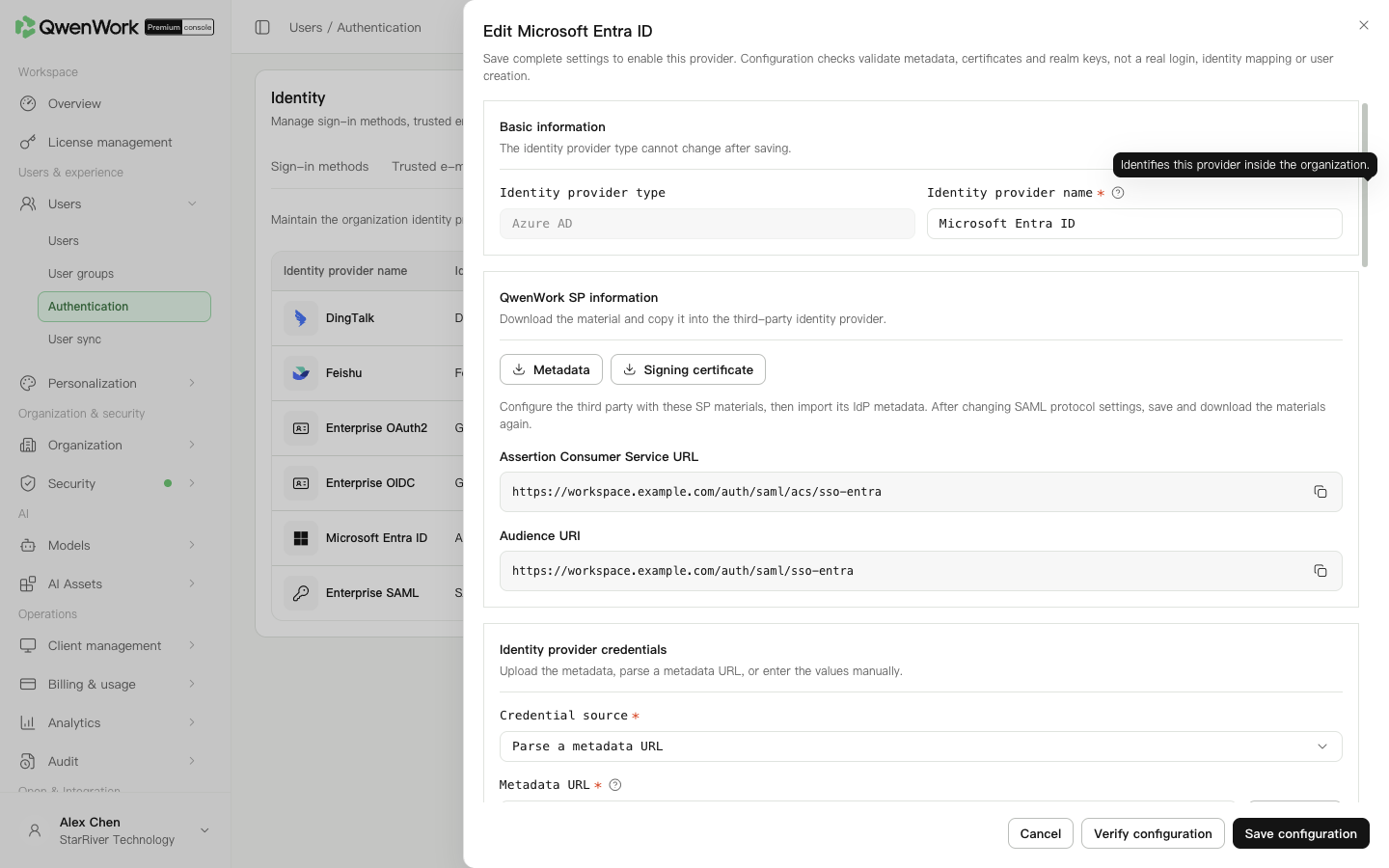 Admin console: Entra metadata and SAML provider settings.
After rotating an Entra signing certificate, parse metadata again, save, and complete an ordinary user sign-in. Use validation if needed. Plan rotation before expiry.
SSO matches current users by external user ID only. A conflict-free match keeps the profile and sync source. Other identity fields conflicting with another user reject sign-in. Unmatched IDs follow automatic creation.
Deleted history does not restore the old QID. With automatic creation off, sign-in fails; with it on and conflict-free current data, a new user and QID use the returned profile, current department, and seat policy. Old roles, passwords, seats, and departments are not inherited; history remains.
QwenWork always verifies IdP signatures. Requiring an Assertion signature means the assertion itself must be signed. With that option off, a valid Response or Assertion signature is accepted; verification remains enabled.
Match request-signature algorithm, NameIDFormat, and response binding to Entra. After changing SP Entity ID or protocol settings, save, download fresh SP metadata, and update Entra's trust.
For department and user sync, configure the separate Microsoft Graph app, tenant, and permissions described in Users / User sync / Microsoft Entra ID user sync.
Return to: Users / Authentication / Authentication overview.
Prepare the enterprise app
You need enterprise-app permissions in Entra and Authentication permissions in QwenWork. Use the tenant for your actual Microsoft global or China-operated service.
- In the Microsoft Entra admin center, open Entra ID → Enterprise applications.
- Create an enterprise app for QwenWork or open the existing dedicated app.
- Choose SAML under Single sign-on.
- Keep the page open while obtaining QwenWork's service-provider (SP) information below.
Register QwenWork SP information
- In Users → Authentication → SSO login, add an Azure AD provider.
- Enter its name, create and continue, then copy Audience URI and Assertion Consumer Service URL from QwenWork SP information.
- Put them in Entra's Identifier (Entity ID) and Reply URL (Assertion Consumer Service URL), respectively, and save.
- If Entra requires signed requests, download QwenWork's signing certificate and import it into the request-signature verification settings. The SP signing certificate and IdP signing certificate serve different directions.
Import Entra metadata
- In the app's SAML certificates section, copy App Federation Metadata URL.
- Enter it in QwenWork's Metadata URL and parse it.
- Check the parsed IdP identifier, sign-in URL, and signing certificate against the tenant. For the China service, use its actual metadata addresses.
Map claims, assign users, and test
- In Entra Attributes and claims, check the unique user ID, name, and email. QwenWork defaults include
objectidentifier,name, andemailaddress. - Check the external ID, name, and email mappings in QwenWork. Name and email use the name and emailaddress claims by default. Confirm actual values in Entra if the desired display name differs. Add mappings by target; targets remain fixed, and optional rows can be removed and added again.
- Assign the test user in Entra Users and groups. A correctly configured SAML app still requires user access.
- Choose whether to create users automatically. If enabled, select the default department and seat option.
- Save once metadata, SP information, and required mappings are complete.
- Optionally validate metadata, certificates, and protocol fields. This does not verify Entra's ACS setting, user assignment, returned claims, mappings, creation, or complete sign-in.
- Enable the provider and then SSO sign-in.
- Test an ordinary user through the QwenWork enterprise entry. Check identity and enterprise membership, and check Entra sign-in logs for the expected app.
Rotate certificates and troubleshoot
| Issue | Action |
|---|---|
| Reply URL mismatch | Compare Entra's saved ACS URL with QwenWork's current value |
| User not assigned | Assign the user and confirm the tenant |
| Metadata parses but signature fails | Check certificate validity, activation, and rotation timing |
| Incorrect name or email | Compare actual SAML claims with mappings |