
Use OAuth2 when your enterprise identity system provides authorization-code sign-in and a user-information endpoint.
Use OAuth2 when your enterprise identity system provides authorization-code sign-in and a user-information endpoint. Configure the same app's credentials, three endpoints, and user fields in QwenWork, then register the generated callback with the identity system.
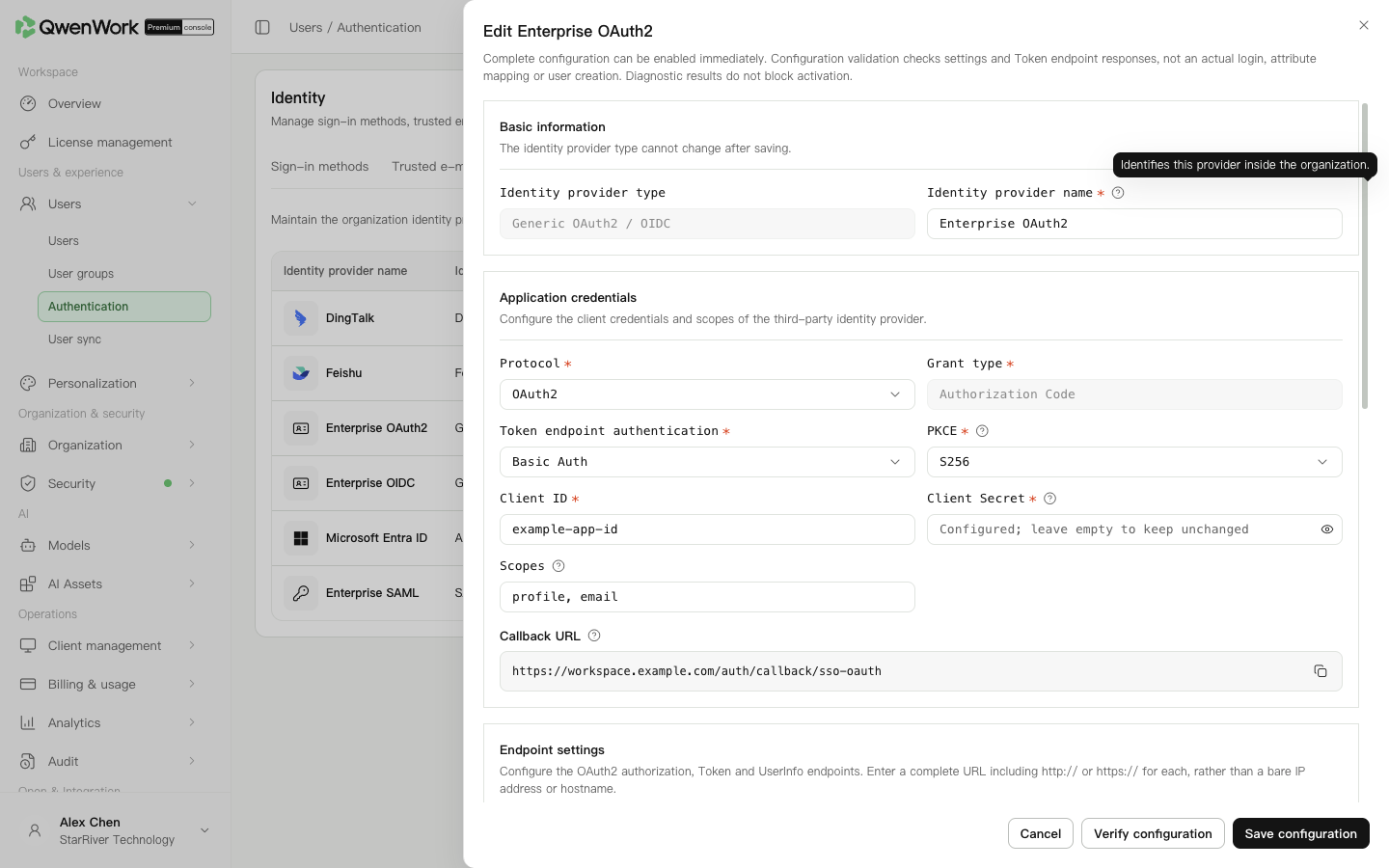 Admin console: OAuth2 credentials and endpoint settings.
Token-endpoint authentication carries app credentials. UserInfo token transport carries the access token obtained after sign-in. Configure each independently.
Admin console: OAuth2 credentials and endpoint settings.
Token-endpoint authentication carries app credentials. UserInfo token transport carries the access token obtained after sign-in. Configure each independently.
SSO looks up current users by external user ID only. A conflict-free match signs in and keeps the existing profile and sync source. Conflicts in account, email, phone, or employee number reject sign-in. An unmatched ID follows the automatic-creation setting.
If only deleted history matches, the old QID is not restored. Automatic creation off rejects sign-in; automatic creation on with conflict-free current data creates a new user and QID. The returned profile, default department, and current seat policy apply. Old roles, passwords, seats, and departments are not inherited; history remains.
Return to: Users / Authentication / Authentication overview.
Obtain the identity-system settings
| Setting | Purpose |
|---|---|
| Client ID and Client Secret | Identify and authenticate the app |
| Authorization endpoint | Opens user sign-in and authorization |
| Token endpoint | Exchanges the authorization code for an access token |
| UserInfo endpoint | Reads the authenticated user's profile |
| Scopes, token authentication, and PKCE | Must match the identity app |
| Sanitized UserInfo JSON | Identifies the actual ID, name, email, and other paths |
Enter credentials and endpoints
- Open Users → Authentication → SSO login and click Add identity provider.
- Select Generic OAuth2 / OIDC, enter a name, and set the protocol to OAuth2.
- Enter Client ID, Client Secret, and the required scopes. OAuth2 does not require an
openidscope. - Select token-endpoint authentication: Basic Auth sends app credentials in the header; Form Post sends them in the form. Set PKCE to S256 or disabled as required by the identity platform.
- Select how the UserInfo request carries its access token, and enter the authorization, token, and UserInfo endpoints.
Map the returned user fields
- Enter source names or dot paths in the mapping section. The input handles the
user.prefix; do not repeat it. - For a response such as
{"profile":{"id":"u123","name":"Alex Chen"},"email":"alex@example.com"}, useprofile.id,profile.name, andemail. - Choose a stable, unique external user ID, rather than a name that can change or be duplicated.
- Keep ID and name mappings and at least one of email, phone, employee number, or account. Paths are case-sensitive; array indexes and scripts are unsupported.
- For first-sign-in account creation, enable automatic creation and select a default department. Enable automatic seat assignment if required.
Save and register the callback
- Save the provider; its callback is generated after creation.
- Reopen it and copy the complete callback.
- Register that URL in the same identity app's allowed callbacks and save.
- Enable the provider, then enable SSO in Sign-in methods. Only one provider can be active.
- Ask an ordinary user to complete sign-in and verify the enterprise, account association, and returned profile.
Diagnose the failing stage
| Stage | Check first |
|---|---|
| Sign-in page cannot open | Authorization endpoint and identity-app status |
| Cannot return after authorization | Complete callback registered in the same app |
| Token exchange fails | Credentials, Basic Auth/Form Post, and PKCE |
| Profile retrieval fails | UserInfo URL, token transport, and scopes |
| Association or automatic creation fails | Unique ID, actual profile values, default department, and conflicts |