
DingTalk SSO lets enterprise users sign in to QwenWork Premium with their DingTalk identity.
DingTalk SSO lets enterprise users sign in to QwenWork Premium with their DingTalk identity. Configure the app credentials in QwenWork, copy its callback URL, and register that URL in the same DingTalk app. Credentials alone do not provide a working return from DingTalk authentication.
Use a DingTalk internal enterprise app and administrator access to both platforms. Keep credentials, callback settings, permissions, and user scope in the same app.
Request additional profile permissions for phone, enterprise email, employee number, or enterprise account mappings. Follow the current DingTalk permission labels and publish the changes. Keep the secret in your enterprise credential store.
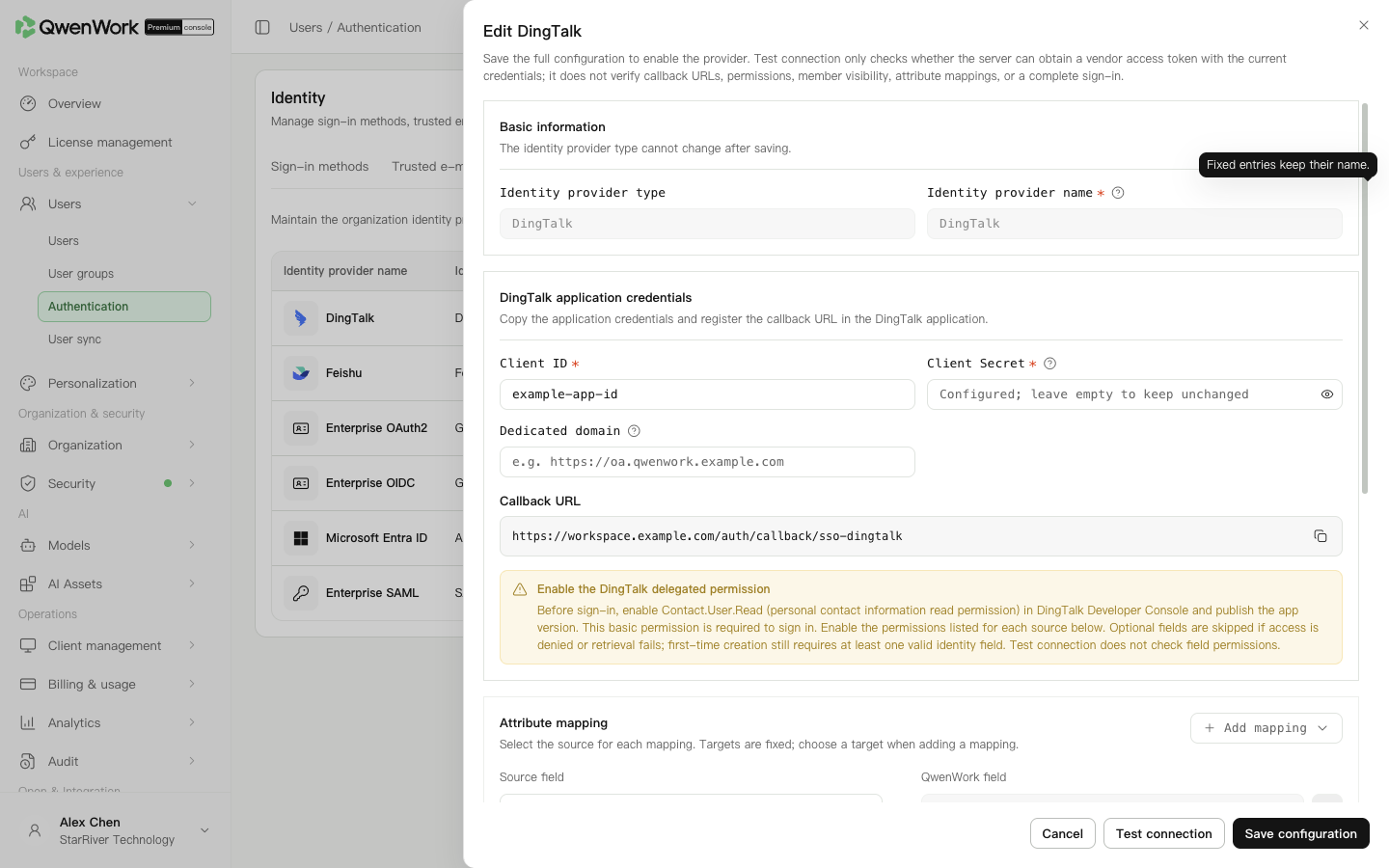 Admin console: DingTalk credentials, callback URL, and identity mappings.
The default email source user.directory.email has a value only when the member’s enterprise mailbox is available in the provider response. Keep external user ID and name. Map at least one of email, phone, employee number, or account; automatic creation also requires at least one non-empty returned value. Select supported source fields and check the returned profile before changing them. The target fields remain fixed.
Use the same DingTalk
Leave automatic creation off when users already come from sync or import. To create users at first sign-in, enable it and choose a default department. Automatic seat assignment is available only with automatic creation enabled.
SSO matches current users by external user ID only. A match with no other identity conflicts signs in and keeps the existing profile and sync source. Conflicting account, email, phone, or employee-number values reject sign-in.
If the ID occurs only in deleted history, the old QID is not restored. With automatic creation off, sign-in fails. With it on and conflict-free current data, a new user and QID are created using the returned profile, current default department, and seat policy. Old roles, passwords, seats, and departments are not inherited; history remains.
Return to: Users / Authentication / Authentication overview.
Prepare the app and permissions
Use a DingTalk internal enterprise app and administrator access to both platforms. Keep credentials, callback settings, permissions, and user scope in the same app.
| Item | Source and purpose |
|---|---|
| Client ID (AppKey) | DingTalk credentials and basic information; identifies the app |
| Client Secret (AppSecret) | The same app's credentials; used to call DingTalk |
Contact.User.Read | Permission management; reads the signed-in user's personal information |
| Directory member information permission | Reads the default userid and directory profile |
| Redirect URL | Copy from the QwenWork DingTalk provider; returns authentication to QwenWork |
| App visibility and published version | Allows the intended users to use the app |
Create and authorize the DingTalk app
- Sign in to the DingTalk developer platform and confirm the enterprise.
- Open App development → Internal enterprise development and create or open the dedicated sign-in app.
- Obtain its Client ID and Client Secret securely.
- Enable
Contact.User.Readand directory member information access. Add the profile permissions required by your mappings. - Include the intended users in the app's visible scope and publish the app in version management.
Save the QwenWork provider
- Open Users → Authentication → SSO login and configure or edit DingTalk.
- Enter the app's Client ID and Client Secret. Leaving the secret blank when editing preserves the saved secret.
- Leave Dedicated domain blank for ordinary DingTalk enterprises. For a dedicated environment, obtain its actual address from the enterprise administrator.
- Copy the callback URL for registration below.
- Complete the mappings and automatic-creation settings, then save the configuration.
Register the callback in DingTalk
- Return to the same app and open App → Security settings.
- Find the Redirect URL setting.
- Paste the complete URL copied from QwenWork and save. Use the callback rather than the app home page or the screenshot's sample value.
- If DingTalk requires publication after the change, publish in version management before testing sign-in.
Check identity mappings
| QwenWork field | New-provider default |
|---|---|
| External user ID | user.userid |
| User name | user.name |
user.directory.email |
userid for SSO and directory sync. Identity values such as email and account are checked for conflicts and do not merge users.
Decide whether to create users automatically
Leave automatic creation off when users already come from sync or import. To create users at first sign-in, enable it and choose a default department. Automatic seat assignment is available only with automatic creation enabled.
Enable and verify sign-in
- Save a complete configuration.
- Optionally test the connection to check token retrieval. This does not check callbacks, profile permissions, visibility, returned fields, or complete sign-in.
- Enable the DingTalk provider. Only one SSO provider can be active.
- In Sign-in methods, enable SSO login separately.
- Ask an ordinary user to sign in and check the returned enterprise, identity, departments, and seat.
- With automatic creation enabled, check that Auto-created user records contains one correct record.
Troubleshooting
| Symptom | Check |
|---|---|
| Invalid callback | Copy the complete URL again and compare its protocol, domain, and path with the saved redirect |
| Authentication succeeds but does not return | Check for an app-home URL entered as the redirect, or unpublished changes |
| Administrator succeeds but ordinary users fail | Check app visibility, publication, and enterprise membership |
| User not found | Compare user.userid with the user's external ID and check automatic creation |
| Automatic creation fails | Check the default department and a mapped, non-empty identity value |
| Missing email, phone, or employee number | Check profile permissions and the member profile; token retrieval does not prove profile access |