
SAML 2.0 lets the enterprise identity provider (IdP) authenticate users for QwenWork.
SAML 2.0 lets the enterprise identity provider (IdP) authenticate users for QwenWork. Both sides establish trust: QwenWork provides service-provider (SP) information, and the IdP provides identity metadata. Register the SP information in the identity platform before importing its metadata into QwenWork.
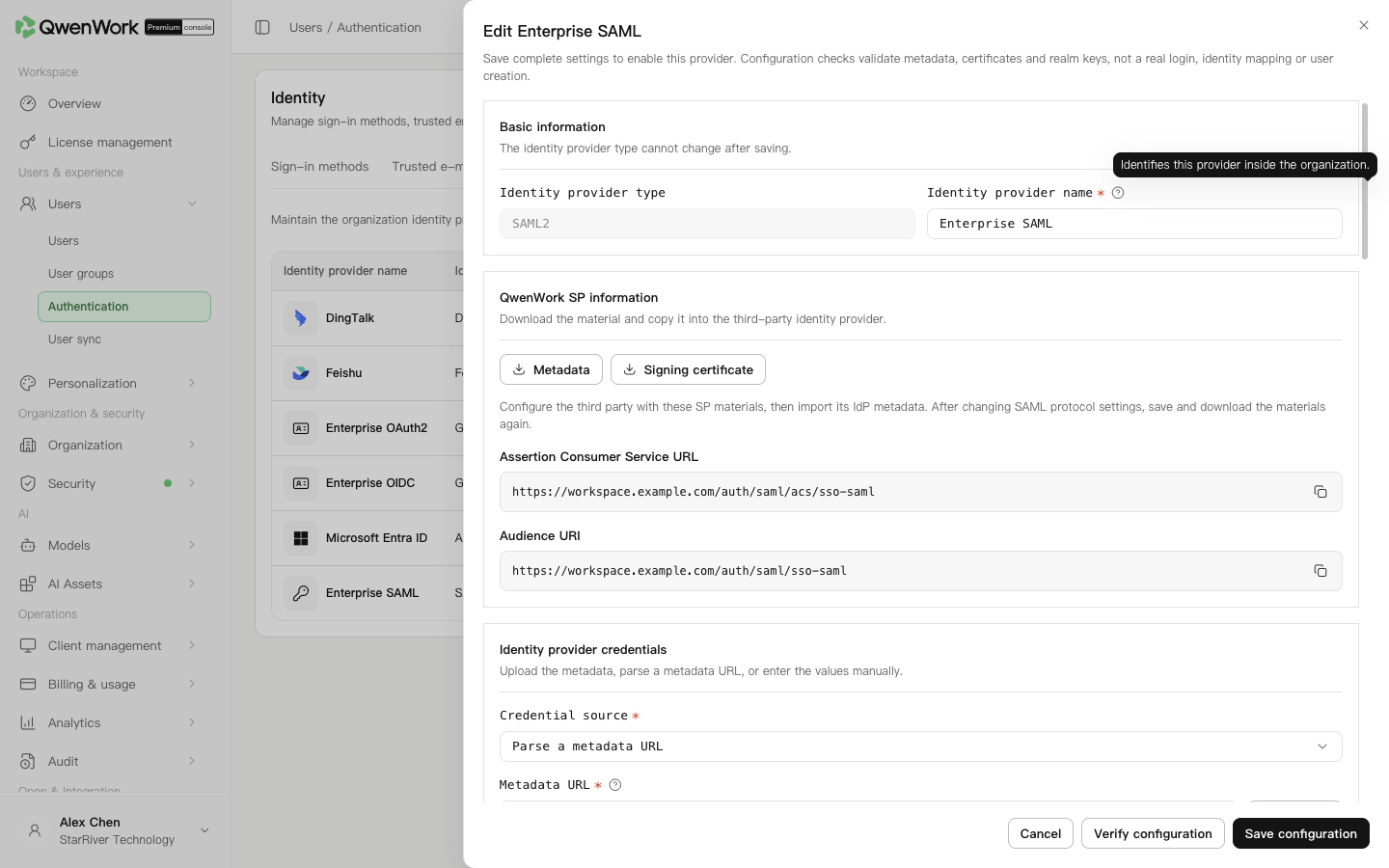 Admin console: SP information and identity-provider configuration.
Choose a metadata file, Metadata URL, or manual entry under provider credentials. Check the imported IdP identifier, sign-in address, and signing certificate. Request binding controls transport; SAML request signing and its algorithm control how QwenWork signs requests. Match the IdP requirements.
QwenWork always verifies IdP signatures. With Require Assertion signature enabled, the assertion must carry a valid signature. Otherwise, a valid Response or Assertion signature is accepted.
SSO matches current users by external user ID only. A conflict-free match keeps the existing profile and sync source. Returned account, email, phone, or employee-number values conflicting with another user reject sign-in. Unmatched IDs follow automatic creation.
An ID present only in deleted history does not restore the old QID. Sign-in fails with automatic creation off. With it on and conflict-free data, a new user and QID use the current returned profile, default department, and seat policy. Old roles, passwords, seats, and departments are not inherited; history remains.
Return to: Users / Authentication / Authentication overview.
Register QwenWork with the IdP
- Open Users → Authentication → SSO login, add a SAML2 provider, and enter a name.
- Create and continue to generate SP information. Copy Assertion Consumer Service URL, which receives sign-in results, and Audience URI, which identifies the service. Download metadata and the signing certificate if needed.
- Create a SAML app in the identity platform and register the reply URL and service ID. Import the downloaded metadata where supported.
- Assign the allowed users and obtain the IdP Metadata URL, metadata file, or manual Entity ID, SSO URL, and signing certificate.
Import IdP information
Choose a metadata file, Metadata URL, or manual entry under provider credentials. Check the imported IdP identifier, sign-in address, and signing certificate. Request binding controls transport; SAML request signing and its algorithm control how QwenWork signs requests. Match the IdP requirements.
Set signatures and user attributes
QwenWork always verifies IdP signatures. With Require Assertion signature enabled, the assertion must carry a valid signature. Otherwise, a valid Response or Assertion signature is accepted.
- Check NameIDFormat, response binding, signature KeyName, and whether SP metadata is signed.
- Map external user ID from NameID or the actual returned Attribute Name.
- Map name and other identity fields using actual attribute names. Plain names, URIs, and OIDs are supported; FriendlyName and XML paths are not.
- Keep ID and name and at least one of email, phone, employee number, or account. Changing the ID source may change account association; existing users are not migrated or merged automatically.
- Choose automatic creation, its default department, and optional seat assignment.
Save, enable, and verify
- Save the configuration and optionally validate metadata and certificates.
- Enable the provider and SSO sign-in.
- Sign in with an assigned ordinary user and check the account, name, and identity profile.