
User sync maintains departments, users, and memberships from an enterprise directory.
User sync maintains departments, users, and memberships from an enterprise directory. It finds users by external user ID and takes ownership of their mapped profiles after a successful write. The source policy governs joiners, department moves, and leavers. Sign-in methods are configured separately in Authentication.
Open Users → User sync and click Add data source.
Before configuration, decide which departments and users to include, which stable field identifies each user, and whether leavers are deactivated or deleted.
The source app must be able to read the complete intended hierarchy, including necessary parent departments. An incomplete source scope can hide valid users or break the department hierarchy. For staged onboarding, use the QwenWork specified-department-and-descendants policy while retaining complete source read access. Only one sync source can be active at a time. Check existing identity associations before switching.
Pull-source setup has credentials, field mappings, and sync policy steps. Test and next checks the connection. For a new source, success also saves the current draft. DingTalk, Feishu, and Entra test token exchange; AD and OpenLDAP test directory address and binding. The test does not enumerate users or departments or prove directory permissions and field correctness. SCIM instead receives requests at its Base URL.
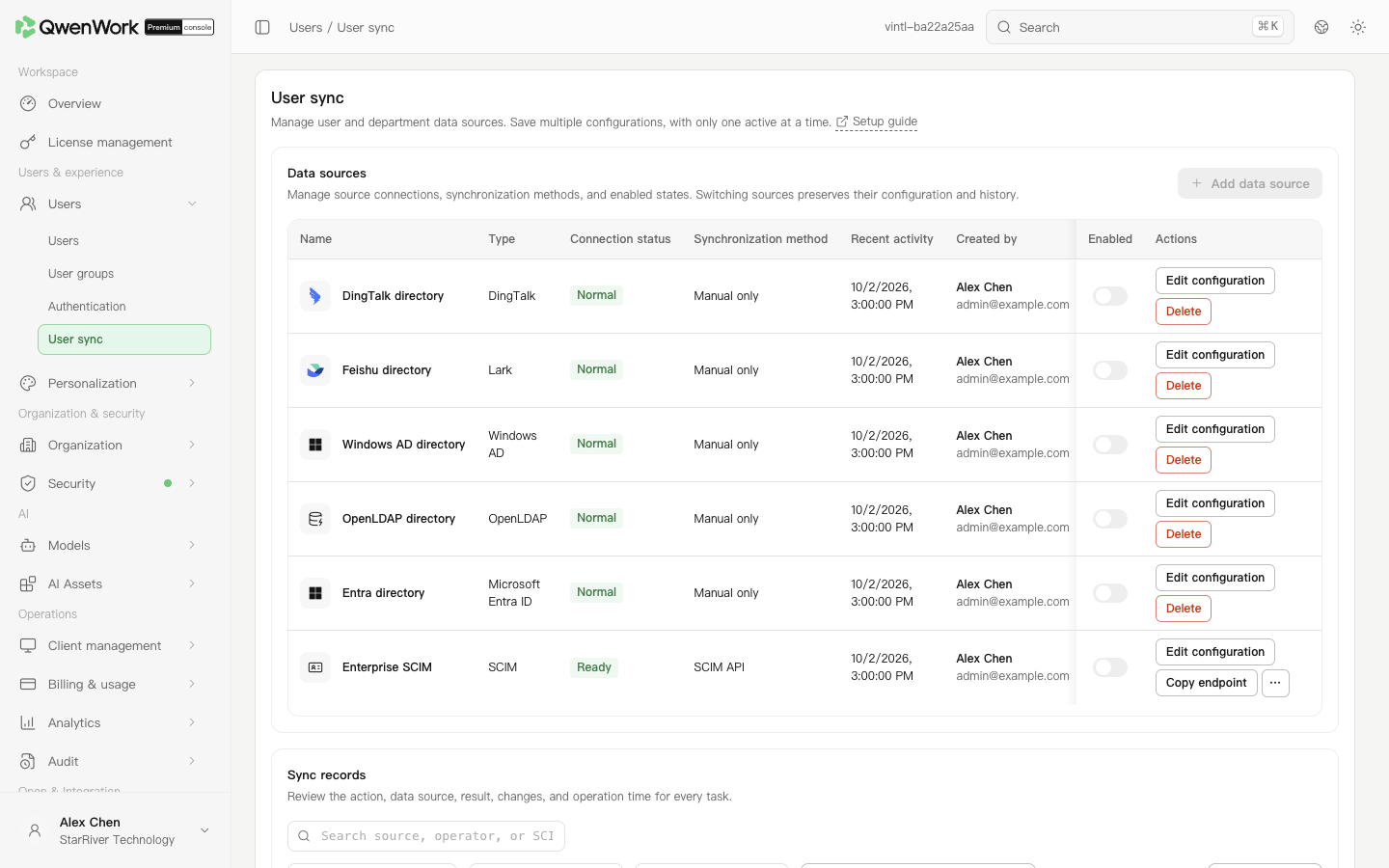 Admin console: directory sources and synchronization records.
Edit the source and recheck mappings and deletion policy. Reducing scope may remove previously synced users from it. A deletion threshold records an alert; sync continues under the configured policy without waiting for manual approval. Review the result.
Sync matches non-empty external user IDs globally. It does not claim existing users by account, email, phone, or employee number, or combine the source ID with the external user ID for matching. Each identity field is unique among users that have not been deleted, including inactive users.
For manually added or imported users, set the correct external ID on the existing record first. Preserve the original user instead of creating another record with the same email.
These locks apply when a user's management source is the currently enabled source. Other-source users remain editable according to permissions.
While sync is enabled, manual creation, invitations, new-user imports, and deletion are disabled organization-wide. Import updates remains available under these locks.
Deletion preserves old history but does not restore the old QID or profile. Account, email, phone, and employee-number values become reusable.
A new account does not inherit roles, passwords, user groups, administrator permissions, seats, or departments. Seats follow the current new-user policy; departments follow the new sync result.
SSO uses its own automatic-creation switch. SCIM cannot update a deleted User resource; the identity platform must create a new User, which receives a new QID. Neither restores the previous QID.
When switching from source A to B, B can update a current user using the same external ID, retaining its QID and taking ownership. A deleted user is recreated by the long-term source. Deleting and recreating a source assigns a new source ID.
A conflict rejects that user's whole profile, source, and relationship update while independent valid users may succeed. Inspect the failed object and field in Sync records. Upstream read failures, incomplete scope, or same-batch identity conflicts prevent uncertain missing users from being treated as leavers. Correct the source, rerun, and verify the QID and final values in Users.
Choose a source
Open Users → User sync and click Add data source.
| Source | Directory integration |
|---|---|
| DingTalk | Read enterprise users and departments; see DingTalk user sync |
| Feishu | Read the enterprise organization; see Feishu user sync |
| Windows AD | Read the Windows domain directory; see Windows AD user sync |
| OpenLDAP | Read entries through directory mappings; see OpenLDAP user sync |
| Microsoft Entra ID | Read a tenant with app credentials; see Microsoft Entra ID user sync |
| SCIM | Receive user changes pushed by the identity platform; see SCIM user sync |
Decide the scope, identity, and leaver policy
Before configuration, decide which departments and users to include, which stable field identifies each user, and whether leavers are deactivated or deleted.
The source app must be able to read the complete intended hierarchy, including necessary parent departments. An incomplete source scope can hide valid users or break the department hierarchy. For staged onboarding, use the QwenWork specified-department-and-descendants policy while retaining complete source read access. Only one sync source can be active at a time. Check existing identity associations before switching.
Pull-source setup has credentials, field mappings, and sync policy steps. Test and next checks the connection. For a new source, success also saves the current draft. DingTalk, Feishu, and Entra test token exchange; AD and OpenLDAP test directory address and binding. The test does not enumerate users or departments or prove directory permissions and field correctness. SCIM instead receives requests at its Base URL.
Run and verify sync
- Set the scope. DingTalk, Feishu, and Entra use all or specified departments; AD and OpenLDAP use Base DN and user or department filters. Pull sources support manual runs or one daily run at the selected Beijing time.
- Save the source and confirm activation.
- Filter Sync records by source, trigger, result, and date, then open details.
- Check user, department, membership, and seat changes separately. For partial success, inspect each failed object and correct its cause before running again.
- In Users, inspect a joiner, a department move, and a leaver to confirm departments, status, and seats.
Change scope or leaver handling
Edit the source and recheck mappings and deletion policy. Reducing scope may remove previously synced users from it. A deletion threshold records an alert; sync continues under the configured policy without waiting for manual approval. Review the result.
Associate existing users
Sync matches non-empty external user IDs globally. It does not claim existing users by account, email, phone, or employee number, or combine the source ID with the external user ID for matching. Each identity field is unique among users that have not been deleted, including inactive users.
| Situation | Result |
|---|---|
| External ID matches a current user | Update that QID's mapped fields; successful writing transfers management to this source |
| No ID match and no identity conflict | Create a user after normal validation |
| No ID match but an identity value is occupied | Fail this item; correct the existing user's external ID before retrying |
| ID matches, but an identity field belongs to another user | Fail the item without changing its profile, source, or seat |
Understand field ownership
These locks apply when a user's management source is the currently enabled source. Other-source users remain editable according to permissions.
| Fields | Console, import-update, and general API rules |
|---|---|
| Name, email, account, phone, external user ID, employee number | Owned by the source; removing a mapping does not unlock them |
| Departments and status | Locked when mapped; editable after removing those mappings |
Add or change a mapping
- Choose an unused QwenWork target from Add mapping in the relevant section.
- Check its preset source. The target stays fixed; member sources use supported fields, while department mappings usually use presets.
- Keep required mappings. Optional rows can be removed and added again. Opening an existing configuration does not rewrite saved values.
- Save, run sync, and compare the target QID and profile values.
Deleted users and source changes
Deletion preserves old history but does not restore the old QID or profile. Account, email, phone, and employee-number values become reusable.
| Pull-source result | Handling |
|---|---|
| ID matches a current user | Update the existing QID; successful writing transfers ownership to the current source |
| ID matches only deleted history | Create a new user and QID, record a creation, and associate the external ID with the new user |
| Current identity values conflict with another user | Fail this item; correct source data or mappings before retrying |
Handle failed records
A conflict rejects that user's whole profile, source, and relationship update while independent valid users may succeed. Inspect the failed object and field in Sync records. Upstream read failures, incomplete scope, or same-batch identity conflicts prevent uncertain missing users from being treated as leavers. Correct the source, rerun, and verify the QID and final values in Users.
Source tutorials
- Users / User sync / DingTalk user sync
- Users / User sync / Feishu user sync
- Users / User sync / Windows AD user sync
- Users / User sync / OpenLDAP user sync
- Users / User sync / Microsoft Entra ID user sync
- Users / User sync / SCIM user sync