
A DingTalk source reads departments and users within the configured scope and creates or updates QwenWork users according to mappings.
A DingTalk source reads departments and users within the configured scope and creates or updates QwenWork users according to mappings. The same source configuration controls later joiners, department moves, and leavers.
Ask the DingTalk enterprise-app administrator to grant the following read access.
Prepare the enterprise name, Corp ID, app name, Client ID (AppKey), Client Secret (AppSecret), granted permissions, full organization scope, and egress IP if required. Obtain a test user's
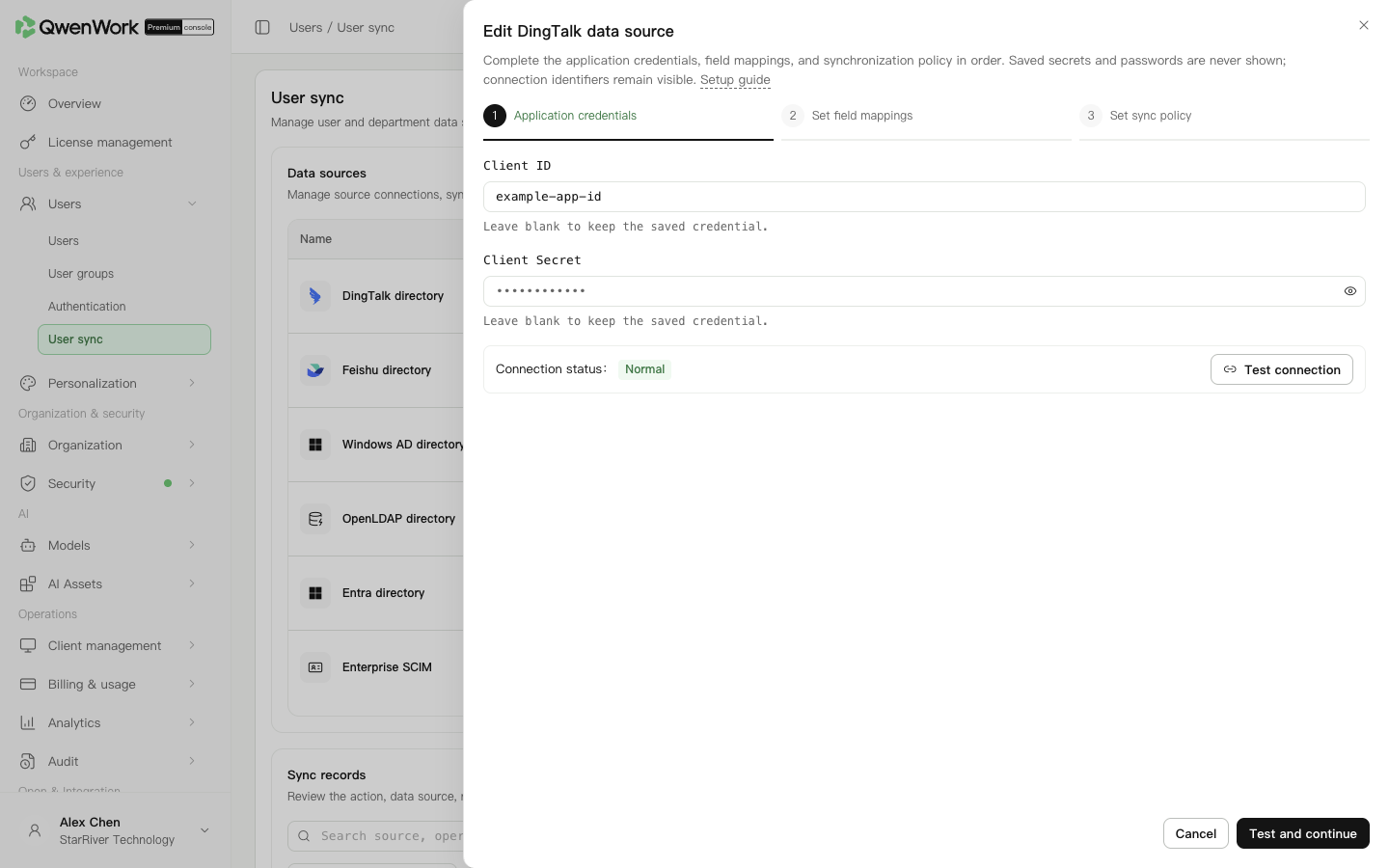 Admin console: DingTalk source credentials.
Member sources can use supported DingTalk fields; targets remain fixed. Add optional targets through Add mapping, which supplies their presets. Department mappings generally use the presets.
New sources use userid for both external user ID and account. Use jobNumber for employee number. Email defaults to email; select org_email when enterprise email is required and the returned profile provides it. DingTalk SSO user.userid must identify the same user as sync userid. Every user department ID must exist in the department mapping result.
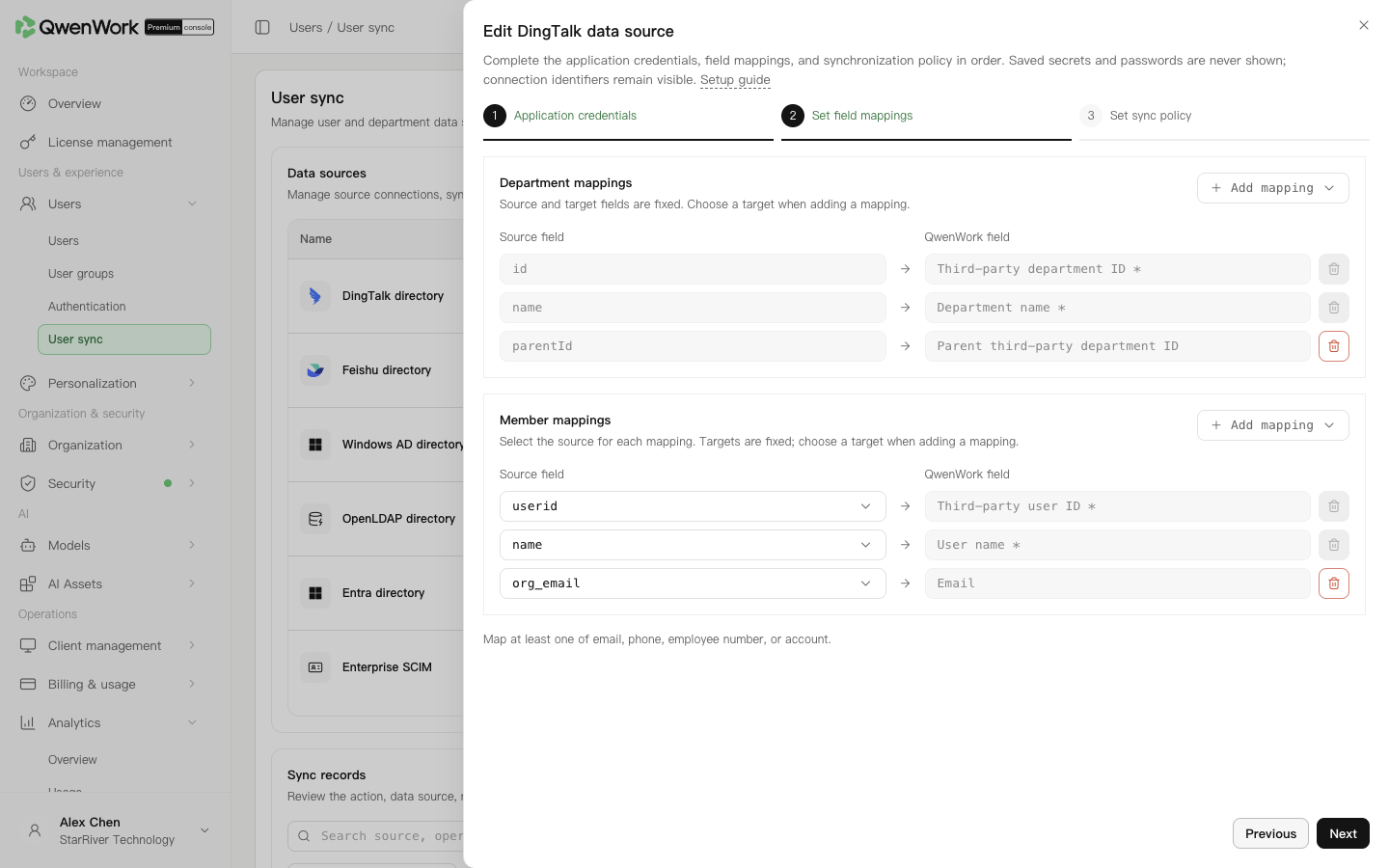 Admin console: check source attributes and their QwenWork targets.
Deletion alerts record a warning without pausing for approval. Estimate affected users before changing scope or deletion handling.
Before syncing, make the source external user ID agree with the existing QwenWork user. Sync looks up users by that ID only. Account, email, phone, and employee number are checked for conflicts; an unmatched ID with an occupied identity value fails.
A successful update keeps the QID and changes the management source to this source. While it is enabled, the source owns name, email, account, phone, external ID, and employee number. Department and status are locked when mapped.
If a deleted user reappears in a pull directory, a new user and QID are created from the current source data and counted as a creation. The external ID points to the new user; old history remains. Roles, passwords, user groups, administrator permissions, seats, and departments are not inherited. Default seats follow the current source policy.
See Users / User sync / User sync overview for mapping changes, source switching, and recreation rules.
Return to: Users / User sync / User sync overview.
Prepare permissions and credentials
Ask the DingTalk enterprise-app administrator to grant the following read access.
| Permission or setting | Required data |
|---|---|
| Department information read | Department IDs, names, and parents |
| Department member read | Users in each department |
| Member information read | User identity, name, and memberships |
| Enterprise employee phone information | mobile, if mapped |
| Email and other personal information | Actual member-detail email fields such as org_email, if mapped |
| Member and department-member read | Employee number returned as job_number, represented by jobNumber in the wizard |
| Directory permission scope, app visibility, and publication | Complete target hierarchy, users, and required parent departments |
userid and expected name, enterprise email, phone, and employee number. Corp ID helps identify the enterprise; the wizard takes Client ID and Client Secret. Add sign-in permissions too if the app also provides SSO.
Grant DingTalk directory access
- Open the internal enterprise app in DingTalk App development.
- Under Permission management → Directory management, request department information, department member, and member information read permissions.
- Add enterprise employee phone permission when syncing phones, and email/personal-information permission when syncing emails. With both fields, this is the three basic permissions plus these two profile permissions. Submit the application.
- For employee numbers, have the directory administrator fill the employee profile, then map
jobNumber. The basic member-read permissions provide this field. - Ensure the permission scope covers the intended users, departments, and parent hierarchy, including when the vendor setting uses a subset of employees.
- Obtain AppKey and AppSecret from the same app.
- Check Server egress IP in the app's security settings. It can remain empty if the organization does not require it.
org_email; for a phone, check its permission, profile, and mobile; for an employee number, check the profile, member permission, and jobNumber. If all fields or the user are missing, inspect visibility and sync details. A token test does not prove field access. Manual and scheduled sync do not require a DingTalk event-subscription callback.
Enter credentials
- Open Users → User sync, add a data source, choose DingTalk, and start setup. For an existing source, edit its configuration.
- Enter Client ID and Client Secret.
- Use Test and next. New-source success saves the current draft; edits still require the final save. The test exchanges an access token without reading departments or users. An entered new secret replaces the previous credential.
Check department and user mappings
Member sources can use supported DingTalk fields; targets remain fixed. Add optional targets through Add mapping, which supplies their presets. Department mappings generally use the presets.
| Source fields | QwenWork fields |
|---|---|
Department id, name, parentId | External department ID, name, external parent ID |
User userid, name | External user ID, name |
| email (or org_email when required), mobile, jobNumber | Email, phone, employee number |
| userid, departmentId, active | Account, external department ID, user status |
Set policy and run sync
- Continue to policy and choose all or specified departments. Specified departments become selectable after a full sync has populated them. For initial source-side limits, ensure DingTalk's readable scope includes the complete intended hierarchy; only visible data can be read.
- Set the new-user default seat option. Keep it off if accounts should be reviewed first.
- Start with manual sync. For scheduled sync, choose daily and set Beijing time.
- Choose leaver handling according to retention needs, such as deactivation with seat reclamation.
- Set the deletion-alert threshold and email and save.
- Enable DingTalk, checking the previously enabled source before switching. Only one source is active.
- Run sync and inspect the task details for creations, updates, deactivations, deletions, and seats.
- Check ordinary users and departments in Users before narrowing scope or enabling daily runs.
Troubleshooting
| Symptom | Action |
|---|---|
| Connected but users missing | Compare DingTalk read scope and QwenWork sync scope |
| Empty email | Check actual org_email data and profile read access |
| Partial success | Correct the failed objects shown in details and rerun |
| Unexpectedly many leavers | Disable the source, inspect permission or department-scope changes and mappings, then plan recovery |