
Entra directory sync reads users and organization relationships with Tenant ID, Client ID, and Client Secret.
Entra directory sync reads users and organization relationships with Tenant ID, Client ID, and Client Secret. The SAML Metadata URL used for Entra sign-in cannot configure this directory connection.
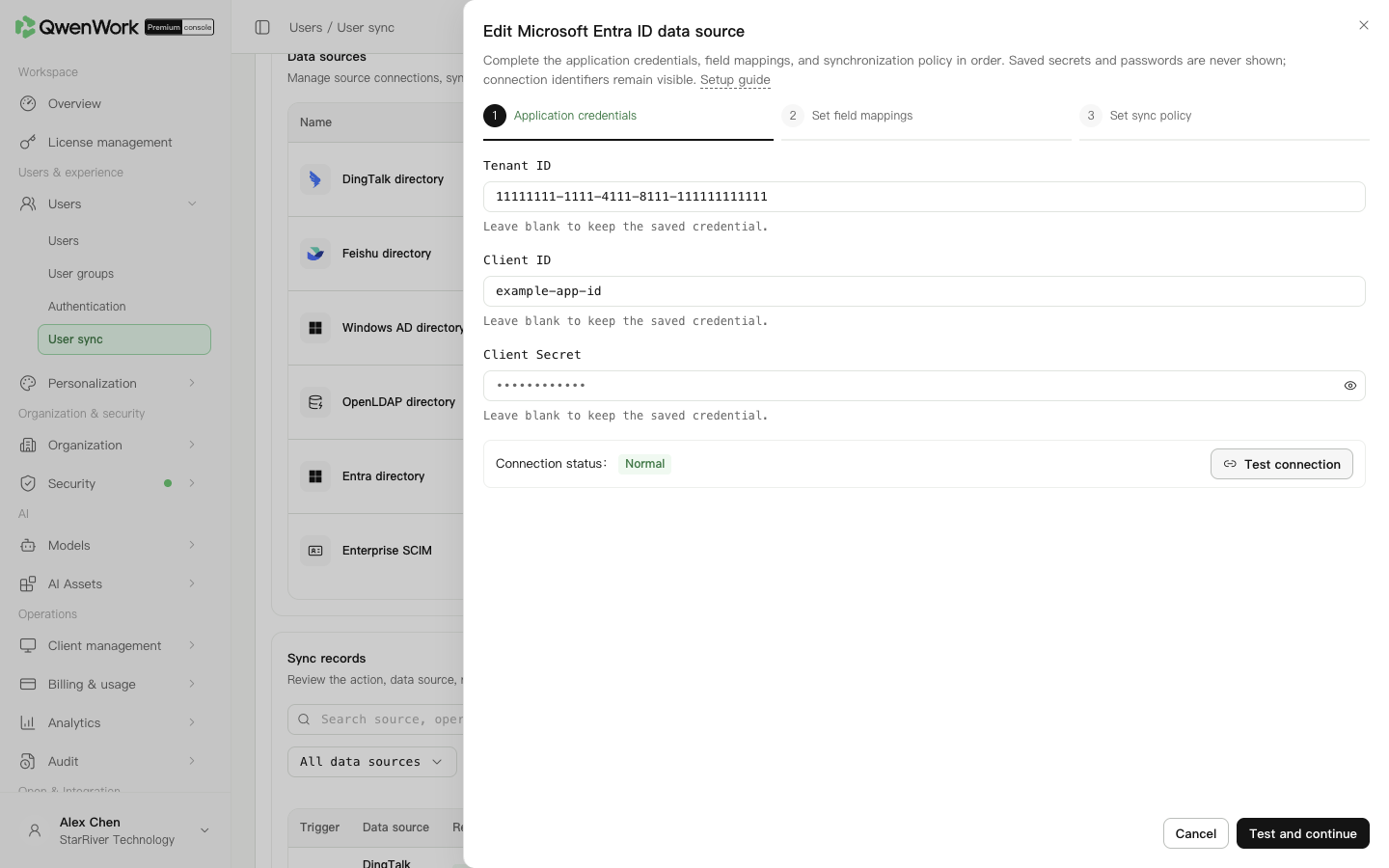 Admin console: Entra tenant and app credentials for directory reading.
Member sources use supported attributes and fixed targets. Add unused optional targets to obtain Entra presets. Department sources and targets are fixed.
A user's
Create a new secret before expiry, update the source, test, and save. After confirming it works, revoke the old secret under your enterprise process.
Before syncing, make the source external user ID agree with the existing QwenWork user. Sync looks up users by that ID only. Account, email, phone, and employee number are checked for conflicts; an unmatched ID with an occupied identity value fails.
A successful update keeps the QID and changes the management source to this source. While it is enabled, the source owns name, email, account, phone, external ID, and employee number. Department and status are locked when mapped.
If a deleted user reappears in a pull directory, a new user and QID are created from the current source data and counted as a creation. The external ID points to the new user; old history remains. Roles, passwords, user groups, administrator permissions, seats, and departments are not inherited. Default seats follow the current source policy.
See Users / User sync / User sync overview for mapping changes, source switching, and recreation rules.
Choose all or specified administrative units. Before choosing a subset, make sure units and target users have been read; check memberships in Users after sync. This integration uses Microsoft global-service endpoints. For another cloud, confirm the deployed integration supports it before using tenant credentials.
Return to: Users / User sync / User sync overview.
Register a directory-reading app
- Open the Microsoft Entra admin center and select the intended tenant.
- In Entra ID → App registrations, create or open the dedicated app.
- Copy Directory (tenant) ID and Application (client) ID from Overview.
- In Certificates and secrets, create a client secret, record its expiry, and securely save the generated Value. Secret ID is an identifier and cannot replace the value.
- Add Microsoft Graph application permissions and obtain administrator consent. Request
User.Read.Allfor profiles andAdministrativeUnit.Read.Allfor administrative units and members. Hidden memberships may requireMember.Read.Hidden. - Verify consent is granted. A permission merely listed in the app is not yet effective. Read access is sufficient; directory-write permissions are unnecessary.
Configure QwenWork
- In Users → User sync, add Microsoft Entra ID and start setup.
- Enter Tenant ID, Client ID, and Client Secret from the same tenant and app.
- Test and continue. Success saves a new-source draft; edits still need the final save. Token exchange does not read directory objects or prove permissions and field correctness.
Check directory fields
Member sources use supported attributes and fixed targets. Add unused optional targets to obtain Entra presets. Department sources and targets are fixed.
| Entra field | QwenWork field |
|---|---|
User id | External user ID |
displayName | Name |
mail, mobilePhone, employeeId | Email, phone, employee number |
accountEnabled | Status |
| Administrative units and their users | Departments and memberships |
mail can be empty or differ from userPrincipalName; inspect the profile before treating a sign-in name as an email. Administrative units are represented as flat departments. User department text and ordinary groups do not generate a department hierarchy. Retain department mappings to write memberships.
Enable and verify
- Complete mappings, select organization scope, and set the new-user seat option.
- Start manually and configure leaver handling, deletion alerts, and email.
- Save, enable the source, and run sync.
- Inspect task results and failures, then verify email, department, and status in Users.
- Change a test profile and rerun to confirm the original record is updated. Test disabling an account and seat reclamation.
- After verification, optionally switch to a daily Beijing-time schedule.
Rotate secrets and troubleshoot
| Symptom | Check |
|---|---|
| Token retrieval fails | Tenant and client IDs, secret expiry, and Value versus Secret ID |
| Token works but directory access fails | Microsoft Graph application permissions and administrator consent |
| Empty email | Actual mail and selected mapping |
| Unexpected departments | Administrative-unit membership; department text and ordinary groups are not imported as a tree |