
Feishu user sync reads the directory available to a custom enterprise app and writes departments, users, and memberships to QwenWork.
Feishu user sync reads the directory available to a custom enterprise app and writes departments, users, and memberships to QwenWork. Check publication and data-access scope before configuration.
Feishu appears as Lark in the international User sync page.
Prepare the enterprise and app names, App ID, App Secret, granted permissions, published version, all-user directory data access, app availability, and a test user's
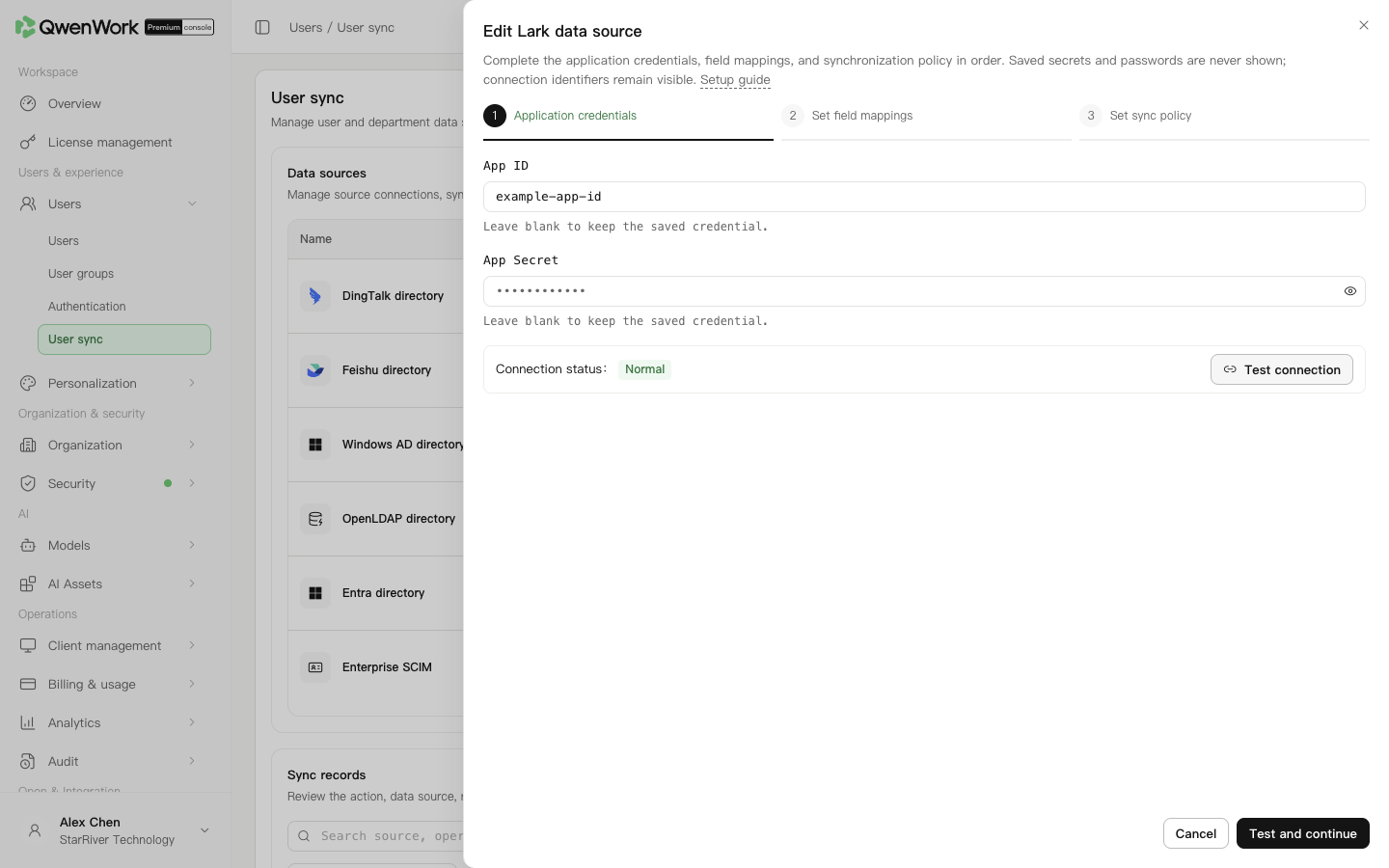 Admin console: Feishu source credentials.
Choose supported member sources; the targets remain fixed. Add optional mappings to restore presets after removing a row. Department mappings generally use presets.
User department IDs and department-list IDs must use the same type. Feishu exposes several distinct user and department IDs. Email defaults to 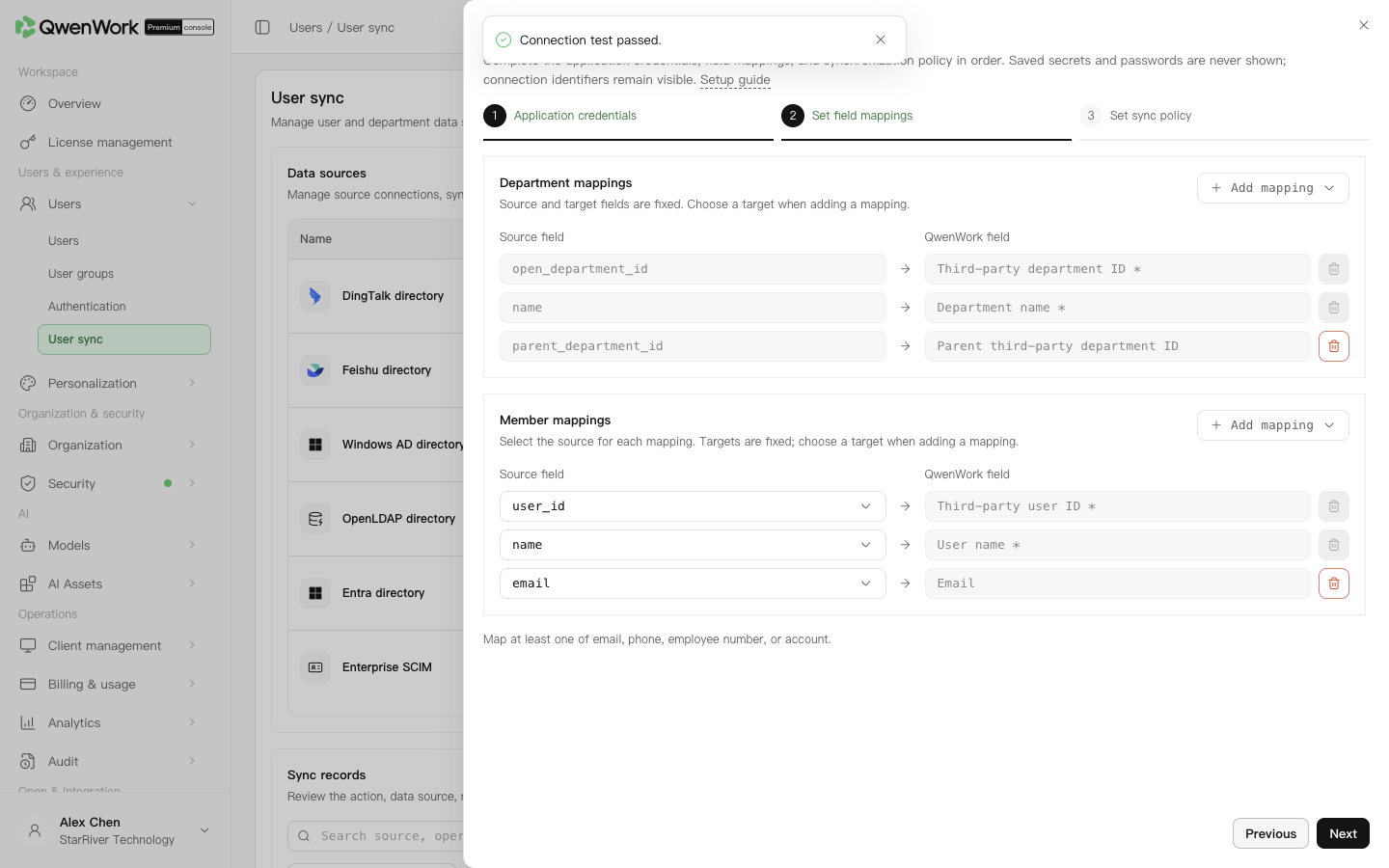 Admin console: check source attributes and their QwenWork targets.
Before syncing, make the source external user ID agree with the existing QwenWork user. Sync looks up users by that ID only. Account, email, phone, and employee number are checked for conflicts; an unmatched ID with an occupied identity value fails.
A successful update keeps the QID and changes the management source to this source. While it is enabled, the source owns name, email, account, phone, external ID, and employee number. Department and status are locked when mapped.
If a deleted user reappears in a pull directory, a new user and QID are created from the current source data and counted as a creation. The external ID points to the new user; old history remains. Roles, passwords, user groups, administrator permissions, seats, and departments are not inherited. Default seats follow the current source policy.
See Users / User sync / User sync overview for mapping changes, source switching, and recreation rules.
Return to: Users / User sync / User sync overview.
Request application read permissions
| Permission | Code |
|---|---|
| Directory basic information | contact:contact.base:readonly |
| Department basic information | contact:department.base:readonly |
| Department organization information | contact:department.organize:readonly |
| User basic information | contact:user.base:readonly |
| User department information | contact:user.department:readonly |
| User email, when mapped | contact:user.email:readonly |
| User phone, when mapped | contact:user.phone:readonly |
| Employment data for employee number or status | contact:user.employee:readonly |
| User ID for default identity mappings | contact:user.employee_id:readonly |
user_id and profile. If also used for SSO, configure its redirect and sign-in permissions separately.
QwenWork reads from the root department. Directory data permission must include all users, with publication effective. App availability and directory data permissions are different settings.
Prepare the Feishu app
- Create or open the custom enterprise app in the developer console.
- Request the five basic directory, department, user, and membership read permissions listed above.
- Add email, phone, and employment permissions for the mapped fields. The user-ID permission is required because member requests always use user_id, even if another ID is selected in the mapping.
- Set directory data access to all users and confirm the intended users are in the app's availability scope.
- Create and publish a version, then obtain App ID and App Secret securely. Directory writing permissions are not required for this read integration.
Create the source
- In Users → User sync, add Lark (the Feishu provider) and start setup.
- Enter App ID and App Secret.
- Test and continue. A successful new-source test saves the draft; an edited source still needs the final save. Token retrieval does not enumerate the directory or verify permissions and fields.
Check IDs and relationships
Choose supported member sources; the targets remain fixed. Add optional mappings to restore presets after removing a row. Department mappings generally use presets.
| Preset source | Use |
|---|---|
user_id | External user ID; match the Feishu SSO identity |
name, email, mobile | Name, email, phone |
employee_no, open_id | Employee number, account |
department_id | User's external department ID |
Department open_department_id, parent_department_id | Department and parent identifiers |
email. Before assuming a user has no email, check read permissions. Continue after checking required mappings.
Run and verify
- Choose all or specified departments and descendants, and the new-user seat option. The Feishu app still needs all-user directory data access.
- Start manually; scheduled sync runs daily at the selected Beijing time.
- Choose deactivation, deactivation with seat reclamation, or deletion with seat reclamation. Set the alert threshold and email and save.
- Enable the source and run sync.
- Inspect task details, department hierarchy, user counts, and seats. Check a user belonging to several departments.
- Change a test user's department in Feishu and sync again; confirm the existing user was updated without a duplicate account.
Maintain and troubleshoot
- Missing departments: compare directory data scope, app availability, and QwenWork scope.
- Wrong hierarchy: compare actual
department_idandopen_department_idvalues and include parent departments. - Missing fields after publication: check the published permissions and their data scopes.
- Unexpected leavers: disable the source and inspect permission or profile-field changes before continuing.