
SCIM (System for Cross-domain Identity Management) lets an identity platform push users and groups to QwenWork.
SCIM (System for Cross-domain Identity Management) lets an identity platform push users and groups to QwenWork. QwenWork provides a Base URL and Bearer Token and applies the configured account lifecycle policy to incoming requests.
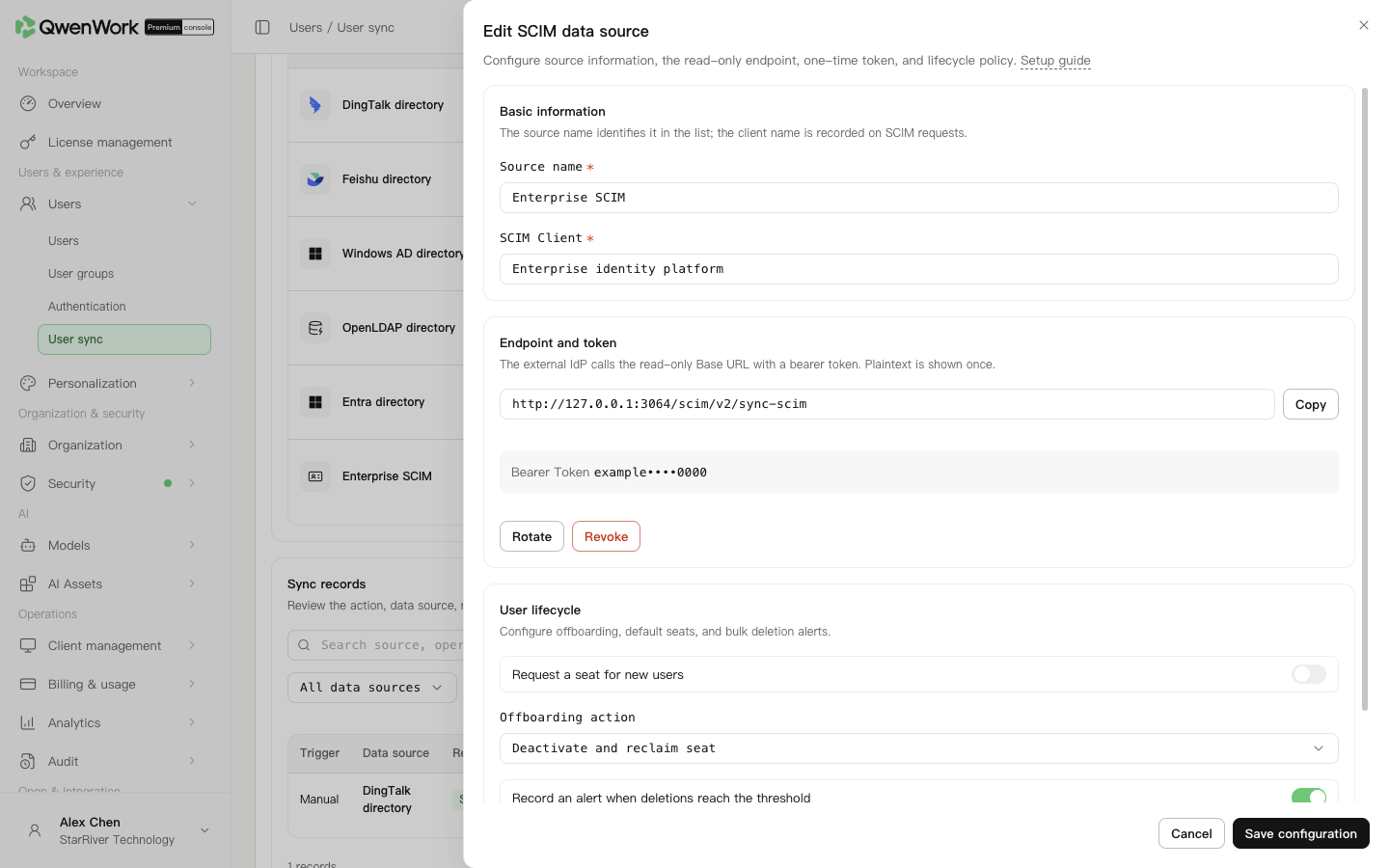 Admin console: SCIM push address, token management, and lifecycle policy.
A masked token cannot replace the complete one-time value.
Admin console: SCIM push address, token management, and lifecycle policy.
A masked token cannot replace the complete one-time value.
After each request, filter Sync records by source or SCIM Client, open details, and inspect users, departments, relationships, seats, and errors. Verify final state in Users.
Rotating an existing token invalidates the old value immediately. Arrange the change, copy the new token, update the identity platform, and test. Revoking a token invalidates that token; stopping the whole integration also requires disabling the source.
Match existing users by external user ID only. Account, email, phone, and employee number are checked for conflicts. If the external ID does not match but an identity value is occupied, creation fails. A successful update retains the QID and changes the management source.
While that source is active, name, email, account, phone, external ID, and employee number are source-owned; department and status are locked when mapped.
A deleted SCIM User cannot be updated or restored. The identity platform must send a new
Create the SCIM source
- In Users → User sync, add SCIM and start setup.
- Enter the source name and SCIM Client. The first identifies the configuration; the second identifies the caller in history.
- Create a token and securely copy its complete value, which appears once. A token must be created before the first save.
- Set the lifecycle policy below. If no source is active, save and enable. Otherwise save, then switch activation from the list.
- Reopen the saved source, copy its generated SCIM Base URL, and configure the identity platform with that URL and full token. Test the push connection.
Set the account lifecycle
- New-user seat option: choose whether creation attempts a seat assignment, then inspect the actual result.
- Leaver handling: deactivate only, deactivate and reclaim seats, or delete and reclaim seats.
- Deletion alerts: set a count threshold and email to investigate unexpected bulk changes.
Configure the identity platform
- Open its QwenWork provisioning or SCIM app settings.
- Enter the copied Base URL and full Bearer Token and run the platform's connection test.
- Map a non-empty, globally unique
externalIdas external identity,userNameas account,displayNameas name,emailsas email, andactiveas enabled status. - For Groups, map their members using the user resource IDs returned by SCIM. Names and external IDs are not QwenWork resource IDs.
- Assign a test user and test group, then run on-demand provisioning or push.
Verify four changes
| Test | Check in QwenWork |
|---|---|
| Create a user | One record with correct name, account, email, and seat |
| Update name or email | Same user and resource ID |
| Add or remove group members | Department memberships follow the request |
Set active to false | Status and seats follow the leaver policy |
Troubleshoot and rotate tokens
| Symptom | Check |
|---|---|
| 401 or invalid token | Bearer prefix, complete value, and revocation |
| Request rejected | Active source and correct source-specific Base URL |
| Duplicate users | Stable externalId, resource lookup, and update-versus-create logic |
| ETag conflict | Read the latest resource and ETag before updating |
| Field validation error | Schemas, error response, required fields, types, and multi-value structure |
Connect existing users and deleted resources
Match existing users by external user ID only. Account, email, phone, and employee number are checked for conflicts. If the external ID does not match but an identity value is occupied, creation fails. A successful update retains the QID and changes the management source.
While that source is active, name, email, account, phone, external ID, and employee number are source-owned; department and status are locked when mapped.
A deleted SCIM User cannot be updated or restored. The identity platform must send a new POST /Users. Success assigns a new QID, without inheriting the old profile, roles, password, groups, administrator permissions, seats, or departments. Identity conflicts with current users reject creation; correct the source data first.
See Users / User sync / User sync overview for mapping and source-change rules.
Return to: Users / User sync / User sync overview.