
OpenLDAP sync reads enterprise users and organization information and writes mapped fields to QwenWork.
OpenLDAP sync reads enterprise users and organization information and writes mapped fields to QwenWork. Check your directory's object structure, stable identifiers, memberships, and status attributes. The sync service must reach the server; for an internal directory, have the network administrator verify connectivity from the enterprise deployment first.
Obtain sanitized user and department entries from the directory administrator.
If departments are outside the user branch, check that the search root covers both. Connection success does not prove the complete directory can be read.
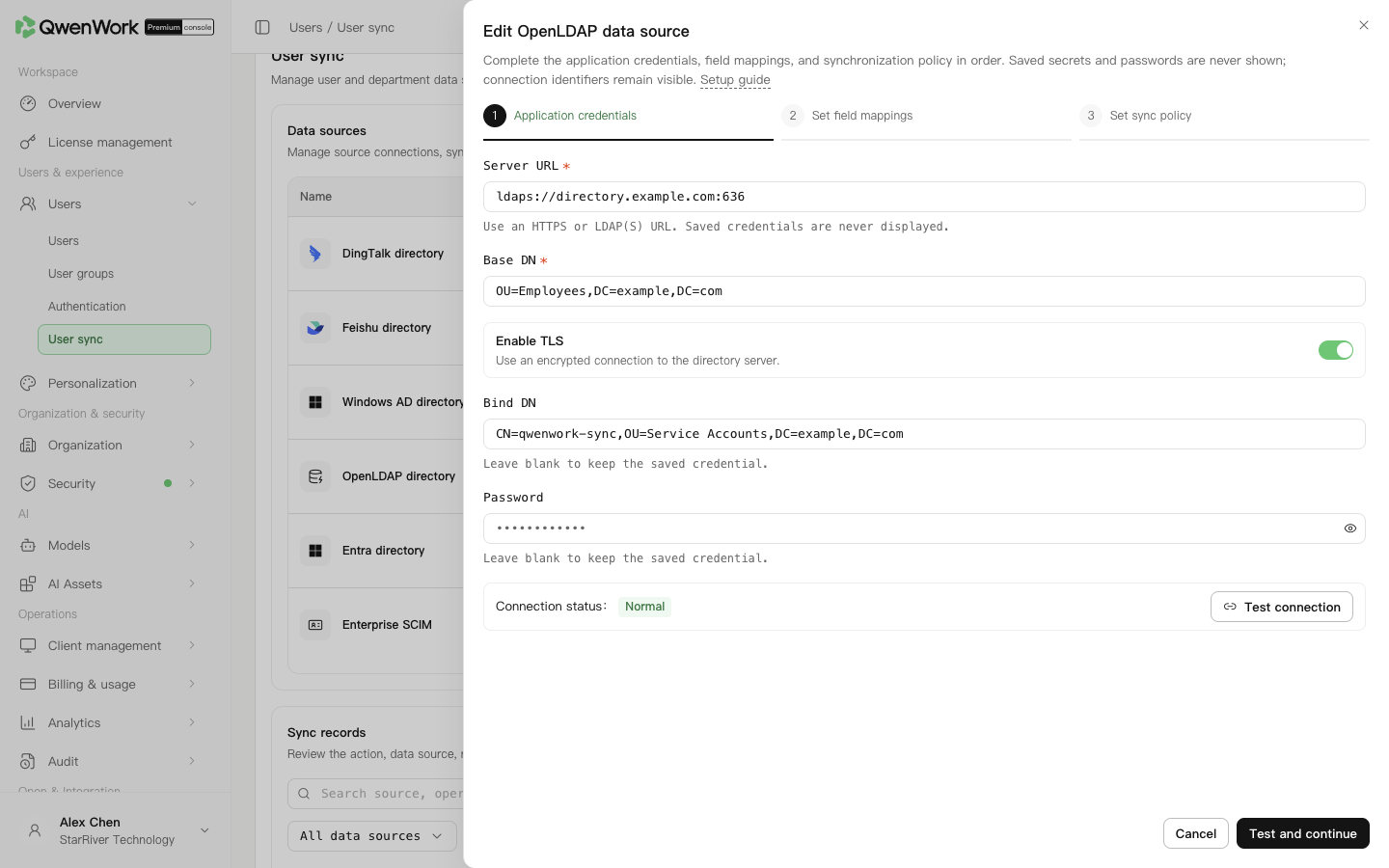 Admin console: OpenLDAP connection settings.
Schema defines the attributes and structure allowed for directory objects. Use supported member attributes and preset department mappings.
Membership uses the nearest parent organizational unit of the user's DN. A matching 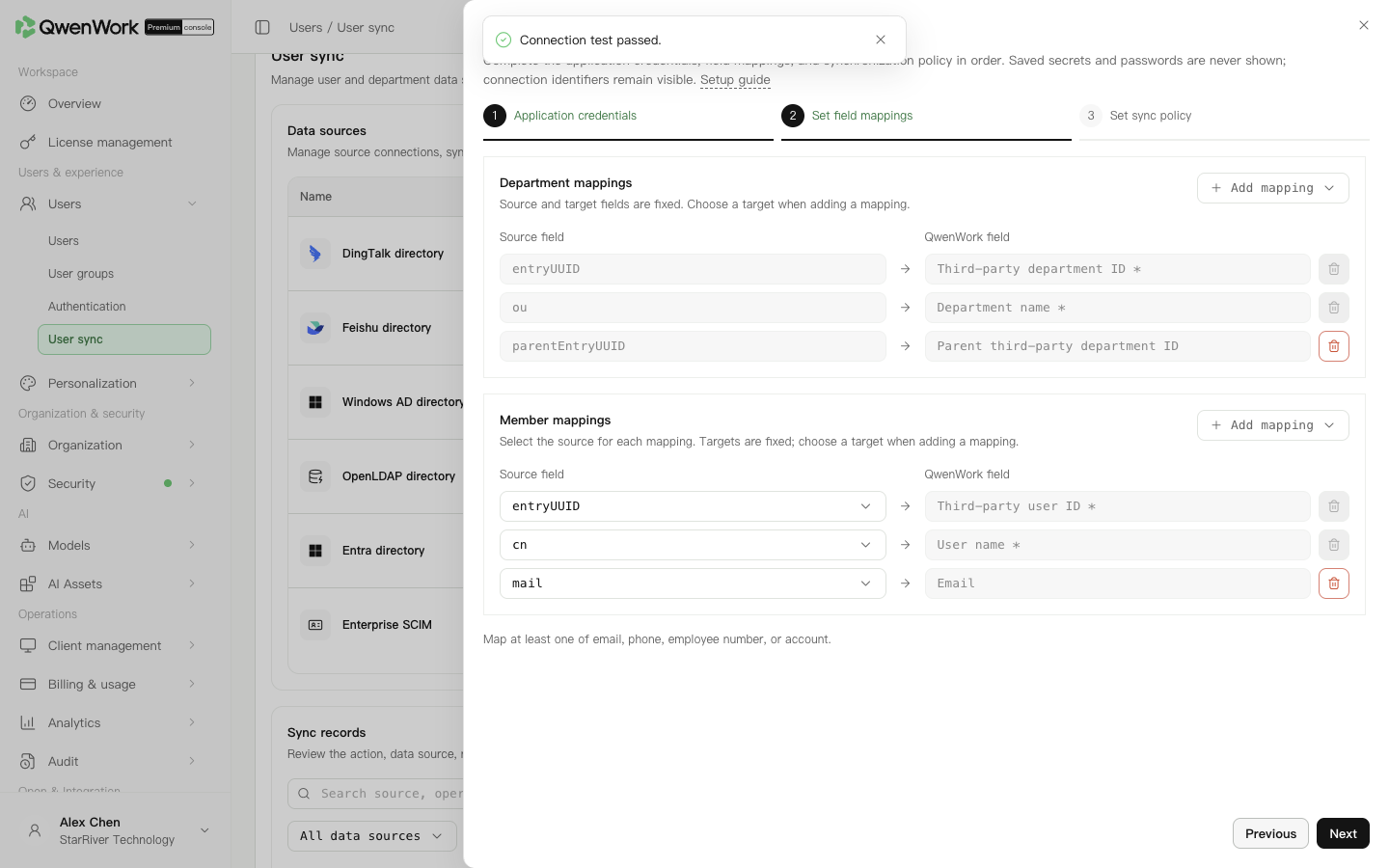 Admin console: check source attributes and their QwenWork targets.
Compare a test user's name, email, employee number, departments, and status. Rename or move its directory entry, sync, and confirm the existing user was updated. Test deactivation and seat effects.
For an unexpected count drop, check Base DN, read permissions, and schema changes. Fix missing attributes in the directory or mappings rather than creating repeated replacement sources. For connection failures, check address, certificates, Bind DN, and password. Retest new credentials before resuming.
Before syncing, make the source external user ID agree with the existing QwenWork user. Sync looks up users by that ID only. Account, email, phone, and employee number are checked for conflicts; an unmatched ID with an occupied identity value fails.
A successful update keeps the QID and changes the management source to this source. While it is enabled, the source owns name, email, account, phone, external ID, and employee number. Department and status are locked when mapped.
If a deleted user reappears in a pull directory, a new user and QID are created from the current source data and counted as a creation. The external ID points to the new user; old history remains. Roles, passwords, user groups, administrator permissions, seats, and departments are not inherited. Default seats follow the current source policy.
See Users / User sync / User sync overview for mapping changes, source switching, and recreation rules.
Return to: Users / User sync / User sync overview.
Confirm the directory structure
Obtain sanitized user and department entries from the directory administrator.
| Setting | Example or check |
|---|---|
| Server URL | ldaps://ldap.example.com:636, reachable by the sync service |
| Base DN | ou=people,dc=example,dc=com; include all required branches |
| Bind DN | cn=qwenwork-sync,ou=services,dc=example,dc=com, with read permission |
| Password and TLS | Valid account, encryption, and certificates |
Create the source
- In Users → User sync, add OpenLDAP and start setup.
- Enter Server URL, Base DN, Bind DN, password, and TLS.
- Optionally test, then use Test and next. New-source success saves a draft; an edit still requires the final save. The test checks address, binding, and TLS, rather than mapped attributes or final results.
Check schema and mappings
Schema defines the attributes and structure allowed for directory objects. Use supported member attributes and preset department mappings.
| Attribute | Purpose |
|---|---|
entryUUID | External user ID, stable through rename or move |
cn, mail, mobile | Name, email, phone |
employeeNumber | Employee number |
departmentNumber | Department-related value |
accountStatus | Status; confirm the attribute actually exists |
Department entryUUID, ou | External department ID and name |
departmentNumber string alone does not create a department. Retain department mappings to write memberships. Confirm the actual status values when selecting an alternative supported attribute.
Add optional QwenWork targets through Add mapping to obtain presets. Targets remain fixed, already used targets are absent from the menu, and required rows cannot be removed.
Configure sync and leaver handling
- Continue to policy and set user and department filters for the actual schema.
(objectClass=person)selects person objects and is only an example. - Set the new-user seat option. Start manually; daily scheduled sync uses Beijing time.
- Select deactivation to retain records, or confirm retention requirements before choosing deletion.
- Set the alert threshold and email, save, and enable the source.
- Run sync and inspect successful and failed objects.