
Windows AD sync reads domain users and organization information through LDAP (Lightweight Directory Access Protocol).
Windows AD sync reads domain users and organization information through LDAP (Lightweight Directory Access Protocol). Confirm directory reachability and prepare a service account with read access.
A distinguished name (DN) identifies a directory object. Base DN defines the search scope; Bind DN identifies the account used to connect. Prefer LDAPS with a valid certificate, matching hostname, and a chain trusted by the sync service. The account needs read access to users, departments, and parents; domain-administrator rights are unnecessary. Ensure network connectivity from the sync service.
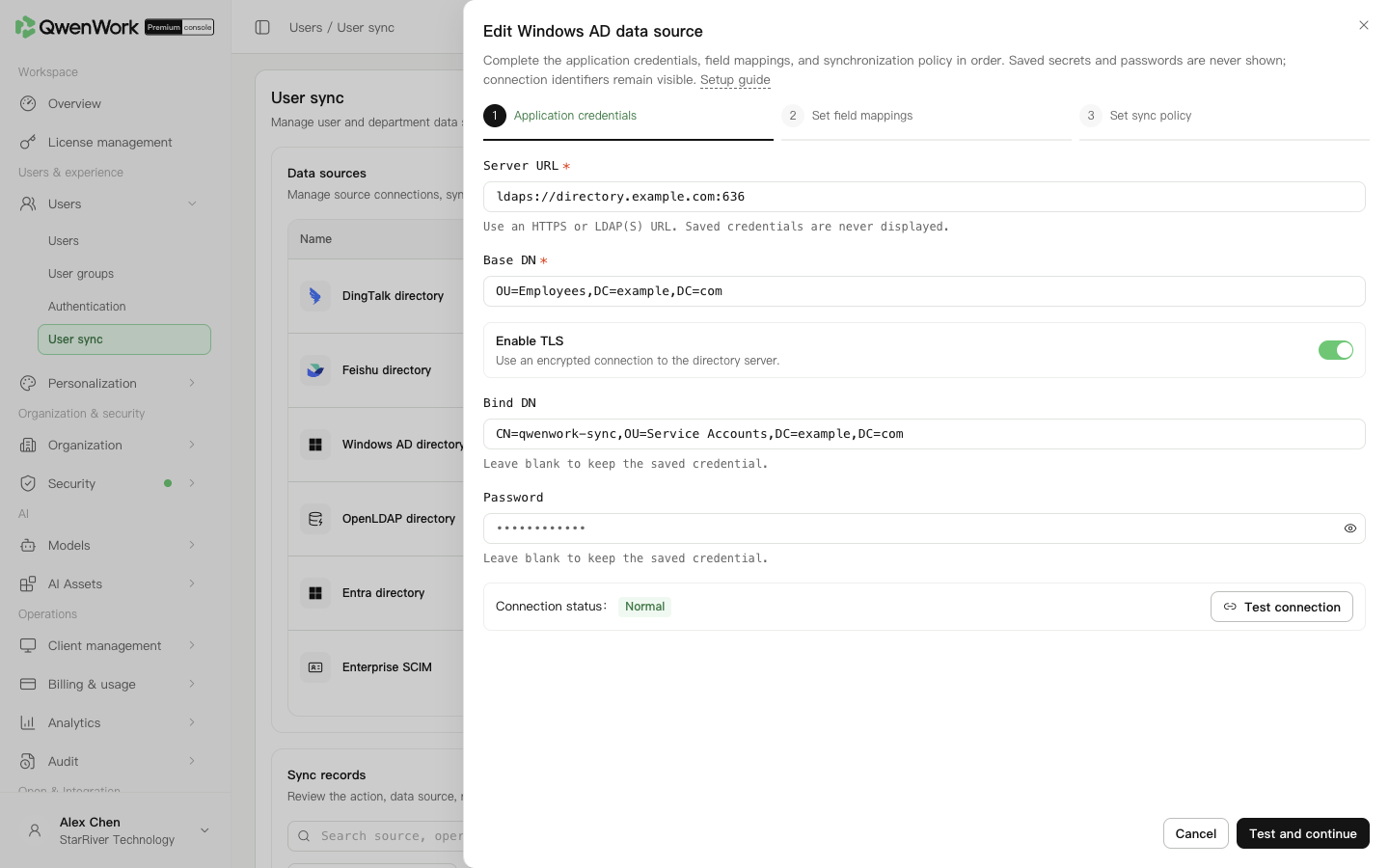 Admin console: Windows AD connection and search-root settings.
Check actual values on a test user. Membership is built from the nearest parent organizational unit of the user's DN. A department-name string does not generate a hierarchy. Membership is written when department mappings are retained. Check enabled and disabled accounts because 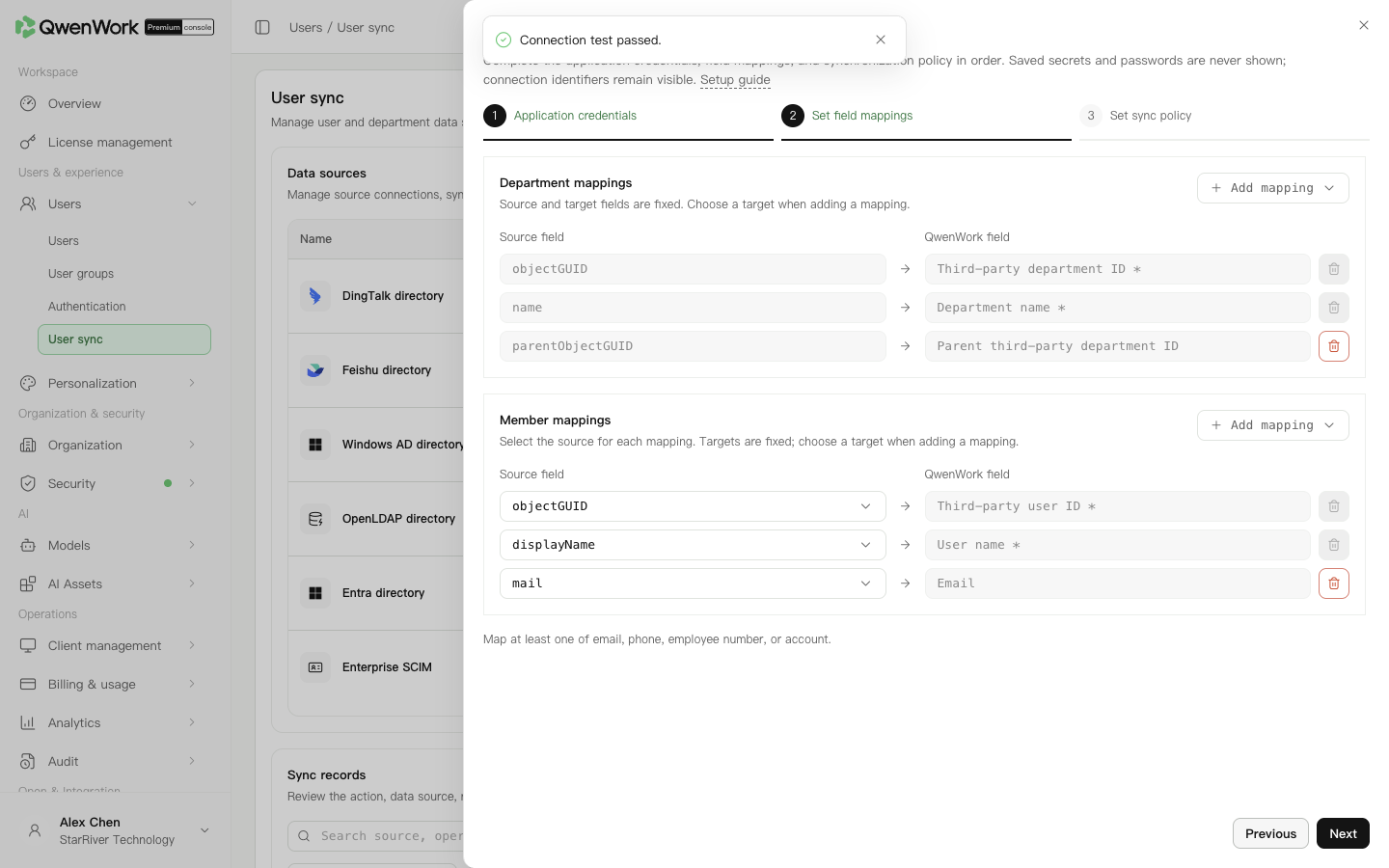 Admin console: check source attributes and their QwenWork targets.
Before syncing, make the source external user ID agree with the existing QwenWork user. Sync looks up users by that ID only. Account, email, phone, and employee number are checked for conflicts; an unmatched ID with an occupied identity value fails.
A successful update keeps the QID and changes the management source to this source. While it is enabled, the source owns name, email, account, phone, external ID, and employee number. Department and status are locked when mapped.
If a deleted user reappears in a pull directory, a new user and QID are created from the current source data and counted as a creation. The external ID points to the new user; old history remains. Roles, passwords, user groups, administrator permissions, seats, and departments are not inherited. Default seats follow the current source policy.
See Users / User sync / User sync overview for mapping changes, source switching, and recreation rules.
Return to: Users / User sync / User sync overview.
Prepare the connection
| Setting | Example or requirement |
|---|---|
| Server URL | ldaps://ad.example.com:636 |
| Base DN | Search root, such as OU=Employees,DC=example,DC=com |
| Bind DN | Service account, such as CN=qwenwork-sync,OU=Service Accounts,DC=example,DC=com |
| Password | Password for that service account |
| TLS | Match the directory's encryption and certificate configuration |
Connect the directory
- In Users → User sync, add Windows AD and start setup.
- Enter Server URL, Base DN, Bind DN, password, and TLS settings.
- Optionally test the connection, then use Test and next. Success opens mappings and saves a new-source draft; edits still need the final save. The test checks address, binding, and TLS, without proving user attributes or final sync results.
Check AD attributes
| Preset attribute | QwenWork field |
|---|---|
User objectGUID | Stable external user ID |
displayName, mail, telephoneNumber | Name, email, phone |
employeeID, department, userAccountControl | Employee number, department-related field, status |
Department objectGUID, name | External department ID and name |
userAccountControl combines several flags.
Use supported member attributes; targets are fixed and department mappings use presets. Select an account according to the enterprise sign-in convention, rather than treating the displayed objectGUID as a manually entered login name. Add unused targets through Add mapping. Required IDs and names cannot be removed; optional rows can be restored.
Verify joiners, moves, and leavers
- Set user and department filters under Base DN and the new-user seat option.
- Begin with manual sync and a leaver policy consistent with retention needs. Set deletion alerts.
- Save, enable Windows AD, and run sync.
- Check user creation, department creation, and the hierarchy under the search root.
- Test profile updates, an organizational-unit move, and account disabling. After each run, confirm the original QID and the expected seat handling.
Troubleshooting
- Timeout: check DNS, routing, firewall, and directory ports.
- Certificate error: check the chain, validity, and Server URL hostname; repair and retest.
- Bind failure: check Bind DN, password, account lock, and expiry.
- No users: check Base DN and read permissions.
- Incorrect deactivation: stop sync, inspect the status attribute and leaver policy, then retry.