
Applications manages the enterprise application market, member submissions, and desktop package distribution.
Use AI Assets → Applications to offer ZIP or QWAPP packages to members with compatible desktop apps. Upload a package yourself or review a member's submission. Set up management API credentials under Open Platform → App authorizations.
Market settings control where members find applications and whether they can submit one. Publishing policies control who can access which applications. Download, installation, and execution depend on the desktop client and package compatibility. A row in the console is not proof of installation. Market management, List, Listing approvals, and Publishing policies each have independent permissions.
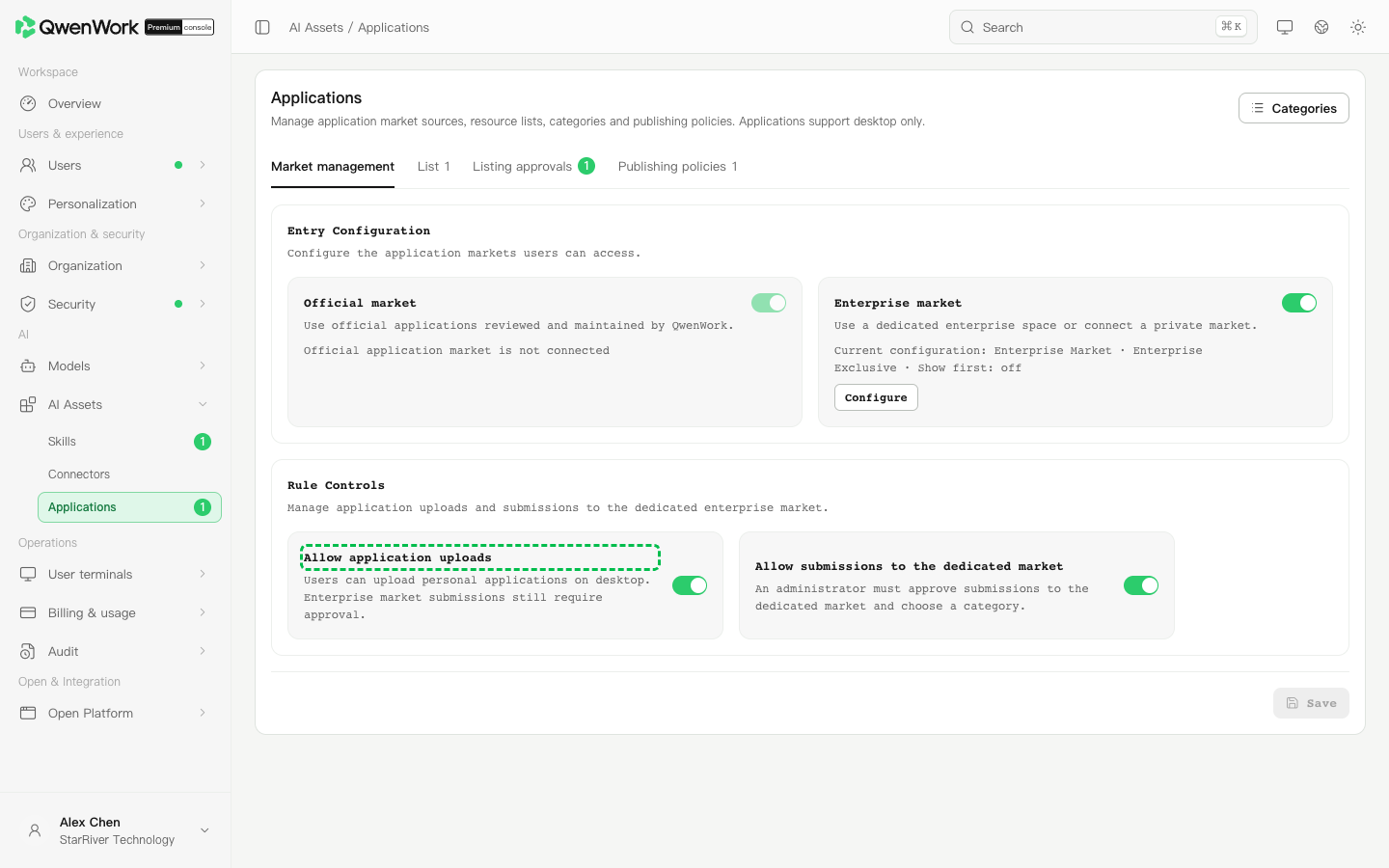 Review the enterprise market mode and the two member permissions.
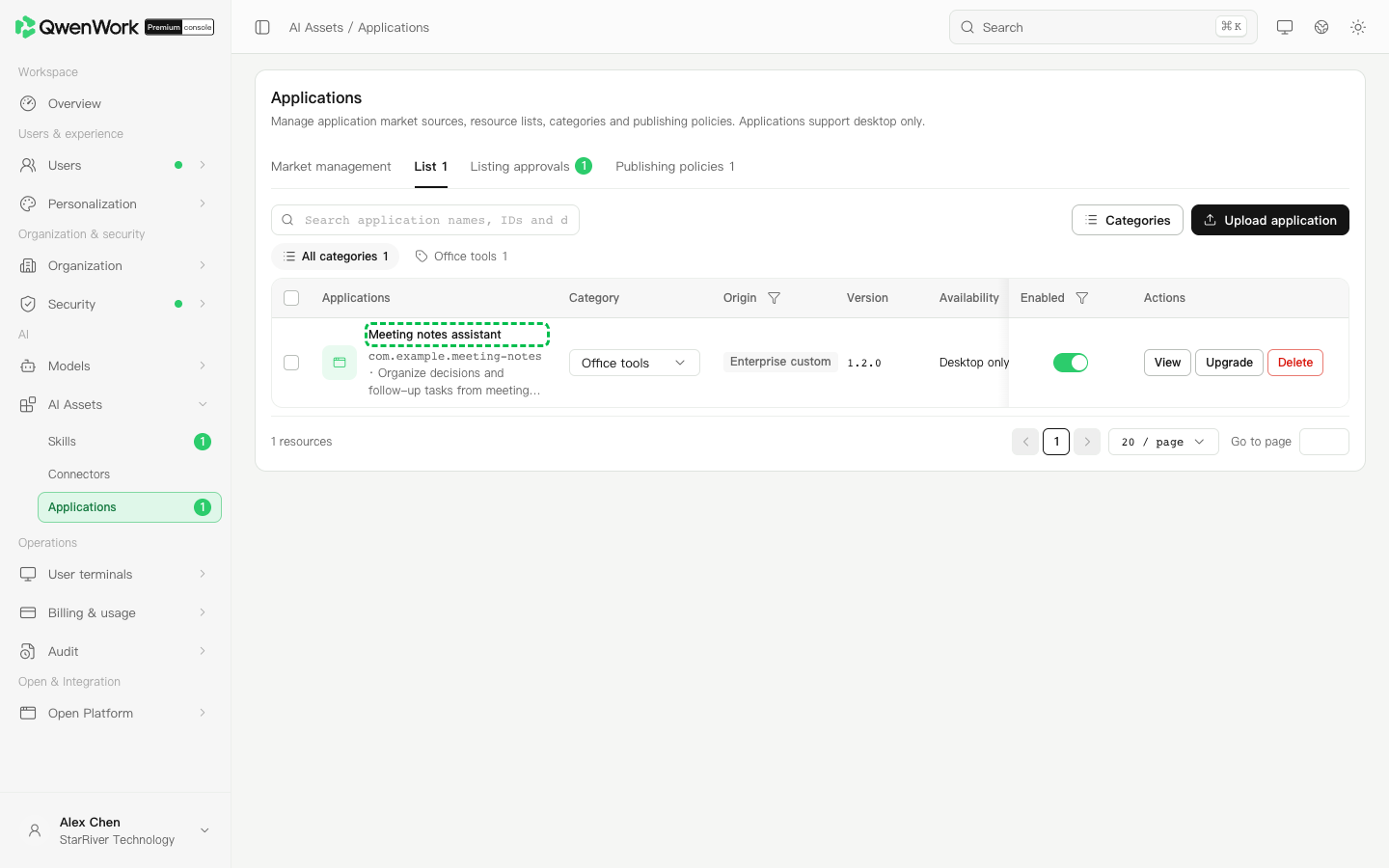 Find an application by category and check its ID, version, state, and target.
The archive must have
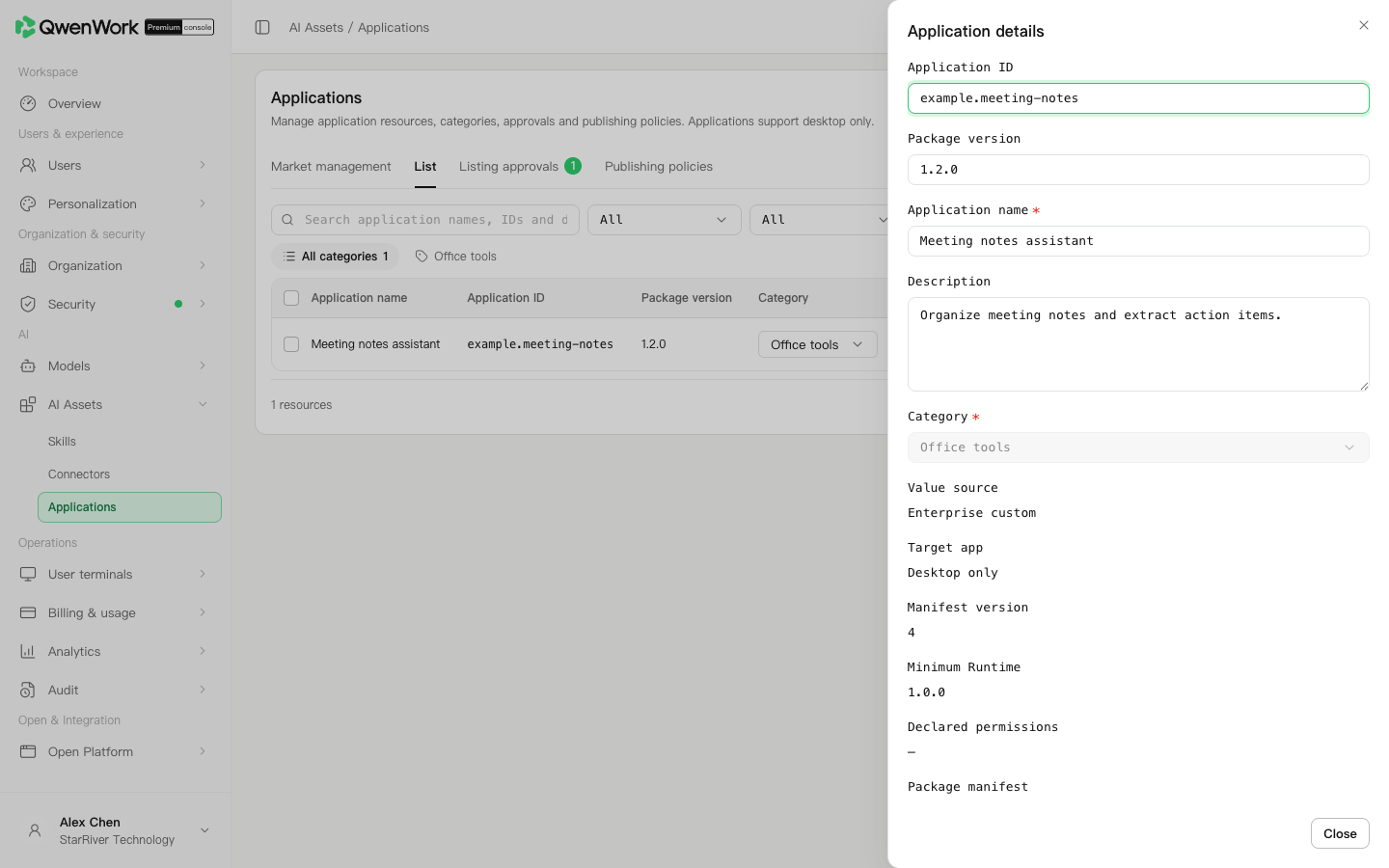 Inspect the package identity, runtime requirement, and manifest in the details panel.
In Listing approvals, find the request by status or applicant. Check the applicant, package version, and submitted content. Choose a category when approving a new listing; an upgrade retains the existing category. If rejecting, explain what the member needs to change. You can review only applicants within your authorized scope. If an upgrade is based on a package that has since changed, check the current version and request a fresh submission.
With access to Listing approvals, you can see submissions within your management scope and records you submitted yourself. To decide a request, you also need approval permission for that applicant.
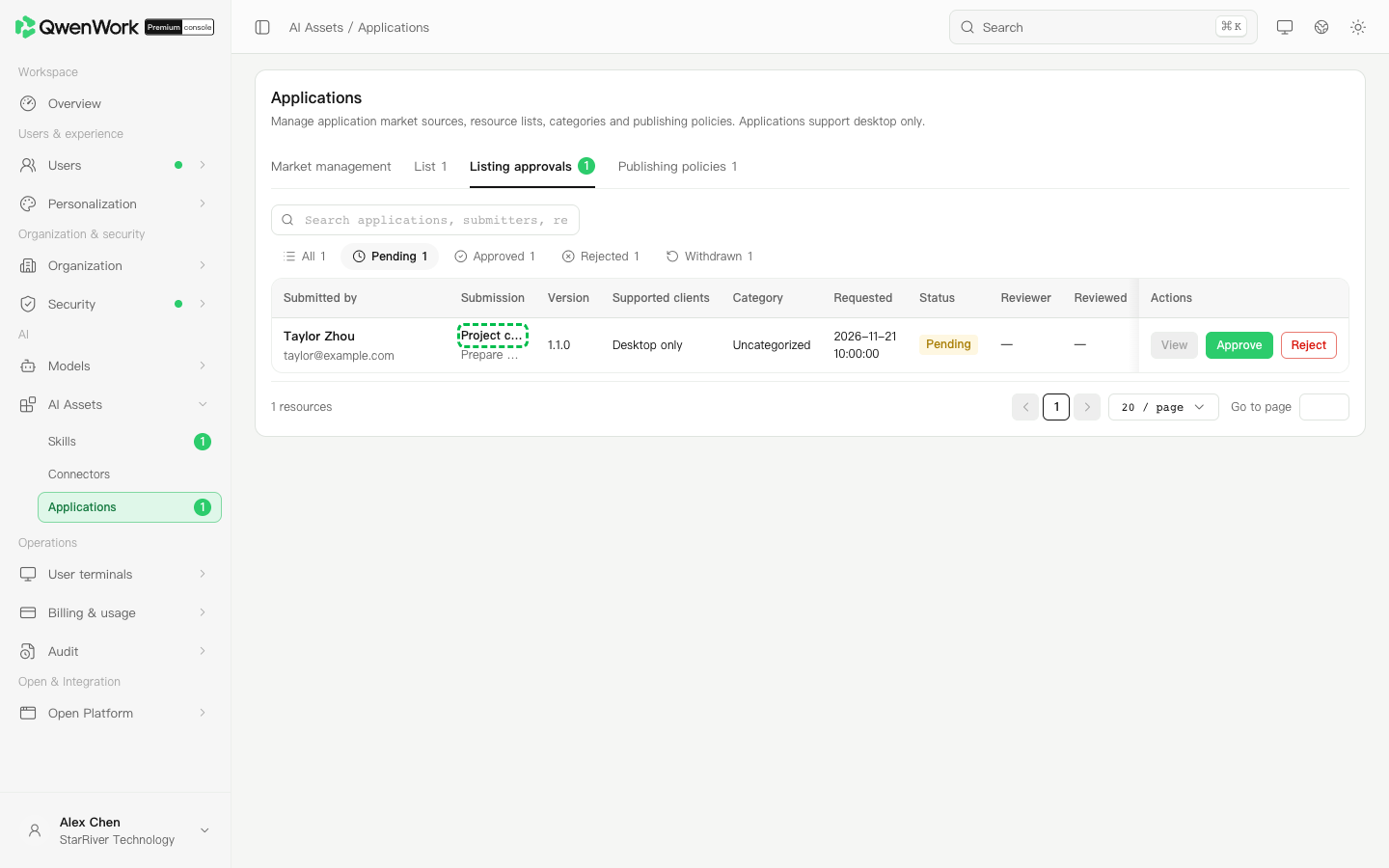 Check the applicant and version on a pending request.
Open Publishing policies. The default policy covers all users on Desktop; its allowed applications can be adjusted. A custom policy can select users, departments, user groups, and applications. Use an allowlist to grant access or a blocklist to restrict it, then check the match for a test member. Only an allowlist of specific applications can enable automatic installation. A blocklist or dynamic All Applications selection cannot. The member must also have effective access and a compatible desktop.
For the same member and client target, resources in matching custom allowlists are combined; the default policy is not added when a custom allowlist matches. If none matches, the default policy supplies the base. Resources in all matching blocklists are then removed. Check the result with policy-match verification and test it in a supported client.
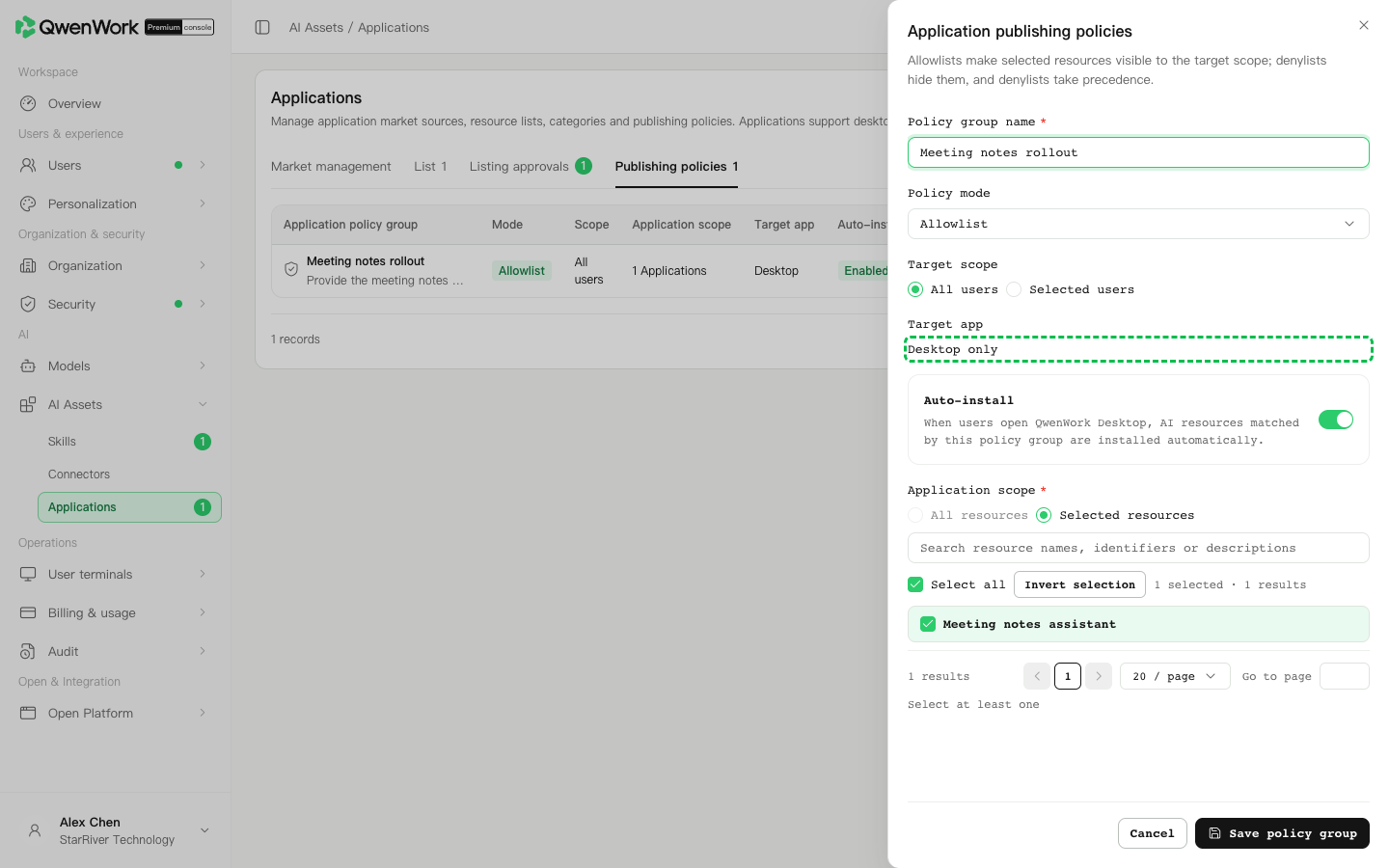 Review the audience, application scope, Desktop target, and delivery setting.
After saving, open the enterprise market on a compatible desktop as a member in scope, then check a member outside it. If the application is missing, check the market entry, application state, publishing policy, and desktop version. Hiding a navigation entry does not revoke access.
Managing market settings or categories requires market permissions. You can delegate these tasks to an administrator with a limited user scope.
Viewing, editing or recategorizing an application depends on the action and whether the application is within the administrator's scope. For approvals, check the applicant and approval permission. Publishing policies require permission for the action and the audience. An organization-wide audience requires additional authorization.
For a batch change, check which items succeeded. Items that fail stay selected. Disabling or deleting an app stops new distribution. Check the devices separately to see whether the app is still installed.
Publish the app to the company market. Select the members or departments in its access policy, then ask an employee in scope to find and install it in the desktop app.
Open the existing app's upgrade action. Check the package's app identifier and new version. After publishing, check the version and audience and test with one employee.
Return to: AI Assets → AI Assets overview
How publication works
Market settings control where members find applications and whether they can submit one. Publishing policies control who can access which applications. Download, installation, and execution depend on the desktop client and package compatibility. A row in the console is not proof of installation. Market management, List, Listing approvals, and Publishing policies each have independent permissions.
Configure the market and member submissions
- In Market management, enable Custom Market. Choose Enterprise Market or a private market page. For a private page, enter its full HTTPS address and permitted HTTPS origins, one per line, for example https://apps.example.com.
- Set the market name shown to members. Show first moves an enabled entry to the front; it does not enable the entry or grant access. There is currently no official application catalog to import from.
- Set Allow personal application uploads and Allow enterprise market submissions independently. A personal upload does not publish an application. Member publication and upgrade requests require approval; an administrator upload publishes directly.
- Save, reopen the page, and verify the mode and both switches. To show the desktop navigation entry, enable Apps separately in the applicable personalization policy under Navigation & menus.
Upload, inspect, and upgrade an application
- Open List. If the application needs a new category, ask an administrator with market management permission to add one in Categories. Select Upload application and choose a ZIP or QWAPP package of up to 50 MB.
- Wait for validation. Check the application ID and version read from the package, enter its display name and description, select a category, and save. Changing the display name does not change the package ID.
- Find the application and select View. Check its category, enabled state, package version, minimum runtime, and manifest. If validation fails, correct the specific file or field named in the error before repackaging.
manifest.json at the root, use type qwenwork-app, and specify manifestVersion 2, 3, or 4. Verify the package ID, semantic version, and required runtime files. If dist/main.mjs or dist/tool-catalog.json is missing, fix the archive layout. Renaming an invalid archive or keeping duplicate paths will not fix the package.
Upgrade the existing application. The new package must have the same ID and cannot use a lower version. Republishing the same version creates a new package revision. Add upgrade notes, review the force-upgrade option, then check the saved details. A forced upgrade does not install an application for the first time or re-enable it on behalf of a member.
Review a member submission
In Listing approvals, find the request by status or applicant. Check the applicant, package version, and submitted content. Choose a category when approving a new listing; an upgrade retains the existing category. If rejecting, explain what the member needs to change. You can review only applicants within your authorized scope. If an upgrade is based on a package that has since changed, check the current version and request a fresh submission.
With access to Listing approvals, you can see submissions within your management scope and records you submitted yourself. To decide a request, you also need approval permission for that applicant.
Set access and automatic installation
Open Publishing policies. The default policy covers all users on Desktop; its allowed applications can be adjusted. A custom policy can select users, departments, user groups, and applications. Use an allowlist to grant access or a blocklist to restrict it, then check the match for a test member. Only an allowlist of specific applications can enable automatic installation. A blocklist or dynamic All Applications selection cannot. The member must also have effective access and a compatible desktop.
For the same member and client target, resources in matching custom allowlists are combined; the default policy is not added when a custom allowlist matches. If none matches, the default policy supplies the base. Resources in all matching blocklists are then removed. Check the result with policy-match verification and test it in a supported client.