
AI activity shows processing results and resource calls by conversation turn.
AI activity shows processing results and resource calls by conversation turn. Each row is one turn, not one tool call; a turn may contain several resource calls. Available resources depend on the deployment, including skills and connectors, and Expert suites where supported.
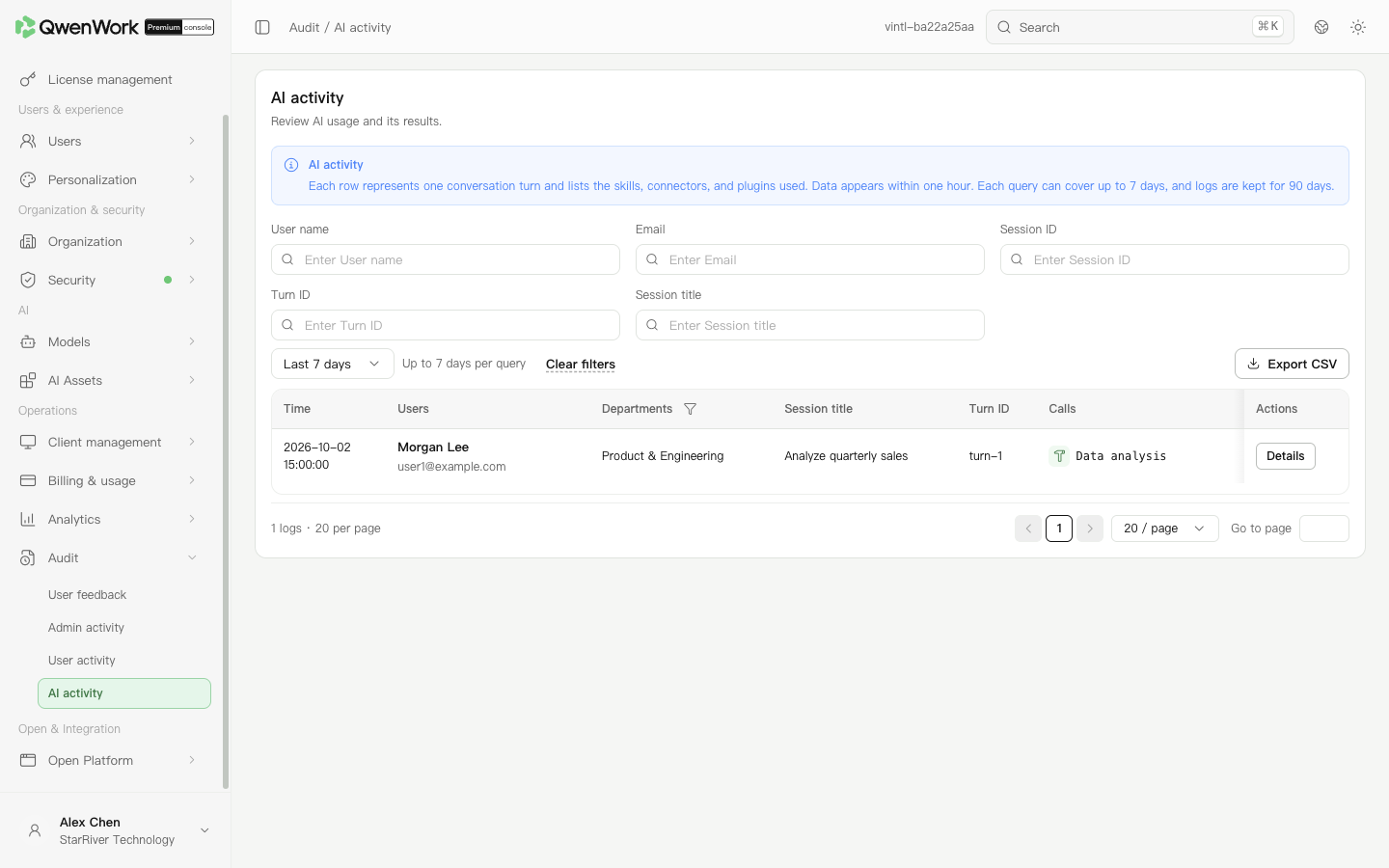 Admin console: each row represents a conversation turn.
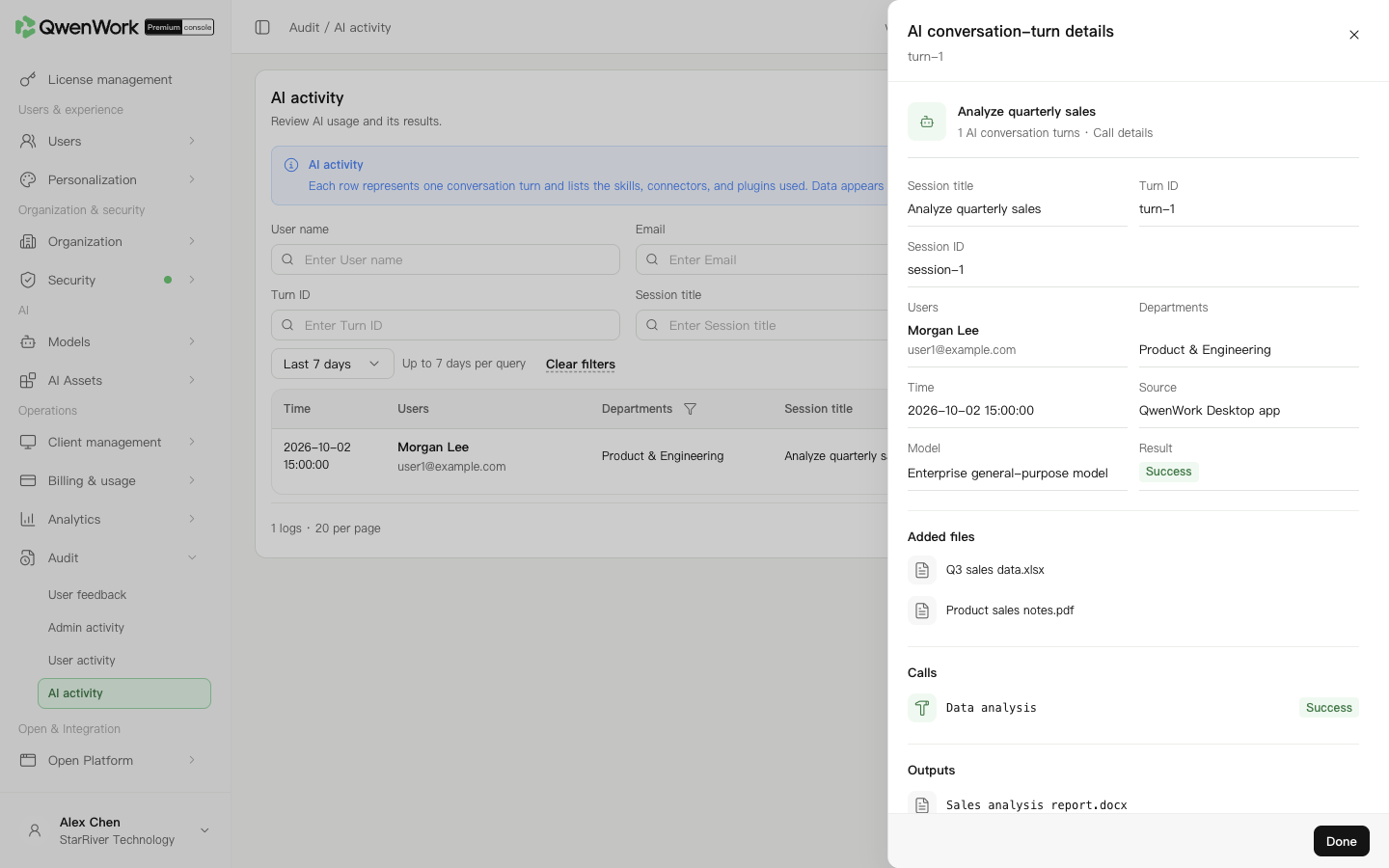 Admin console: inspect the turn's resource calls and result.
AI records are available within one hour after usage and retained for 90 days. Records beyond retention cannot be queried or exported. A missing record immediately after a task does not prove the task did not run; check the data time and revisit the same session.
Check the turn's resources and results, then inspect the corresponding skill, connector, or available suite's state, access scope, and credentials. Verify external authorization errors in the external system too.
Before exporting, set the period and filters and confirm the list loaded successfully. Export CSV uses that successful query's conditions. Verify recipients are permitted to see the business content before sharing investigation material.
Return to: Audit overview
Find a conversation turn
- Open Operations → Audit → AI activity.
- Use today, yesterday, last 3 days, last 7 days, this week, or a custom range of at most 7 calendar days. The default is last 7 days.
- Search by user, email, conversation title, Turn ID, or Session ID.
- Filter by department and result, then open the target row's details.
- Compare the time, user, processing result, and resources used.