
Audit helps investigate console configuration changes, member actions, and AI processing.
Audit helps investigate console configuration changes, member actions, and AI processing. Admin activity records management operations. User activity records key client events. AI activity shows results and resource calls by conversation turn. Choose the relevant log, then search by user, time, or object.
Export uses the successful query's current conditions. Check the dates and filters in the list before exporting the same range.
User feedback is actively submitted by members and is viewed separately from automatically generated logs.
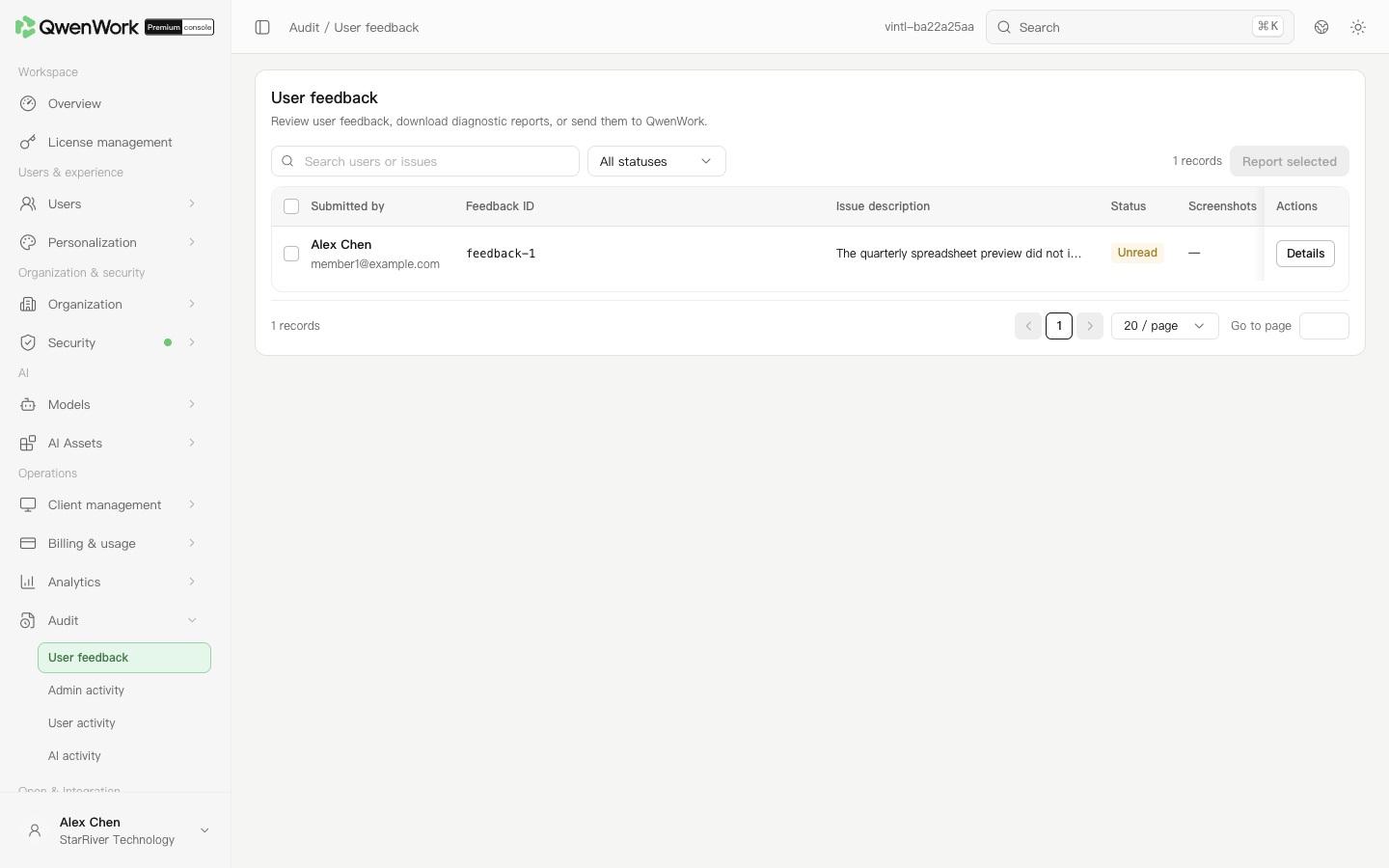 Admin console: review member submissions and open their details.
A report may contain the description, screenshots, user identifiers, task and client environment, execution steps, and request or response data. Downloading for local investigation and reporting to official support are separate actions.
Return to: Admin console feature overview
Admin console: review member submissions and open their details.
A report may contain the description, screenshots, user identifiers, task and client environment, execution steps, and request or response data. Downloading for local investigation and reporting to official support are separate actions.
Return to: Admin console feature overview
Query and retention ranges
| Log | Range |
|---|---|
| Admin activity | Queries cover the last 180 days, with at most 7 calendar days per query. This query window does not mean older history is automatically deleted. |
| User activity | Retained for 90 days in VPC and 180 days in K8S. Each query covers at most 7 calendar days; the default is the last 7 days. |
| AI activity | Retained for 90 days. Each query covers at most 7 calendar days; the default is the last 7 days. Records are available within one hour of usage. |
Choose a feature
| Feature | What you can do |
|---|---|
| Admin activity | Find who changed a console setting |
| User activity | Investigate sign-in and client events |
| AI activity | Check resource calls and results for a conversation turn |
Review user feedback
User feedback is actively submitted by members and is viewed separately from automatically generated logs.
- Open Audit → User feedback and filter by status.
- Open details to read the description, submission time, user information, and screenshots.
- Download the reported-information ZIP when a diagnostic package is present. An entry without a diagnostic package cannot provide that download.
- If the page offers reporting to the official support service, read its confirmation and submit only when the enterprise permits sharing the included business content.
- Check the reporting, reported, or failed status. Retry as instructed after a failure. For bulk reporting, select entries and use the bulk action.