
Operational content publishes notices, activity shortcuts, and resource banners to selected members on a schedule.
Use Personalization → Operational content to publish a notice, add an activity shortcut, or place a banner on Skills or Connectors. You can choose who sees each item, when it appears, and its priority.
To display a banner on a resource page, use Skill banners or Connector banners. Verify the audience and schedule with a test member in the desktop app.
You need the corresponding viewing or configuration permission. Viewing access does not grant permission to save changes.
An item must be enabled, within its scheduled period, and applicable to the user to qualify for delivery. Items of the same type are ordered by priority; a smaller number comes first. Each type is managed separately.
The editor preview checks draft text and layout. Verification from the list checks saved configurations for a selected user. Also check what the user sees in the app.
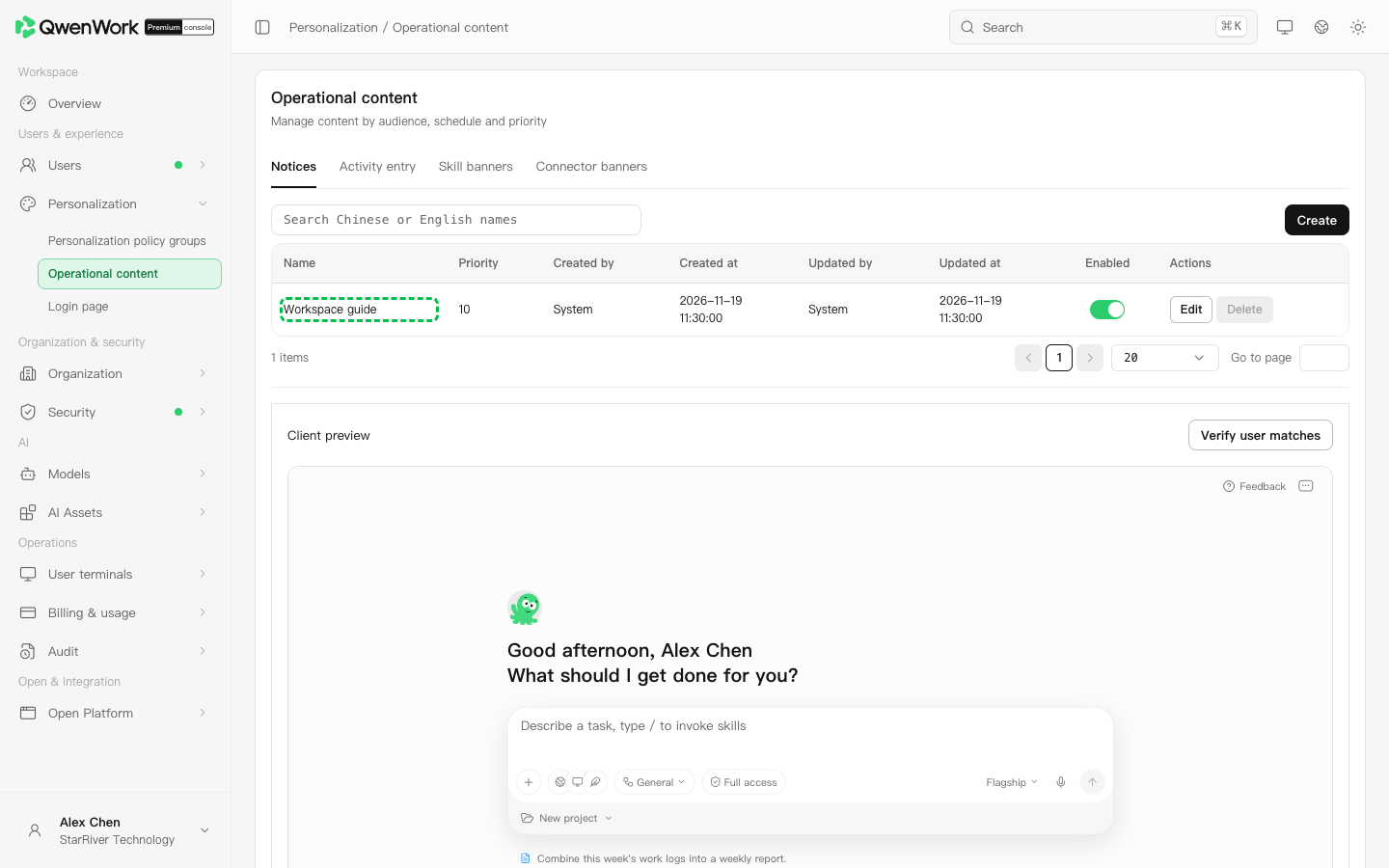 Admin console — In Notices, find the saved Workspace guide and check its priority and enabled state.
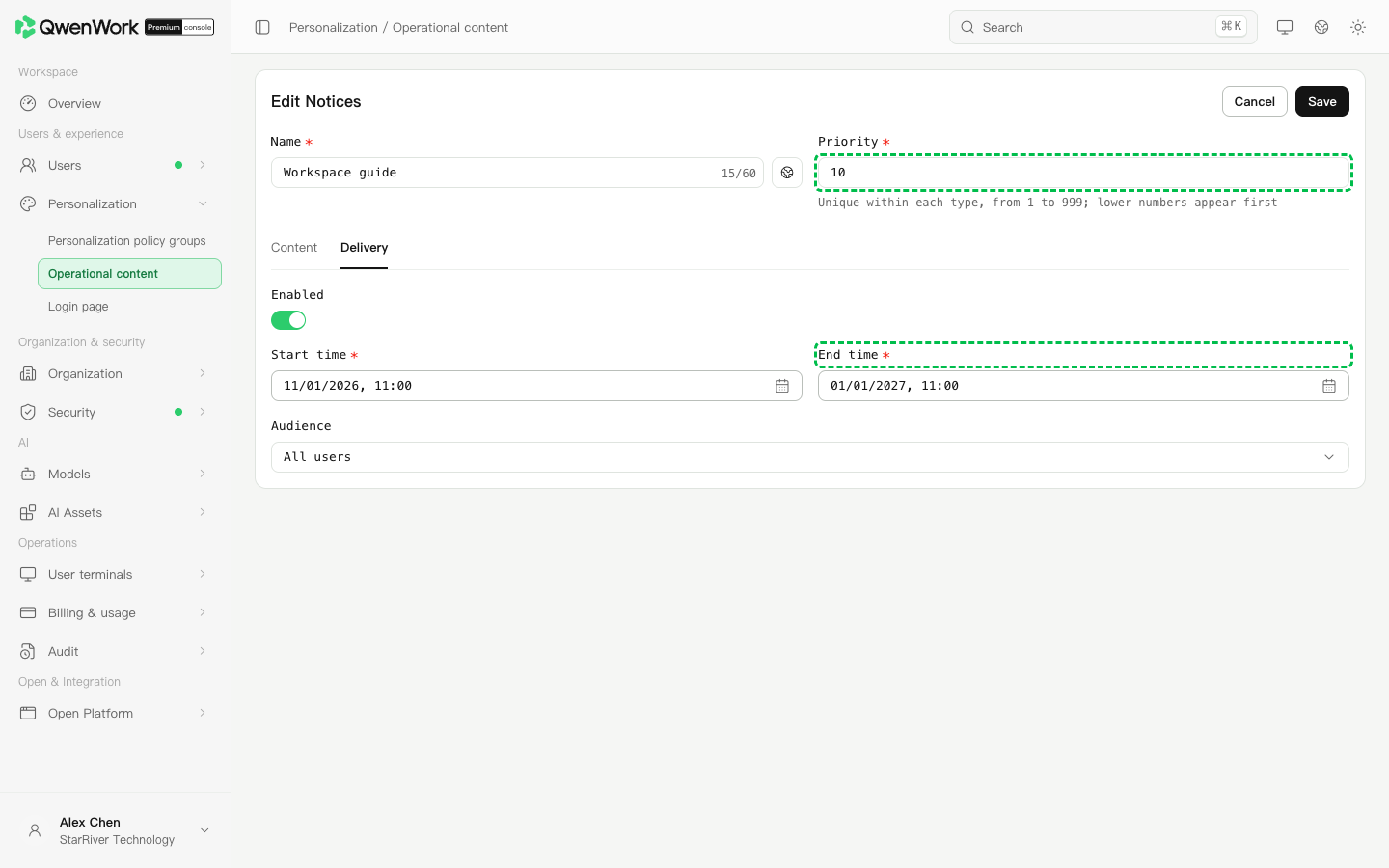 Admin console — In Delivery, check the schedule and audience. This example uses priority 10.
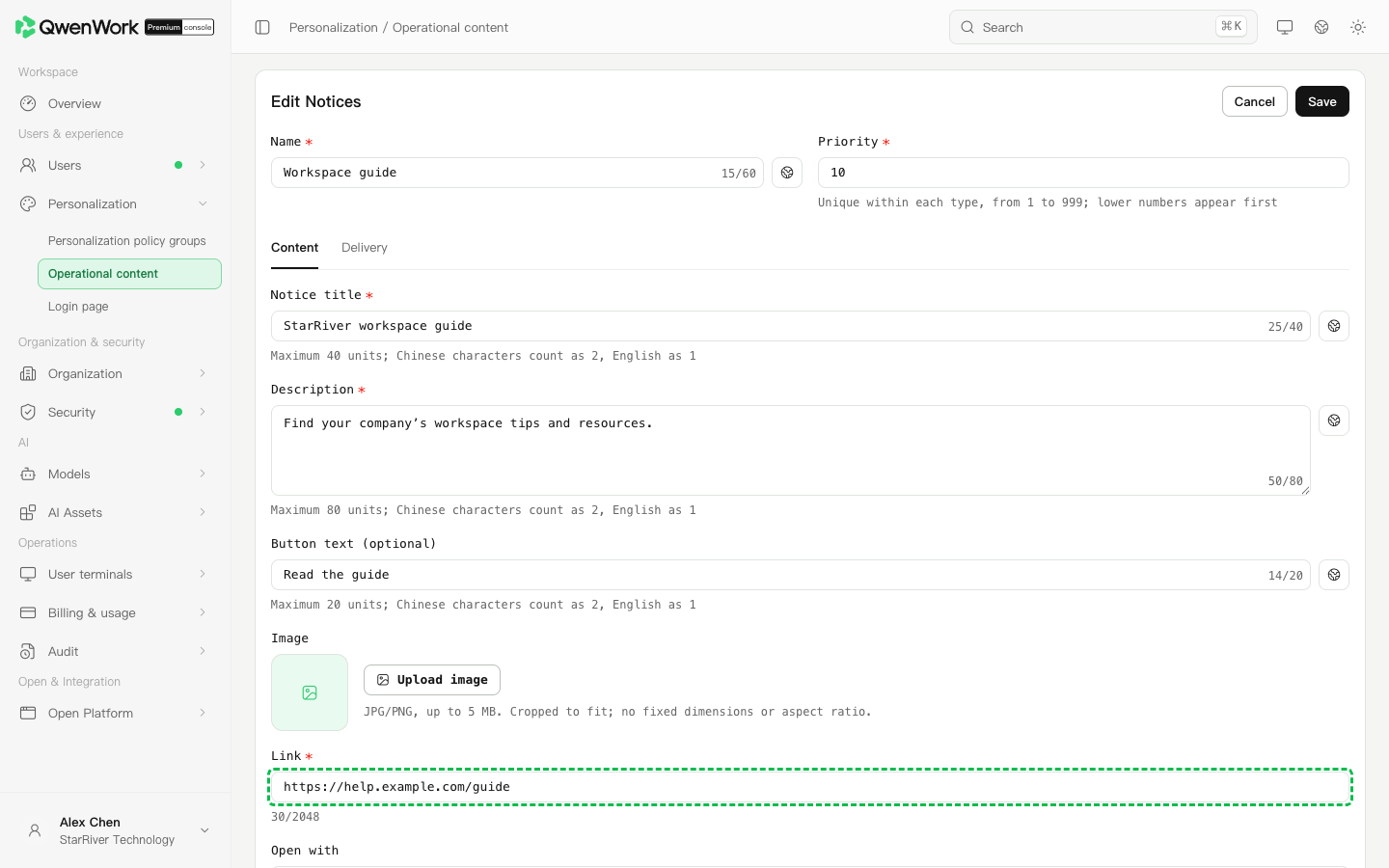 Admin console — The Workspace guide example uses Read the guide and https://help.example.com/guide.
Images support JPG and PNG, up to 5 MB each. Banners are cropped for their display area without a fixed source aspect ratio. Activity icons must be square, from 16×16 to 256×256 pixels.
The maximum lengths are 40 equivalent characters for a notice title, 20 for activity text, 80 for descriptions, and 20 for button text. Check both languages separately. URLs support up to 2048 characters.
After saving, select Verify user matches and choose a test user. For example, Casey Zhou matches one saved notice, Workspace guide. If the result is unexpected, check the content type, enabled state, schedule, audience, and priority.
Check the text, image, entry, and destination in the user's app. If an embedded page does not open, check that the destination allows embedding and that the user has access. If appropriate, switch to the default browser and verify again.
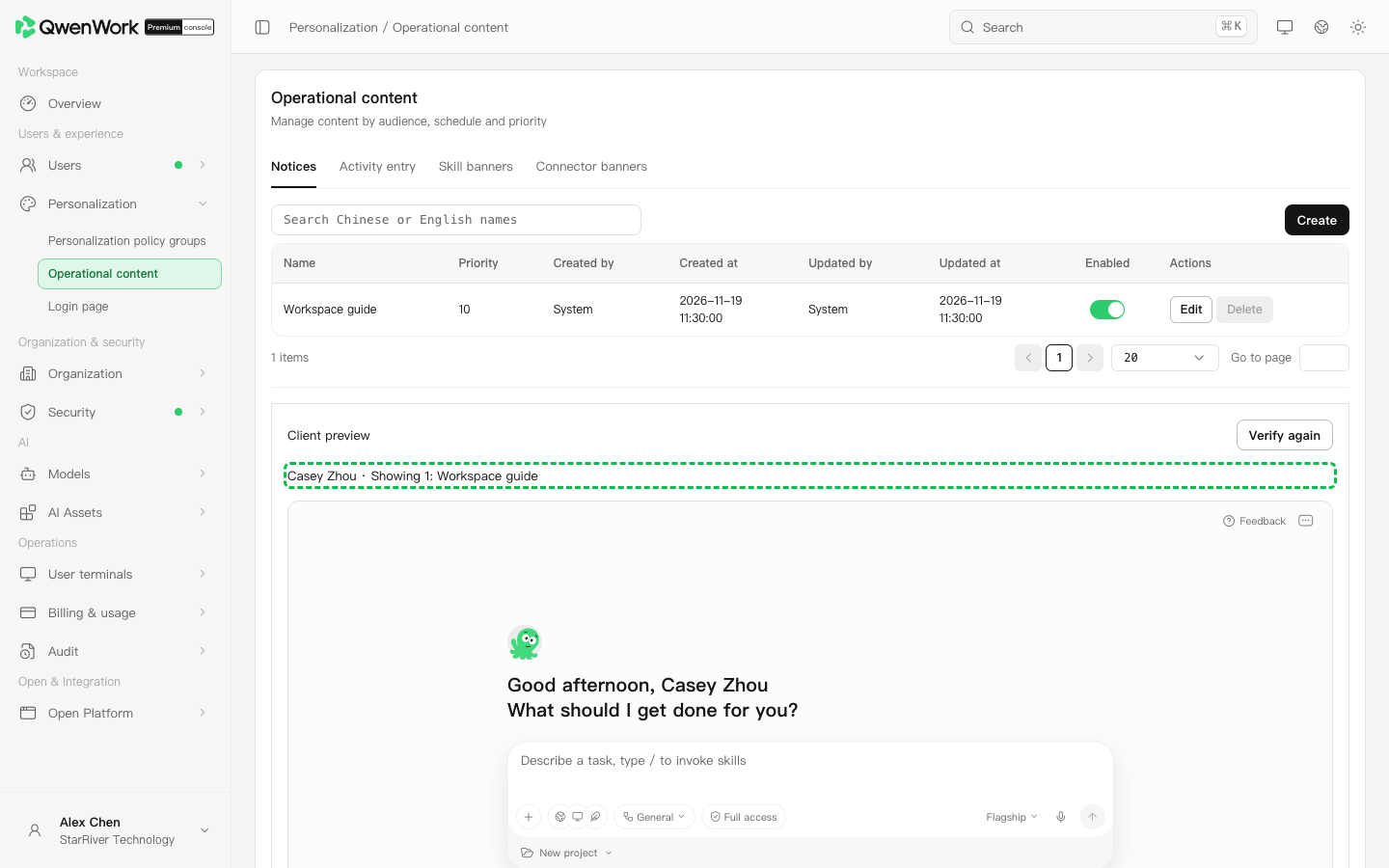 Admin console — Casey Zhou matches one notice, Workspace guide. Confirm the same result in that member's desktop app.
Search by the Chinese or English name and edit the item. To stop delivery, turn it off and confirm. To remove it, use Delete and check the name in the confirmation. System default banners can only be enabled or disabled.
If another administrator changed the item, reload the saved content before submitting your edits. If you lack configuration permission or the audience is outside your allowed scope, contact an authorized administrator.
Check the start and end times and confirm the employees are in its audience. Then ask one of them to open the relevant screen.
Review their order and display times in Operational content. Test with an employee who is eligible to see both.
Return to: Personalization overview
Delivery conditions
An item must be enabled, within its scheduled period, and applicable to the user to qualify for delivery. Items of the same type are ordered by priority; a smaller number comes first. Each type is managed separately.
The editor preview checks draft text and layout. Verification from the list checks saved configurations for a selected user. Also check what the user sees in the app.
Choose a type
| Type | Prepare |
|---|---|
| Notice | Title and description; button text and a link when an action is needed |
| Activity shortcut | Activity text and a link; an optional icon |
| Skill banners | Image, link, and opening mode |
| Connector banners | Image, link, and opening mode |
Create and save
- Select the content type and click Create.
- Enter a name in at least one language. Each language supports up to 60 characters.
- In Content, fill in the text and image fields for that type. Check the counters. A Chinese character counts as two equivalent characters and an English character counts as one.
- Where a link is required, enter a full HTTP or HTTPS URL and select embedded opening or the default browser. Do not put a username or password in the URL.
- In Delivery, set the start and end time. The end must be later than the start.
- Enter an integer priority from 1 to 999 that is unique within the type. Choose all users or selected users, departments, and user groups.
- Review the enabled state, save, and check the item in the list.
Image and text requirements
Images support JPG and PNG, up to 5 MB each. Banners are cropped for their display area without a fixed source aspect ratio. Activity icons must be square, from 16×16 to 256×256 pixels.
The maximum lengths are 40 equivalent characters for a notice title, 20 for activity text, 80 for descriptions, and 20 for button text. Check both languages separately. URLs support up to 2048 characters.
Verify delivery
After saving, select Verify user matches and choose a test user. For example, Casey Zhou matches one saved notice, Workspace guide. If the result is unexpected, check the content type, enabled state, schedule, audience, and priority.
Check the text, image, entry, and destination in the user's app. If an embedded page does not open, check that the destination allows embedding and that the user has access. If appropriate, switch to the default browser and verify again.