
Configure a background image for the enterprise login page.
Configure a background image for the enterprise login page. Preview your prepared image in the console before publishing it.
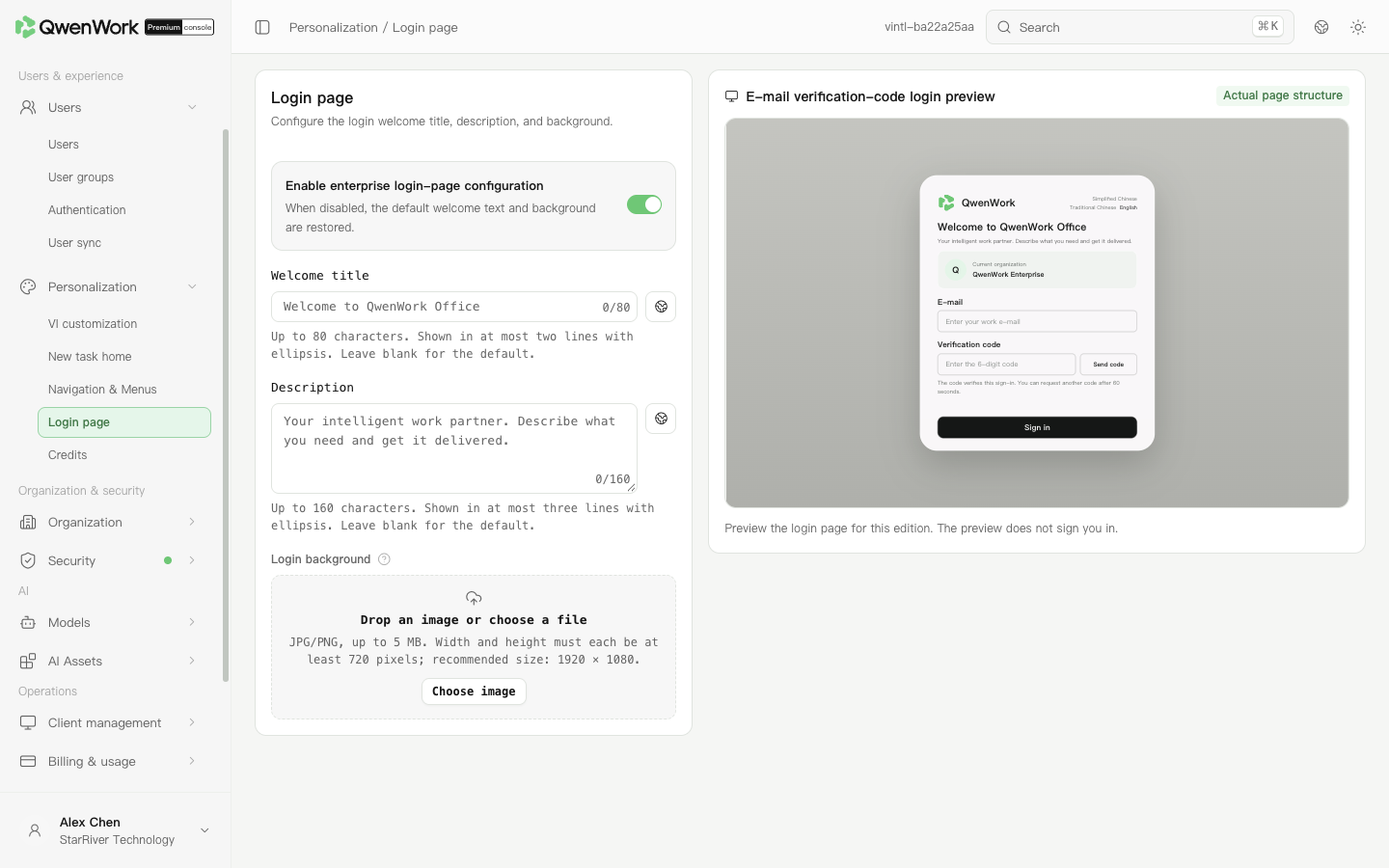 Admin console: upload a background and check the login preview.
Upload a replacement and publish it, then check it at different window widths. When disabling enterprise login configuration, save as instructed on the page; the client uses the corresponding default login presentation.
Confirm the enterprise access address in Organization info, then open the enterprise login page to check its background. Available sign-in methods are controlled by Authentication. Uploading a background does not enable SSO or password sign-in.
Return to: Personalization overview
Upload an enterprise login background
- Open Users & experience → Personalization → Login page and enable enterprise login page configuration.
- Upload a JPG or PNG in the background image area. The file must be no larger than 5 MB; both width and height must be at least 720 pixels; 1920 × 1080 is recommended.
- Check the login preview. Make sure important content is not cropped and the sign-in area remains readable.
- Click Save and publish, then reopen the page to verify the current image.