
Home recommendations show common tasks to help members get started.
Home recommendations show common tasks to help members get started. Each item has two texts: the Display prompt is the short suggestion members see; the Input prompt is the complete task inserted when they select it.
Open Personalization → New task home → Home recommendations.
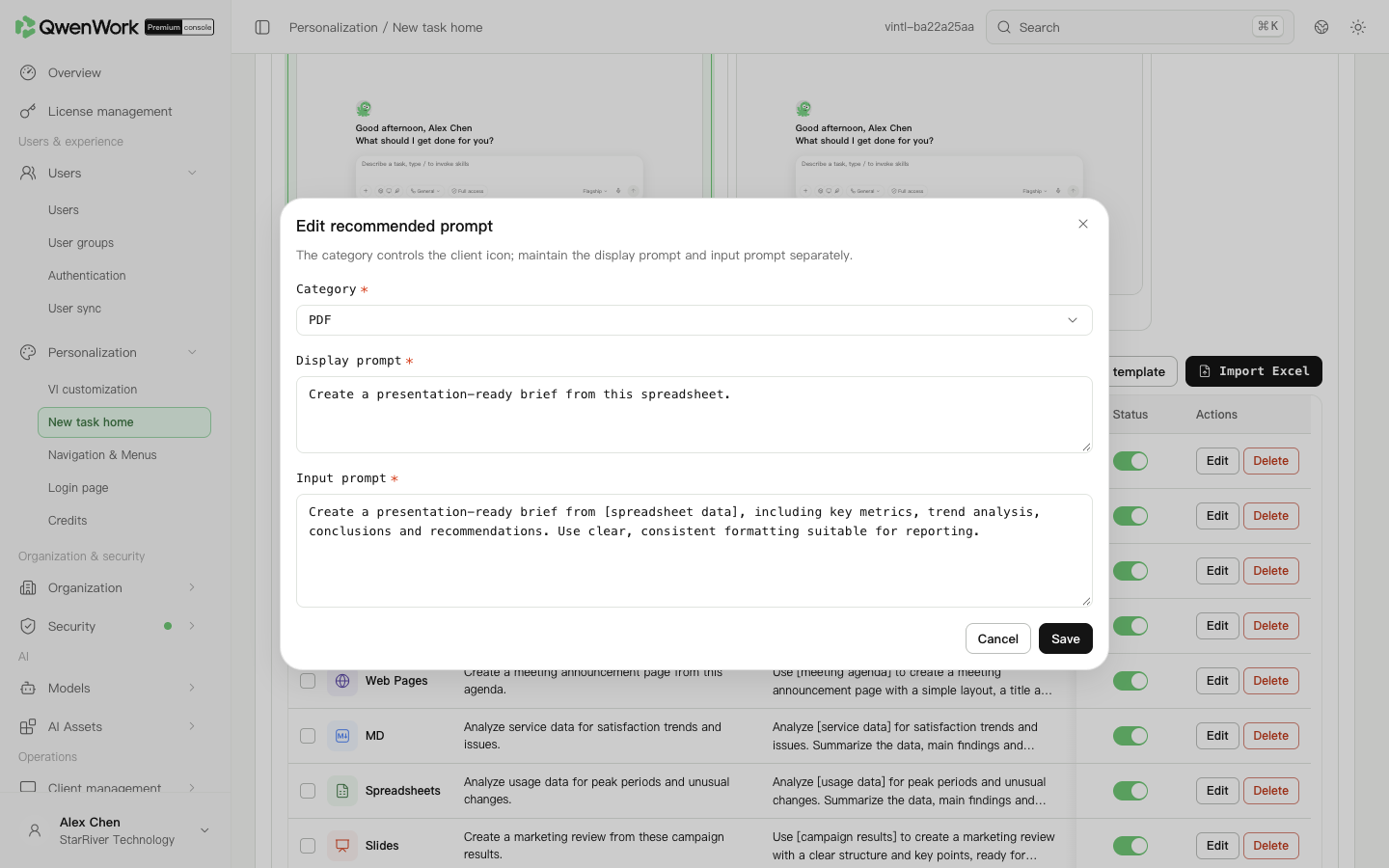 Admin console: enter the display text and the full task separately.
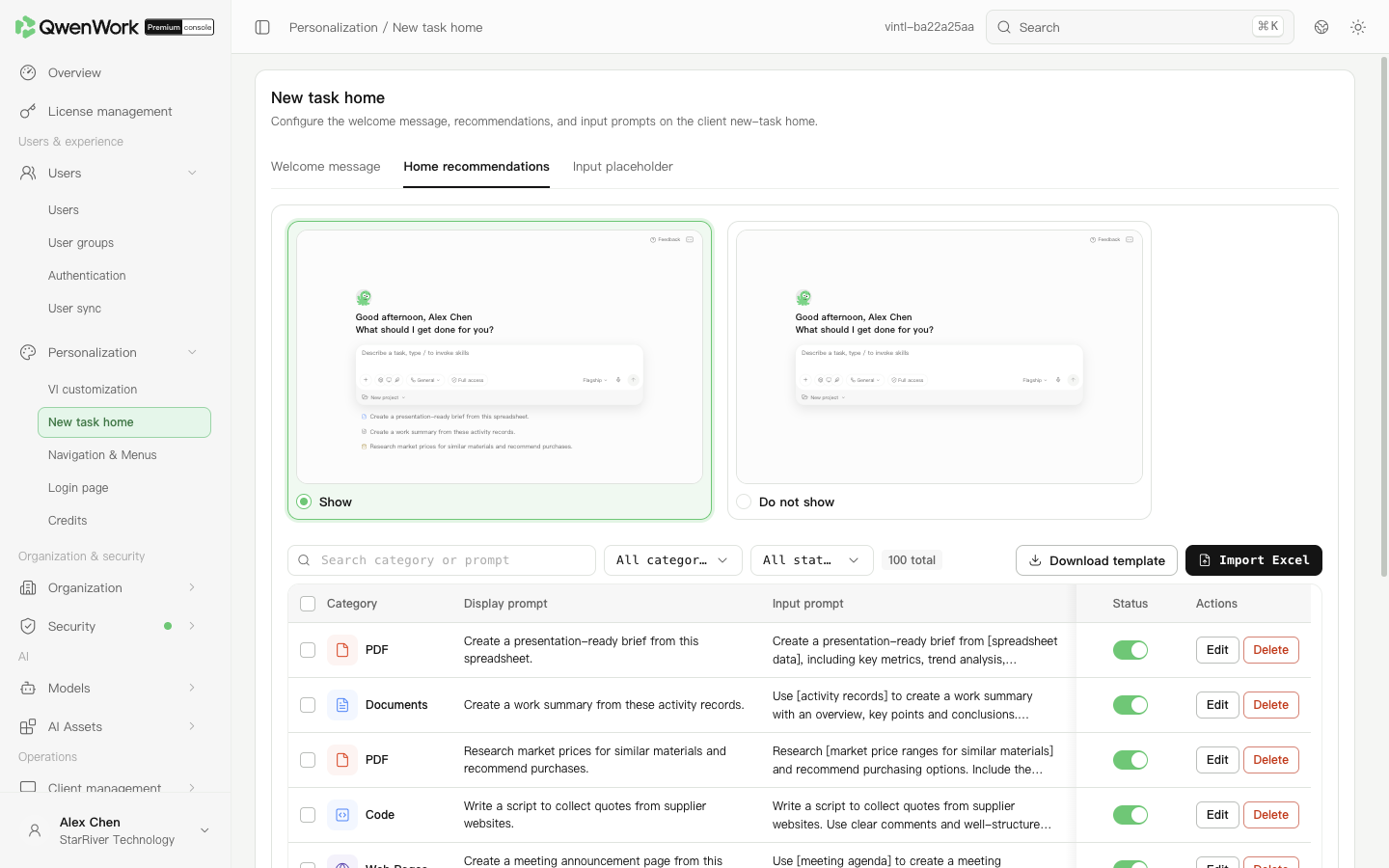 Admin console: search, edit, enable, or disable prompts, and import them from Excel.
Turn off an item's enabled switch when it should be hidden. To remove it, use Delete and read the confirmation. You can select multiple items for bulk actions.
To hide the entire default recommendation area, select Do not show at the top of the page, confirm, then click Save and publish when it appears. Changing the selection without publishing does not apply it to the client.
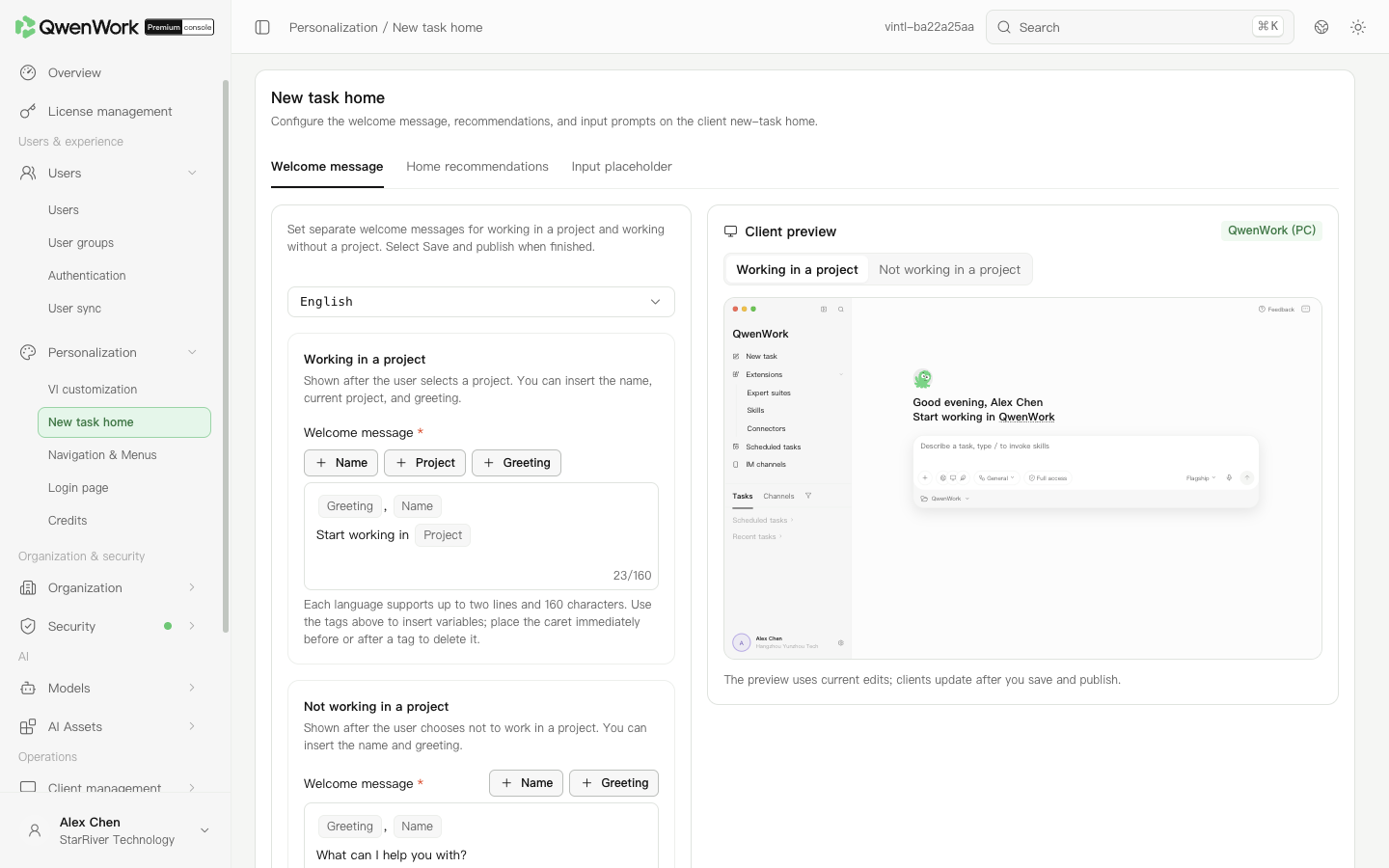 Client preview in the admin console: check the message with and without a project.
Return to: Personalization overview
Client preview in the admin console: check the message with and without a project.
Return to: Personalization overview
Edit a recommended prompt
- Find an item using search or the category filter, then click Edit on its row.
- Select a category. The category determines the icon shown in the client.
- Enter a short Display prompt, such as “Summarize meeting notes”.
- Enter the full Input prompt, such as “Extract decisions, owners, and deadlines from these meeting notes”.
- Click Save, wait for the success message, then check both texts in the list.
Import recommendations in bulk
- Click Download template and fill in the category, Display prompt, and Input prompt columns.
- Click Import Excel and select the completed file.
- Check the import preview and errors. Correct invalid rows before submitting. Imported items are added to the existing recommendations.
- Search the list to verify the new items and their enabled states.
Control visibility
Turn off an item's enabled switch when it should be hidden. To remove it, use Delete and read the confirmation. You can select multiple items for bulk actions.
To hide the entire default recommendation area, select Do not show at the top of the page, confirm, then click Save and publish when it appears. Changing the selection without publishing does not apply it to the client.
Set the home welcome message
- Switch to Welcome message on the same page.
- Select a language and enter separate text for working inside a project and outside a project. Each language supports up to two lines and 160 characters.
- Use the insert buttons to add the member's name or a greeting. The project scenario also supports the project name.
- Switch the preview scenario to check both messages, then click Save and publish.