
Navigation configuration arranges the entries in the client's left sidebar.
Navigation configuration arranges the entries in the client's left sidebar. Add groups and custom links, adjust their order, and check the structure in the preview.
The built-in navigation includes New task, Extensions (Expert suites, Skills, and Connectors), Scheduled tasks, and IM channels. You can continue maintaining saved custom links, groups, and enabled states.
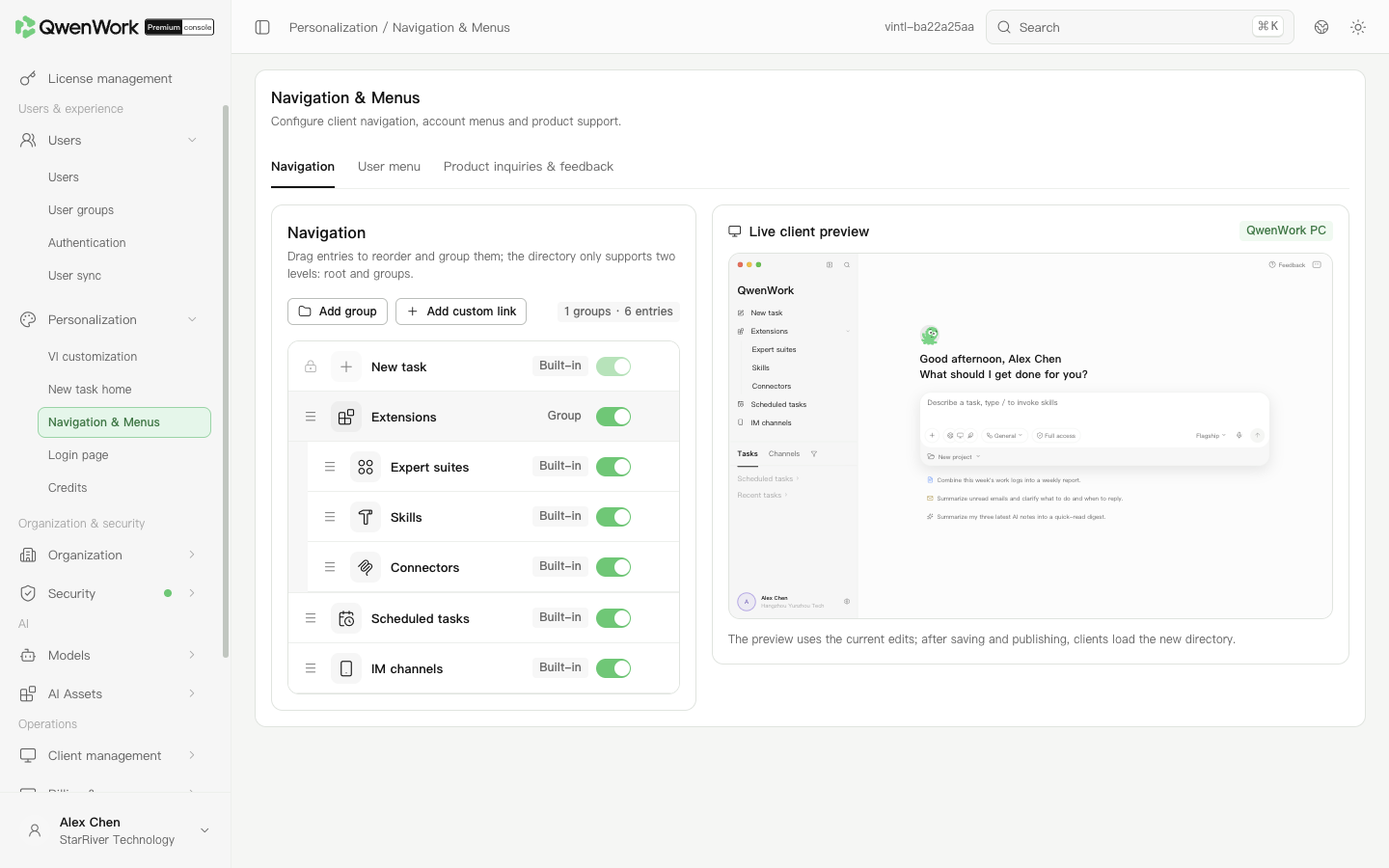 Admin console: arrange entries and check the client navigation preview.
Use an entry's switch to control visibility. Use its More menu to edit the name, icon, or address where allowed. Navigation supports at most two levels. New task is fixed and cannot be hidden, moved, or given another icon like a custom link.
Deleting a group moves its entries to the root. Use names members recognize, such as “Expense claims”, instead of internal system codes.
Select the option to open within QwenWork, then expand Advanced configuration.
After saving, open each added or changed link in the client. Verify the address, sign-in method, network access, and permissions. The console preview checks the layout; actual access must be checked in the client.
Return to: Personalization overview
Add a group and a link
- Open Users & experience → Personalization → Navigation & Menus.
- Click Add group and enter a descriptive name, such as “Enterprise services”.
- Click Add custom link. Enter a name of up to 10 characters, a web address, and an icon. Choose to open it within QwenWork or in a new browser tab. The saved link initially appears at the root.
- Move the link into the appropriate group, use the drag handle to adjust its order, and check the hierarchy in the preview.
- Click Save and publish. After the success message, reopen the page to confirm the links and order were saved.
Adjust existing entries
Use an entry's switch to control visibility. Use its More menu to edit the name, icon, or address where allowed. Navigation supports at most two levels. New task is fixed and cannot be hidden, moved, or given another icon like a custom link.
Deleting a group moves its entries to the root. Use names members recognize, such as “Expense claims”, instead of internal system codes.
Configure an embedded web plugin
Select the option to open within QwenWork, then expand Advanced configuration.
| Field | Requirements |
|---|---|
| Environment variables | A JSON object with up to 20 entries. Values may be strings, numbers, or booleans. Leave blank to pass none. |
| Route identifier | 1–32 lowercase letters, digits, or hyphens. It must be unique in the directory. The reserved name knowledge-base cannot be used. |
| Direct link | Generated from the route identifier; copy it for users who need to open this page. |
| Plugin package | A ZIP of up to 50 MB containing web/index.html. If it contains native/, it must also contain native/index.js. |
- Click Download template, prepare the files, then click Upload ZIP.
- Check the filename. Download the uploaded package to inspect it, or remove it to return to using the web address.
- A plugin package takes precedence over the address; an address is not required while a package is present. Save the link, then click Save and publish.
- Reopen the link configuration to verify its route, variables, and file. Plugin advanced settings are not used when the link opens in a new browser tab.