
Create, organize, and use pages in QwenWork.
Overview
Pages is where users create and manage websites produced by the Agent. A user can start from a natural-language request, preview the generated site, refine it through conversation, and manage how it is published and accessed.
Common Use Cases
- Campaign, introduction, or information pages
- Turning research, proposals, or data into a browsable site
- Quickly creating shareable internal or external pages
- Continuing to refine an existing website
Two Entry Points
| What | Where | Purpose |
|---|---|---|
| Pages Tab | Left Sidebar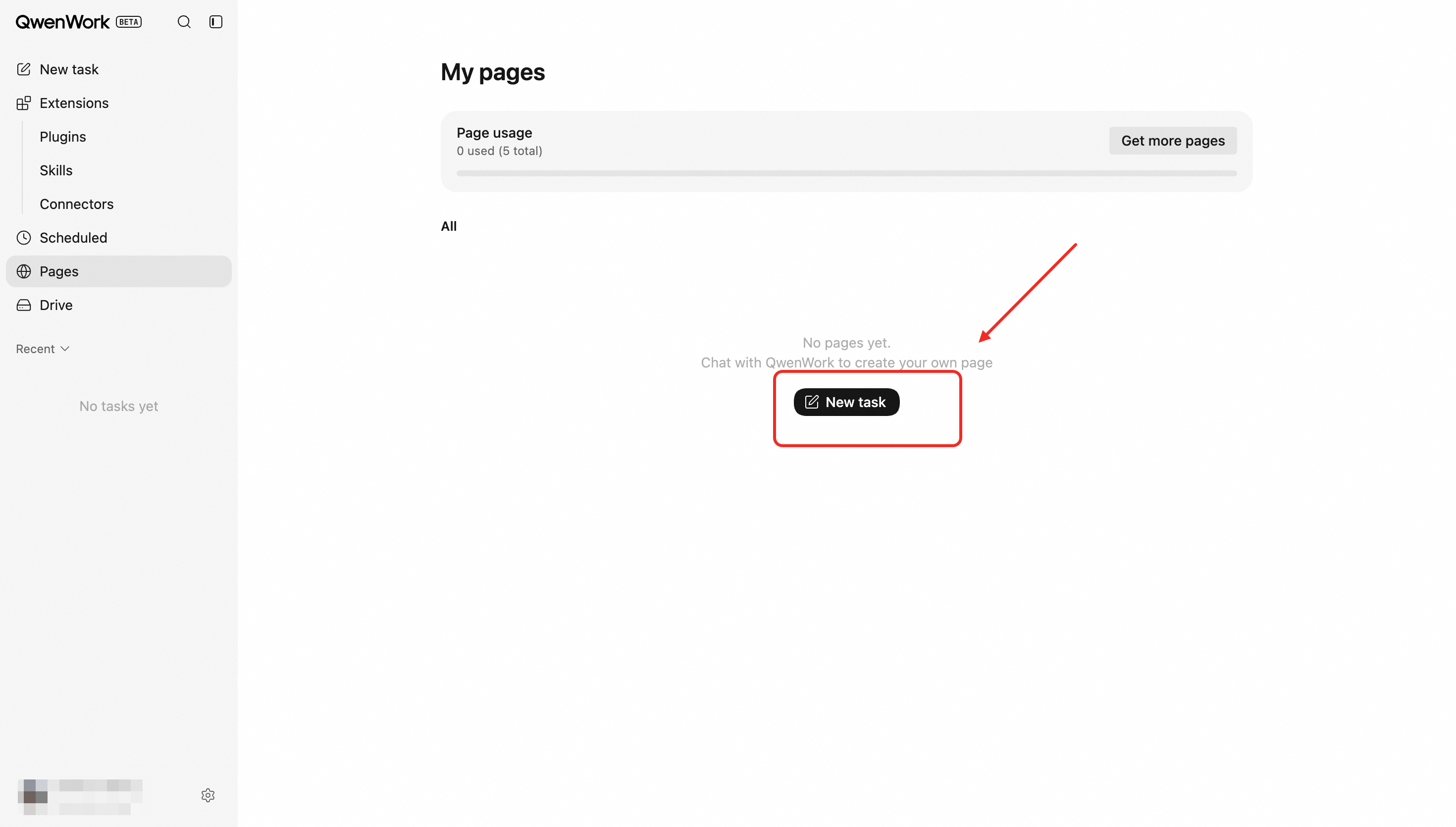 | Laying out all your published and unpublished pages as cards. Each card includes a preview image, status, current version, url link, and management menu. |
| In conversation | Any Session (New Task, Session History)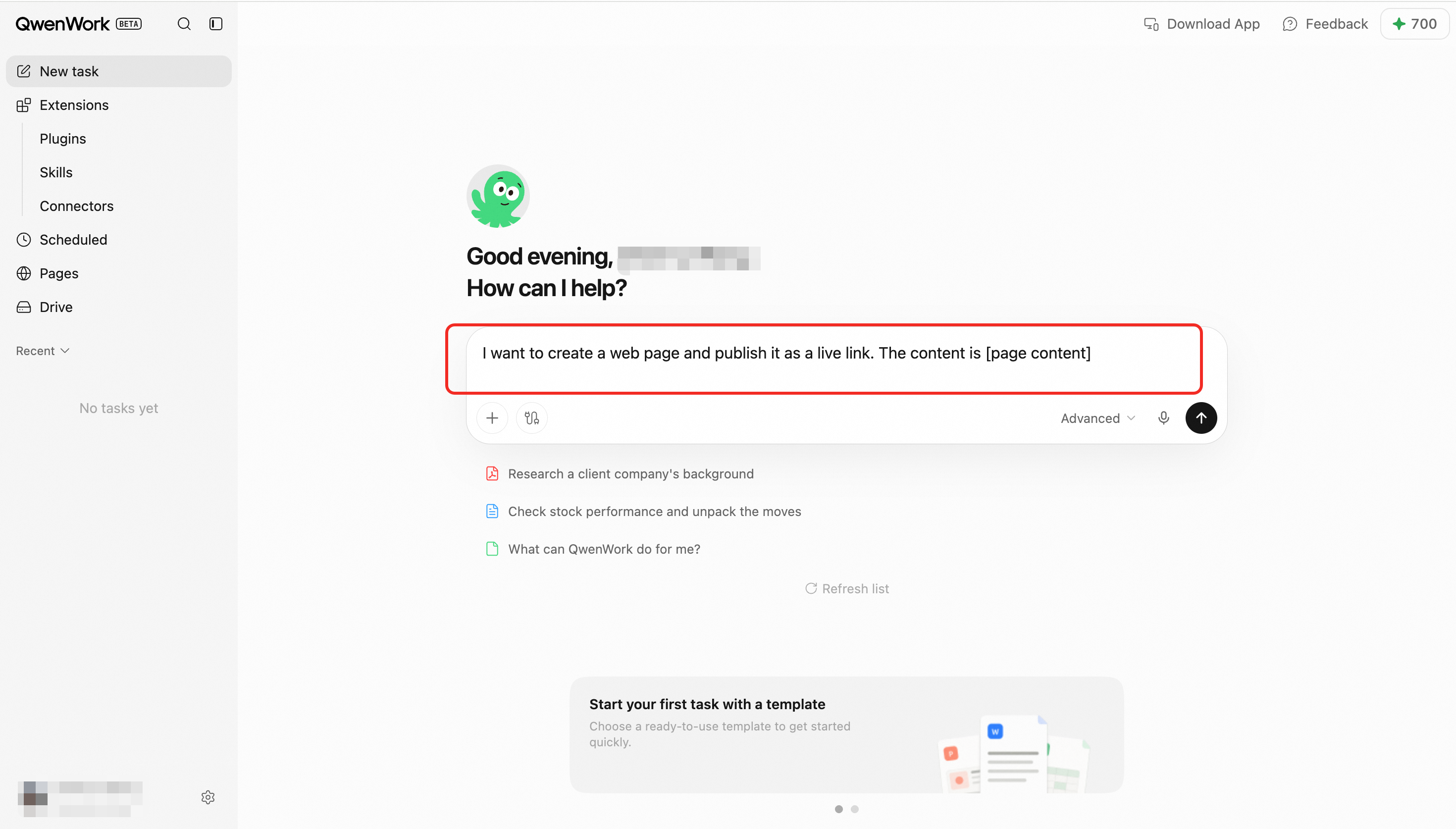 | Describe what you want, and QwenWork will help you get there, from ideating to publishing. |
Core Capabilities
- One-click publishing — Publish static websites or dynamic applications with forms, data storage, and third-party service integrations to the public internet with one click.
- Versions and rollback — Each website retains its version history. You can view previous versions, update times, and review statuses, or switch the website to any previous version.
- Domains and certificates — Each website automatically receives a default
*.qwenwork.hostdomain. After upgrading your subscription, you can bind up to five custom domains to each website and use either a free platform-issued certificate or your own certificate. - Built-in database — Attach an independent database to a dynamic website when needed. The website reads and writes data automatically, with no connection details to manage.
- Usage management — Monthly requests and traffic are controlled according to your plan, with current usage displayed on each website card.
- Basic management — Rename websites, switch versions, delete websites, and more.
Quick Start
The following example shows how to publish a static website from a conversation:
- Describe what you need, such as “Create a personal résumé website for me.”
- QwenWork prepares the website and displays a preview in the conversation.
- Once you confirm everything looks correct, click Publish. QwenWork automatically creates the website.
- QwenWork assigns a default domain, such as
a1b2c3d4.qwenwork.host, and deploys the website. - When publishing is complete, a Website Published card and an accessible link appear in the conversation.
- Click the link to open the website in your browser. You can also view and manage it from Websites in the left navigation menu.
Detailed Instructions
Publishing a Website
Creating a Website
Websites are either static or dynamic. The type is selected when the website is created and cannot be changed afterward. To use another type, create a new website.
| Type | Best for | Description |
|---|---|---|
| Static website | Personal websites, portfolios, landing pages, documentation sites, and single-page applications | Front-end-only content with more reliable loading |
| Dynamic website | Forms, data storage, and integrations with other services | Currently supports a Node.js backend and an optional database. More backend languages will be supported gradually. |
| Step | Action | Result |
|---|---|---|
| 1 | Tell QwenWork in the conversation whether you want a static or dynamic website. For a dynamic website, you can also choose whether to attach a database. | If you have reached your plan’s website limit, you will be prompted to upgrade. |
| 2 | QwenWork assigns a default *.qwenwork.host domain and creates the website. | The new website appears in the preview panel beside the conversation and under Websites. |
| 3 | If you selected a database, QwenWork begins preparing an independent database. | The website cannot be published until the database is ready. QwenWork will retry later. |
- When renaming a website under Websites, the name may contain Chinese characters, uppercase and lowercase letters, numbers, and hyphens (
-), up to 30 characters. - QwenWork must complete the first publication before the website officially goes live.
Publishing New Versions and Rolling Back
Each publication is retained as a version. Whenever QwenWork publishes changes you request, a new version is created. Select View Versions from the website card menu to see previous versions, update times, and review statuses.
- Publish a new version: Describe your changes to QwenWork in the conversation. After publication, the card status changes from Deploying to Published. Visitors remain connected during the switch, although the first visit immediately afterward may be slightly slower. If publishing fails, the card displays Failed. Ask QwenWork to correct the issue and publish again.
- Switch versions — coming soon: Select Switch Version from the card menu, choose a previous version, and confirm. The website switches to that version without being republished.
- Restriction: Only the currently published version is publicly displayed. Other versions remain available and can be restored at any time.
Custom Domains
Each website receives a default *.qwenwork.host domain. After upgrading your subscription, you can bind up to five custom domains to each website, such as www.mybrand.com.
| Step | Action | Result |
|---|---|---|
| 1 | Select Custom Domain from the card menu, then click Add in the domain management window. | The Add Domain window opens. |
| 2 | Enter the domain and choose either a free platform certificate or your own certificate. To use your own certificate, upload the public certificate and private key in PEM format. | The domain and certificate are configured. |
| 3 | Click Continue. | The required ownership-verification TXT record and routing CNAME record are displayed. |
| 4 | Add both DNS records through your domain provider. Make sure the domain has completed ICP filing and Public Security Bureau filing. | The domain is ready to be verified. |
| 5 | Return to QwenWork and click Verify. | Once verification succeeds, the domain becomes active and can be used to access the website. |
- Free platform certificates are automatically issued and renewed by QwenWork. Users are responsible for uploading and maintaining their own certificates.
- The TXT record verifies domain ownership, while the CNAME record routes traffic to the website. Both records must remain in place.
- Custom and default domains point to the same website and share the same access password and quota.
- Custom domains must complete mainland China ICP filing and Public Security Bureau filing before they can be accessed normally. Users are responsible for the filing entity and regulatory compliance.
- Default
*.qwenwork.hostdomains assigned by QwenWork can be accessed directly and do not require separate filing by the user.
Access Password Protection
When password protection is enabled, visitors must enter the correct password before accessing the website. They do not need to enter it again while their verification session remains valid. Updating the password requires visitors to verify again; removing the password makes the website public.
| Step | Action | Result |
|---|---|---|
| 1 | Select Access Password from the card menu, enter a password, and save it. | Protection is enabled immediately. If the password is updated, previously verified visitors must verify again. |
| 2 | A visitor opens the domain. | A password form appears. |
| 3 | The visitor enters the correct password. | No additional password entry is required while the verification session remains valid. |
| 4 | To disable protection, reopen the window, clear the password field, and save. | Protection is disabled and the website becomes publicly accessible. |
- Passwords are stored as hashes. QwenWork does not retain plaintext passwords. If you forget the password, you must reset it.
- The password protects the entire website and cannot be applied to only part of it. After successful verification, visitors are redirected to the homepage rather than the specific URL they originally opened.
- Setting or updating the password invalidates all existing verified sessions. Removing the password restores public access.
Database
Databases are available only for dynamic websites. A dynamic website can have an independent QwenWork-managed database for form submissions, user records, and other data. The website reads and writes data automatically, with no connection details to manage.
QwenWork can attach the database when creating the website or add one to an existing dynamic website. The Websites section does not provide controls for attaching, viewing, or managing databases. Once the database is ready, the website can access it automatically starting with the next publication.
There is currently no interface for viewing or editing database contents. To inspect the data, ask QwenWork for assistance in the conversation.
Restrictions
- Each website can have only one database. Once attached, it cannot be removed or replaced.
- The database is released together with the website. Deleting the website permanently erases its data. See Taking a Website Offline.
Managing Websites
| Action | Location | Description |
|---|---|---|
| View status | Website card | Displays the website’s status and most recent update time |
| Open link | Website card | Opens the domain associated with the website |
| Rename | Rename in the card menu | Changes only the displayed name; it does not change the domain or affect access |
| Switch versions — coming soon | Switch Version in the card menu | Select and confirm a previous version to switch the website to it |
| Access password | Access Password in the card menu; available only for published websites | See Access Password Protection |
| Custom domain | Custom Domain in the card menu | See Custom Domains; this does not affect access through the default domain |
| Delete | Delete in the card menu | See Taking a Website Offline |
| View usage | Website card or top of the page | Hover over or focus on a card to see requests and traffic for the website’s current 30-day cycle. The top of the page shows the account’s total website count and quota. |
Note: You cannot create a website directly from the Websites section. New websites must be created by QwenWork through a conversation.
Settings That Cannot Be Changed
- A website’s type—static or dynamic—cannot be changed after creation.
- The default domain assigned by QwenWork cannot be changed. You may bind up to five custom domains to each website.
- A published version cannot be edited in place. Even a minor text change is published as a new version.
Taking a Website Offline
There are two ways a website may become unavailable:
- You delete it: Permanent and irreversible.
- QwenWork suspends it: Access is blocked, but the website itself is retained and becomes accessible again once the recovery conditions are met.
Deleting a Website
| Action | Trigger | Impact | Recoverable |
|---|---|---|---|
| Delete an individual website | Select Delete from the card menu and confirm a second time | QwenWork removes the domain, custom domains, database, and all other associated resources. The website disappears from the list. | No |
⚠️ Deleting a website permanently releases its database, and the data cannot be recovered. If you need to retain the data, ask QwenWork to export it before deleting the website.
Automatic Suspension
| Trigger | Impact | How to restore access |
|---|---|---|
| Monthly request or traffic limit reached | Visitors see a Quota Exhausted page. Website content, settings, versions, and database are retained. | Usage resets every 30 days, or you can upgrade your plan to restore access immediately. |
| Website count exceeds the limit after a plan downgrade | Excess websites are suspended and cannot publish or create new versions. Their databases are retained. | Upgrade to the previous plan or delete other websites to free up capacity. |
Plans, Quotas, and Limits
Different plans support different numbers of published websites. Upgrade your plan to publish more websites.
| Plan | Number of published websites |
|---|---|
| Free | 5 |
| Personal Standard | 10, with custom-domain support |
| Personal Premium | 50, with custom-domain support |
End-to-End Flow
- Describe the website goal and content in a session.
- The Agent generates the site and provides a preview.
- Review the result and request revisions.
- Publish the site and obtain its URL.
- The site appears in My Websites.
- Return later to review, update, or manage access.
Key Rules
- A website belongs to the workspace in which it was created.
- Most content and design revisions continue through the related session.
- Published URLs provide viewing access; editing remains permission-controlled.
- Users are responsible for having the right to use source materials included on a site.
- Organization websites follow organization asset and member permission rules.
Frequently Asked Questions
Q: Why does the domain show a “Page is being deployed” message (503)?
The web service is not ready yet. It may be undergoing its first deployment or starting a dynamic web instance. Check the status on the page dashboard. If it shows “Published” but the deployment message remains, please try again later.
Q: Why does the domain show a “Monthly usage limit reached” message (429)?
Your monthly request or traffic allowance has reached the plan limit. Usage resets every 30 days, or you can upgrade your plan to restore access immediately.
Q: Why does the domain show a “Page temporarily unavailable” message (403)?
The page has been suspended or blocked. Common reasons include:
- After downgrading, the number of pages exceeds the new plan limit. Excess pages are suspended. Upgrade to the previous plan or delete other pages to free up capacity.
- After downgrading, custom-domain access is no longer included. The custom domain is suspended, but the default
*.qwenwork.hostdomain remains accessible.
*.qwenwork.host domain is unaffected.
Q: Does a custom domain require ICP filing?
Yes. Under applicable regulations in mainland China, a custom domain must complete ICP filing before it can be publicly accessed. Users are responsible for completing the filing and ensuring compliance. The default *.qwenwork.host domain assigned by QwenWork does not require separate filing and can be accessed directly.
Q: Can I manage multiple pages in bulk, such as changing access passwords for several pages at once?
Bulk operations are not currently supported. Pages must be managed individually.