
User terminals manages desktop installers, upgrade plans, and dependency packages for the enterprise.
Use Installers to prepare files for first-time installs. Use Upgrade plans to choose when existing installations can update. Check both on a test device before you roll them out.
In the console, open User terminals. Installers manages available versions, Upgrade plans opens the release task list, and Environment packages contains the dependencies for client tasks.
Installers and Release plans require the App customization service and the corresponding management permissions. Dependencies uses its own permission and is not gated by that same service entitlement.
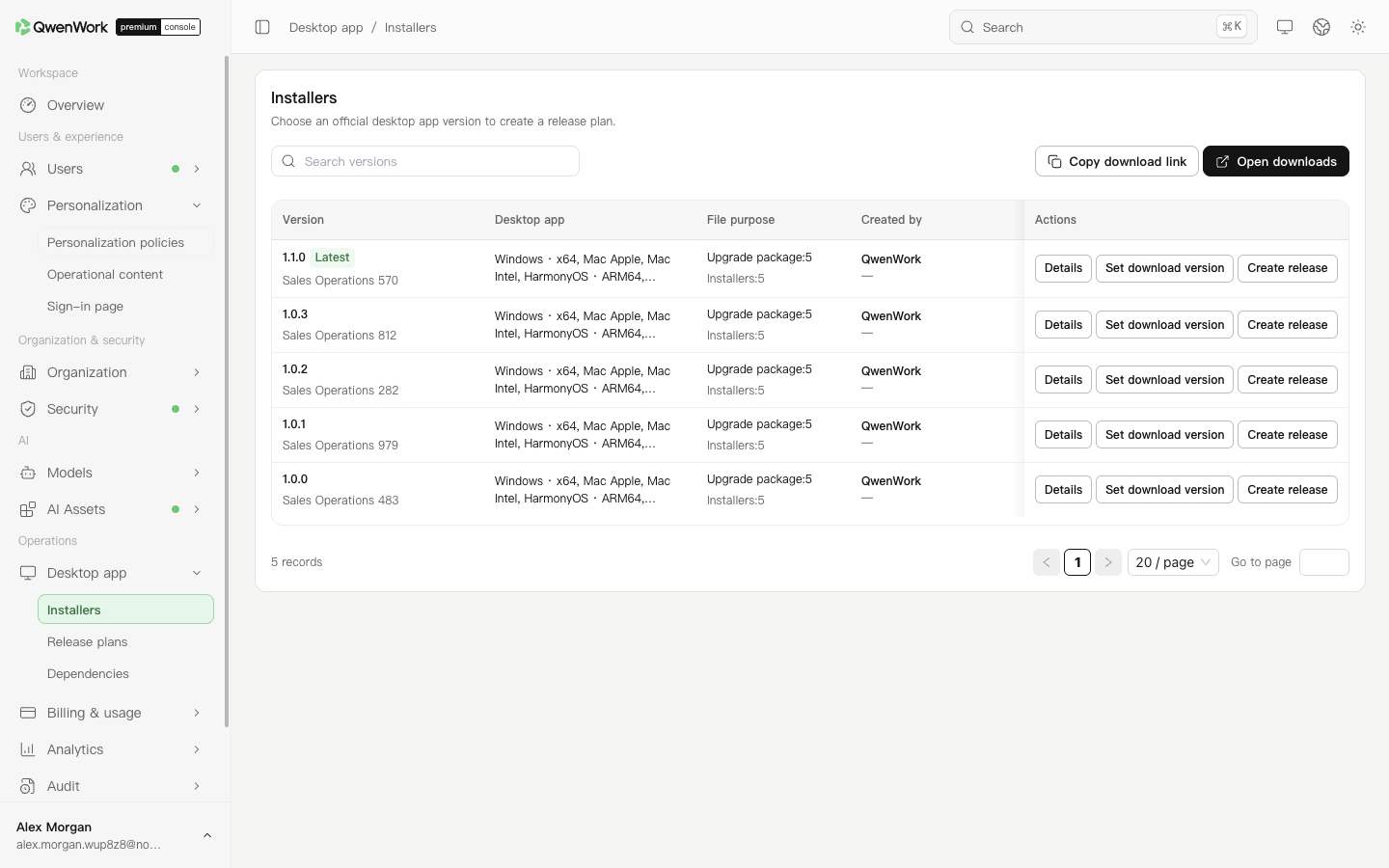 Admin console: inspect available installers before selecting a download version or planning an upgrade.
Use User terminals to manage desktop installation and updates. For Linux downloads and release plans, check the distribution, architecture, and purpose of each file shown for the enterprise.
Set the download version in Installers. Use Upgrade plans for devices that already have the app. Check both if they should offer the same version.
Open Dependencies and look up the component by name, version, operating system, and architecture.
Return to: Admin console feature overview
Choose a feature
| Feature | Task |
|---|---|
| User terminals → Installers | Verify an installer and select the download-page version. |
| User terminals → Upgrade plans | Release a verified version to the intended members. |
| User terminals → Environment packages | Maintain dependency packages by platform, architecture, and version. |
Arrange an update
- Inspect the target platform and architecture, then download and validate the installer.
- To offer it to new installations, set it as the download-page version and check the download page.
- To upgrade existing installations, create a release plan with the intended rollout stages, exclusions, and options.
- Check each stage's status and test the actual result for members inside and outside the target scope.