
Installers maintains desktop installation files by operating system and architecture, sets the download-page version, and starts upgrade tasks.
Use Installers to find files for the right operating system and processor, then download and test them. You can choose a version for the download page or create an upgrade task. Both actions require app customization and the relevant permission.
Open User terminals → Installers. Check the version, operating system, architecture, file purpose, and available actions. Use the package matching the target device; files for another architecture or purpose are not interchangeable.
Download the installer and validate installation, enterprise connection, sign-in, and essential work on test devices. Complete this check before publishing an upgrade to members.
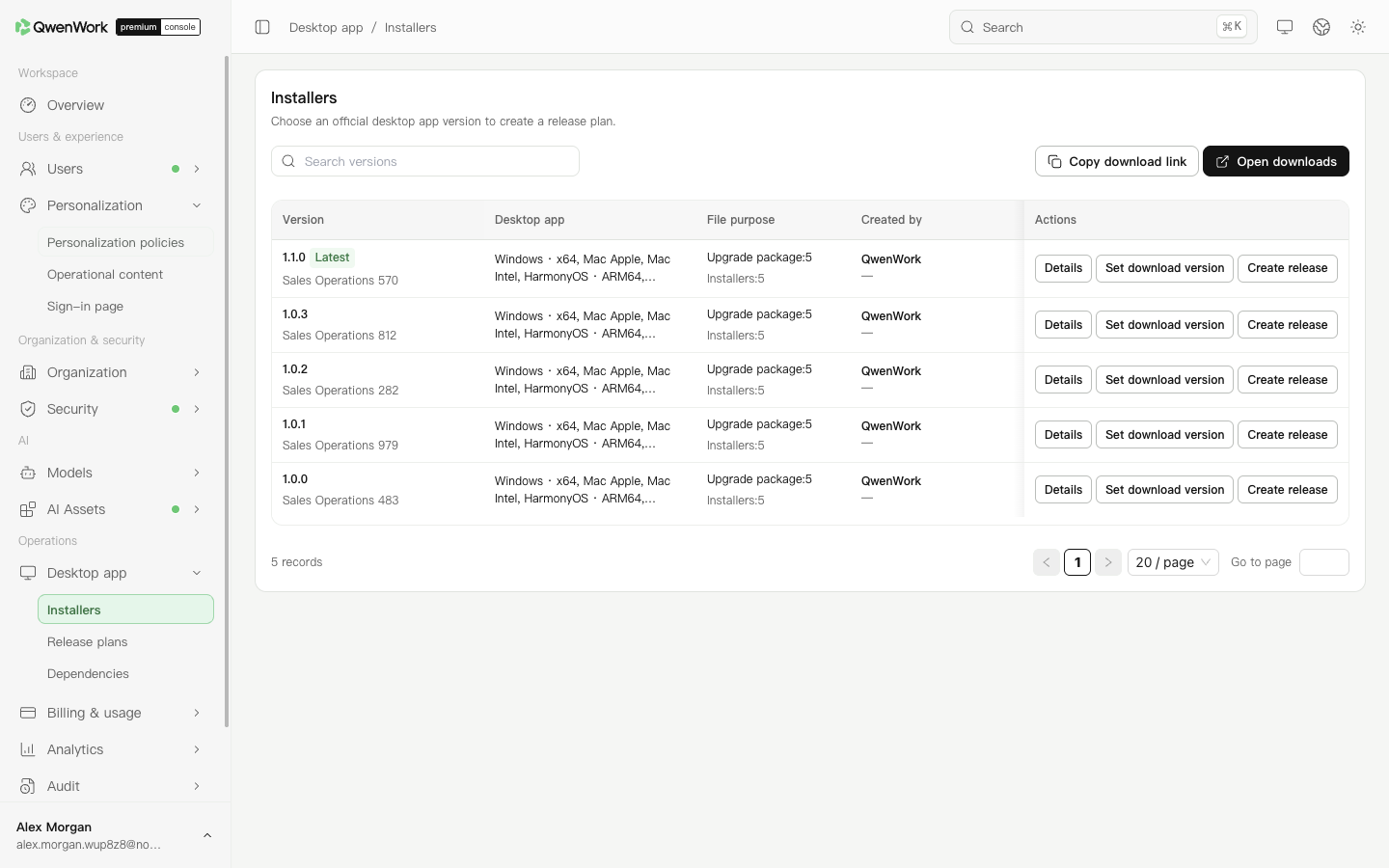 Admin console: check each version and its available download and release actions.
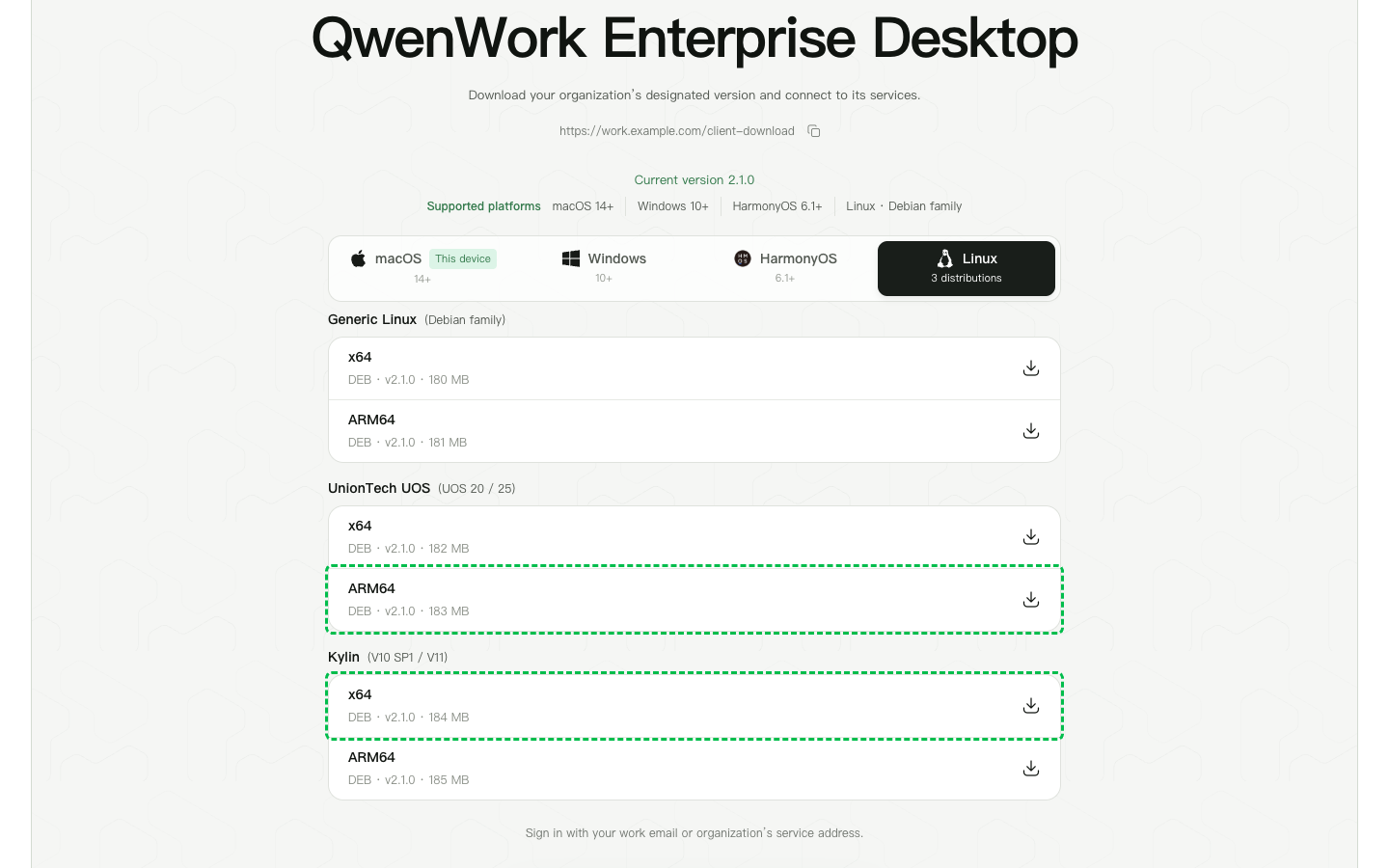 Enterprise download page — For UOS ARM64, choose the ARM64 installer in the UOS section. For Kylin x64, choose the x64 installer in the Kylin section.
Use the selected version's download-page action and read the confirmation. Open the enterprise download page and check the version and available platform files. The selected version serves downloads for installation; it does not itself create online upgrade eligibility.
Use the target version's upgrade action. Check the version and files, choose staged rollout or a specified scope, and configure timing, exclusions, and upgrade options. Confirm that validation has been completed before submitting the task.
Open Release plans to inspect the saved plan and its stages. Test both included and excluded members. Do not treat the existence of the task as proof that every device has installed the update.
Confirm the current download-page version, the selected operating system and architecture, and file availability. When an existing installation does not receive an upgrade, check its release plan instead of changing the download-page version repeatedly.
An upgrade and a download-page installer are set separately. Check the download-page version in Installers, then try downloading it from that page.
Match the employee's operating system and processor architecture. Test the installer on the same type of device before distributing it.
Return to: User terminals overview
Inspect and validate a build
Open User terminals → Installers. Check the version, operating system, architecture, file purpose, and available actions. Use the package matching the target device; files for another architecture or purpose are not interchangeable.
Download the installer and validate installation, enterprise connection, sign-in, and essential work on test devices. Complete this check before publishing an upgrade to members.
Choose a Linux installer
- Open your enterprise download page and identify the device's Linux distribution and processor architecture. Use the installer listed for that combination.
- If UOS or Kylin is offered, choose its x64 or ARM64 DEB installer. Use the distribution and architecture listed on the actual device.
- If there is no matching file, check the package list for the selected download version. Install on a test device and verify that it can connect to the enterprise and sign in.