
Upgrade plans chooses which desktop devices can upgrade and when they receive the update.
Choose which desktop devices can upgrade and when they receive the update. You need app customization and permission to manage plans. Test the target build before creating a task.
Open User terminals → Upgrade plans to manage release tasks.
Open User terminals → Upgrade plans. Review existing tasks and their status before creating another plan for the same users. Choose between a staged rollout to everyone and a specified target scope.
Scheduled stages follow their configured time; manual stages wait for administrator confirmation. Check both stage timing and user scope. Exclusions, upgrade eligibility, and the app's actual installed version are separate things.
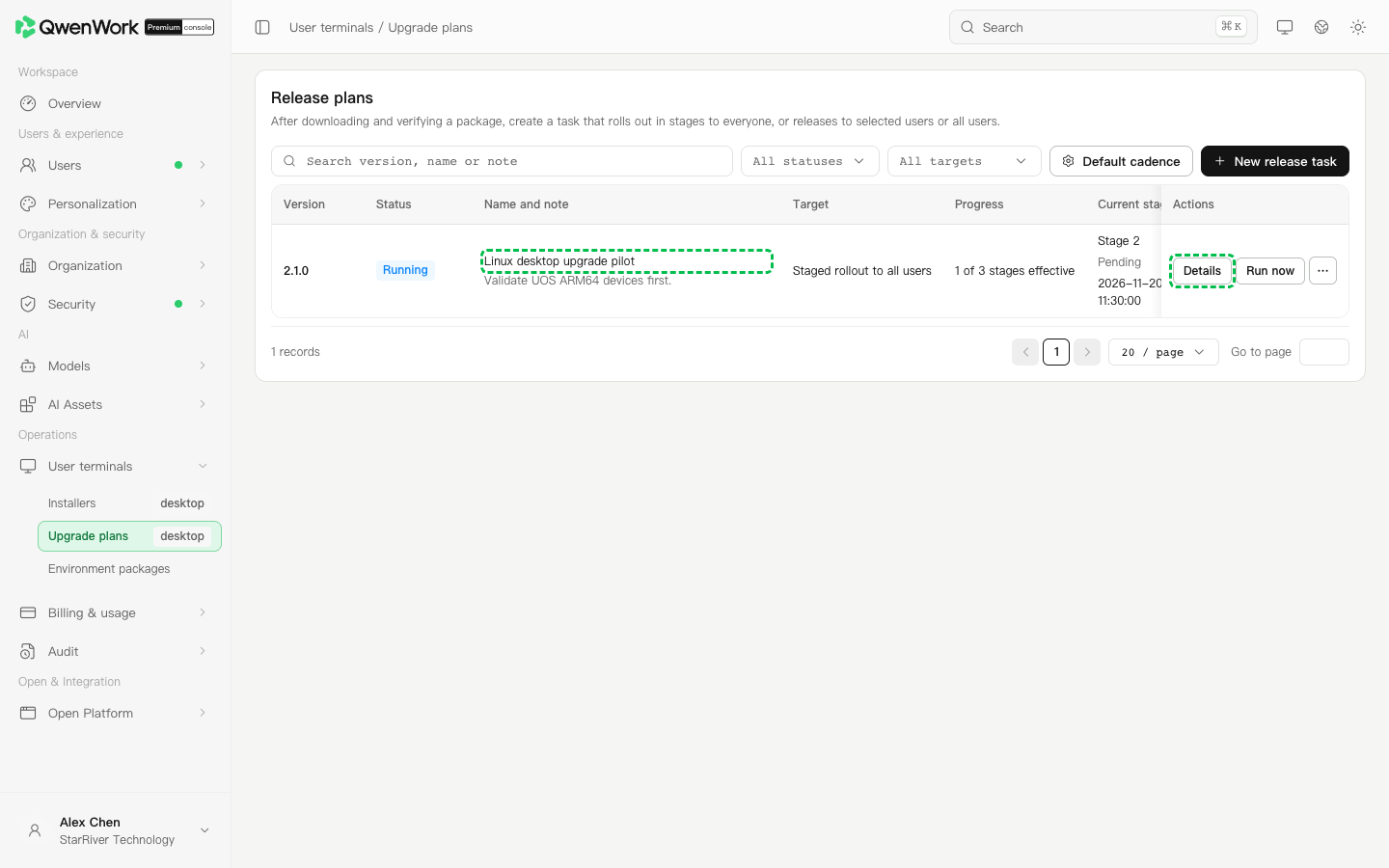 Admin console — Find the Linux desktop upgrade pilot for 2.1.0 and open Details to check its rollout.
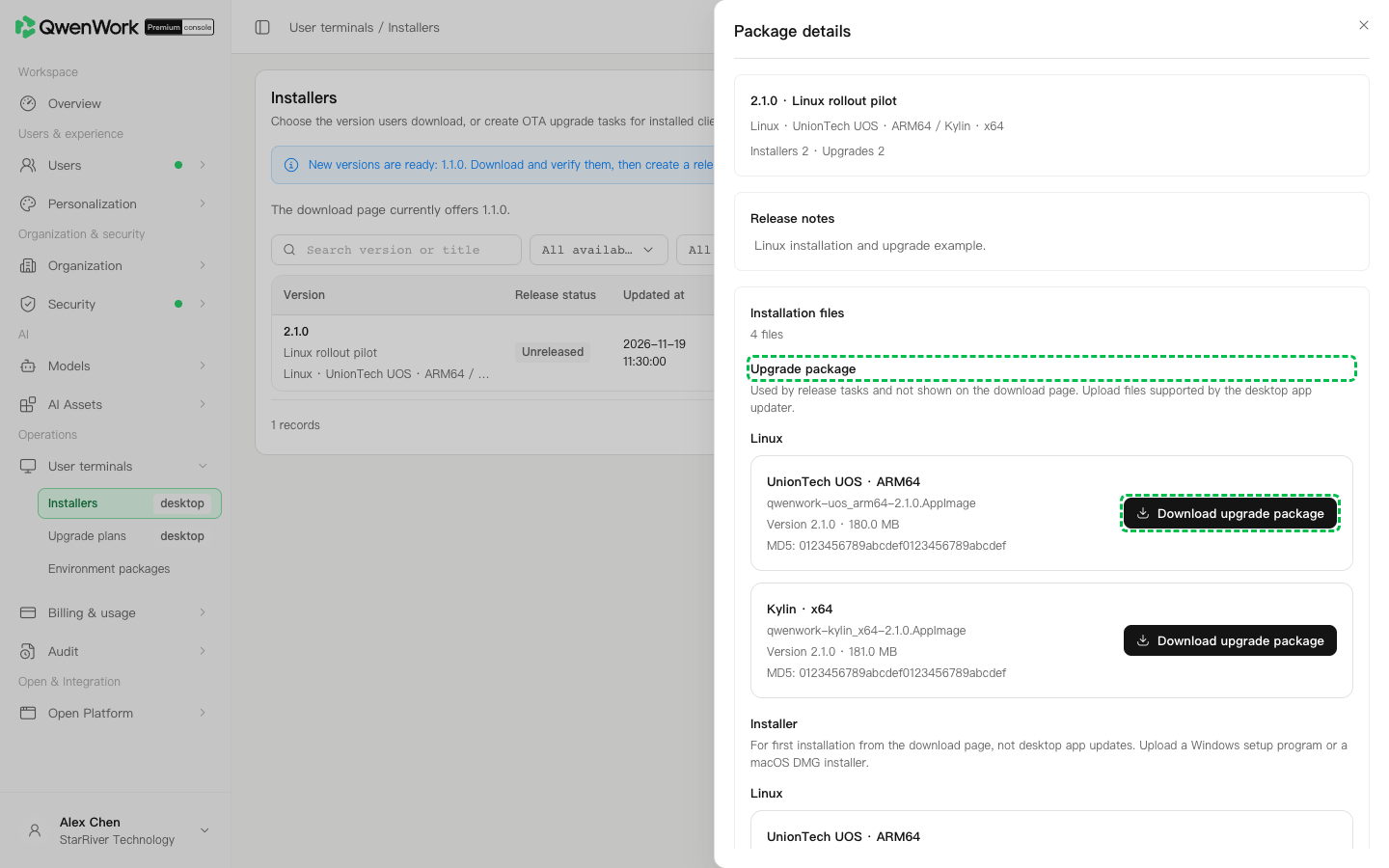 Admin console — Under Upgrade package, verify the UOS ARM64 file before testing the upgrade on a matching device.
An excluded member does not receive this task's online upgrade eligibility. The download page is managed separately, so exclusion from a task does not itself prevent downloading the version offered there.
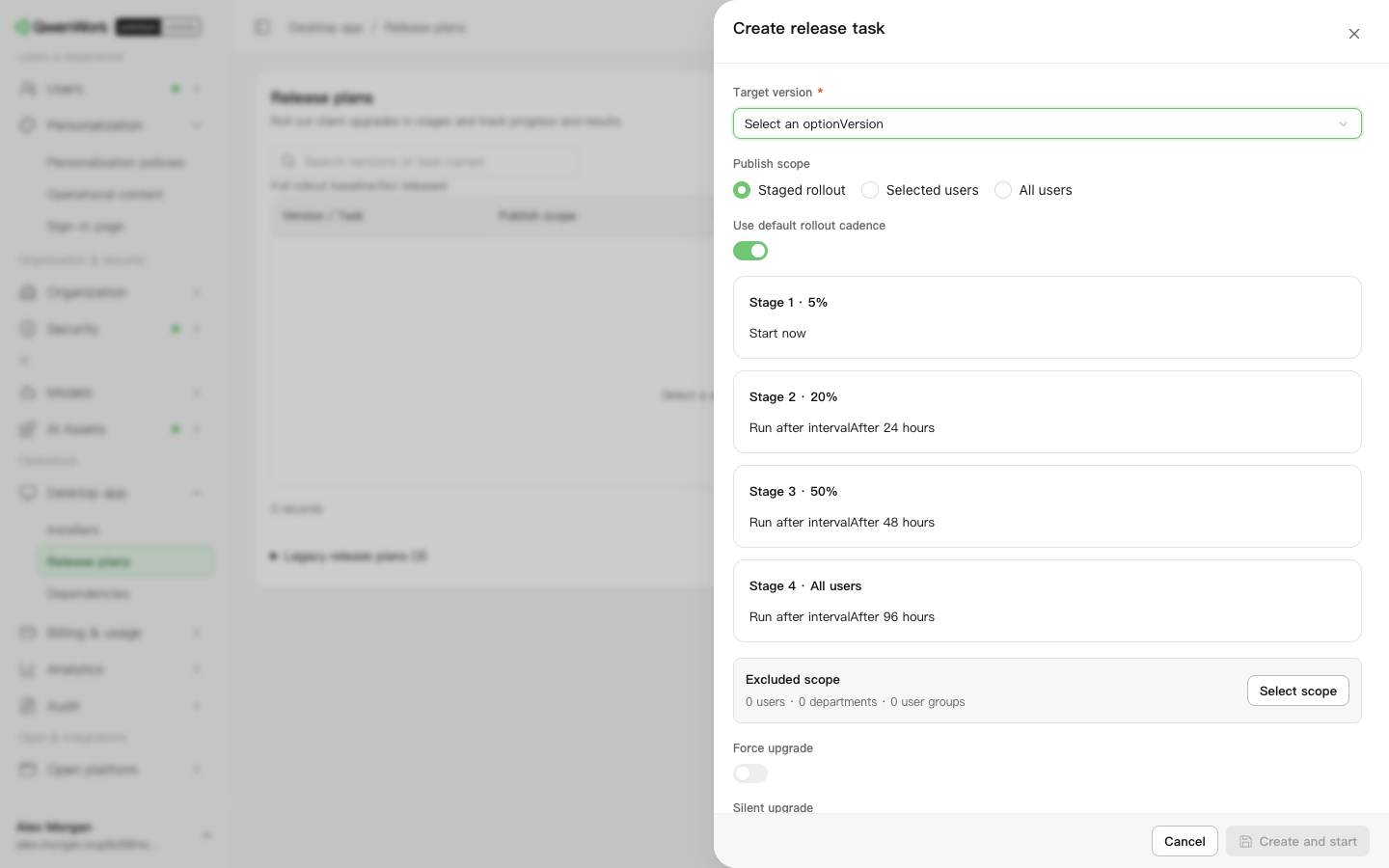 Admin console: configure rollout scope and confirm that the installer has been validated.
Open task details to review stage times, target scope, and execution status. Use test devices inside and outside the intended scope to check actual upgrade behavior.
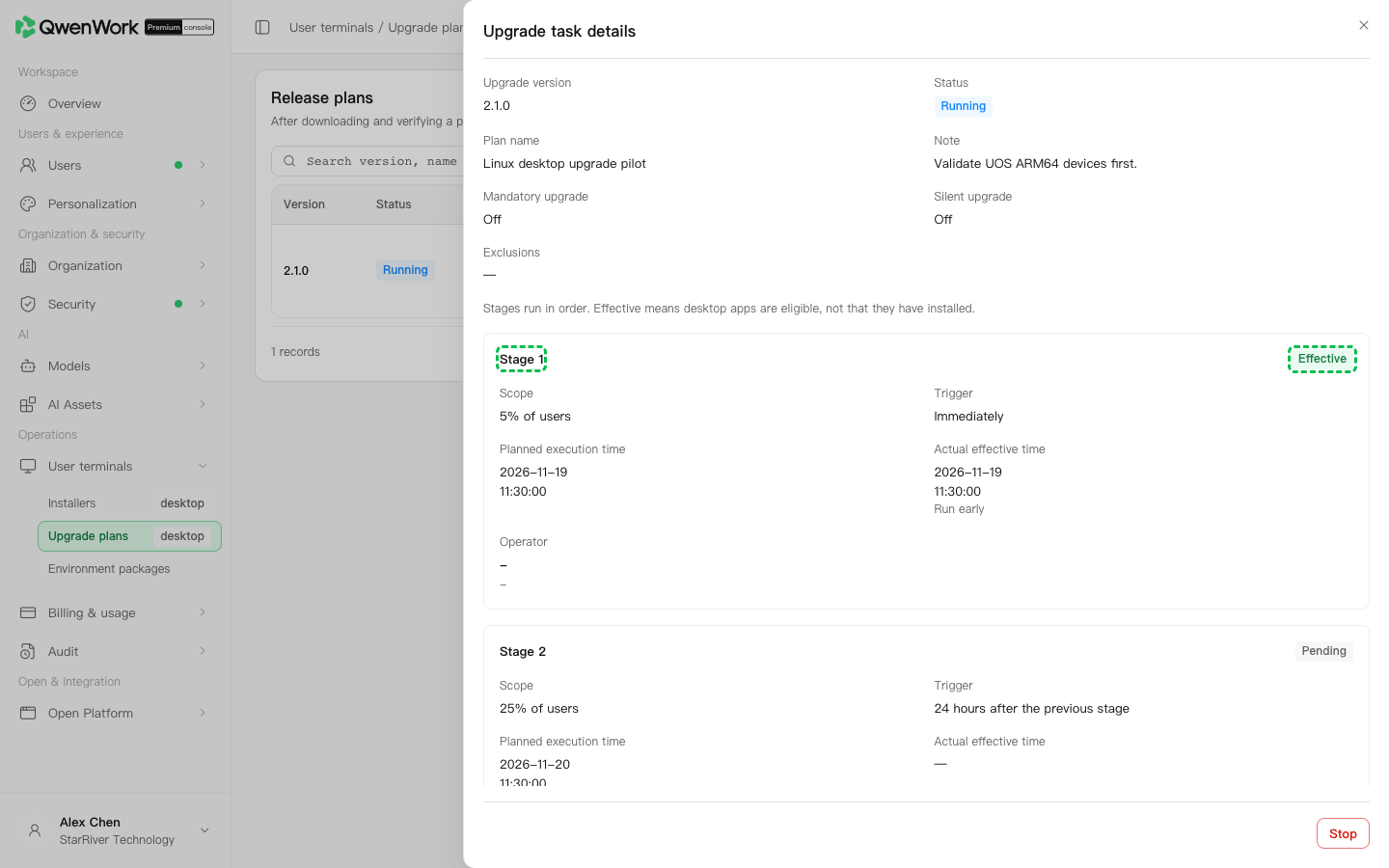 Admin console — Stage 1 is Effective for the 5% pilot. Check the next stage and verify the installed version on a pilot device.
You can stop a Pending, Running, or Published upgrade task from the list's More menu or its details. Stopping cancels stages that have not taken effect. Subsequent client checks no longer receive the task, including clients in an effective scope that have not upgraded yet. A response already delivered or an installation already started cannot be recalled, and an installed version is not rolled back. A stopped task cannot be resumed. Historical plans retain their available viewing and stopping actions.
Check the task state, stage time, member scope and exclusions, and matching platform files. Record the test member, check time, and target version, then inspect the device's actual installed version. Changing the download-page version does not replace this investigation.
Check whether the rollout has reached the pilot stage. Check the audience, exclusions, and upgrade conditions for the employee's current app.
The installed version stays in place. Stopping the plan affects stages that have not taken effect. Check the installed version on the device.
Return to: User terminals overview
Plan the rollout
Open User terminals → Upgrade plans. Review existing tasks and their status before creating another plan for the same users. Choose between a staged rollout to everyone and a specified target scope.
Scheduled stages follow their configured time; manual stages wait for administrator confirmation. Check both stage timing and user scope. Exclusions, upgrade eligibility, and the app's actual installed version are separate things.
Create a task
- Choose the upgrade action and select the validated target version.
- Check the operating systems, architectures, and required upgrade files.
- Choose a staged rollout to everyone or a specified scope, and set the rollout rhythm. For a specified scope, select users, departments, or user groups, up to 200 entries in total. Department selection includes subdepartments.
- Select users, departments, or user groups to exclude when needed.
- Review forced or silent upgrade options and their effects before enabling them.
- Enter the task name, notes, and scheduled time where applicable. Submit only after confirming installer validation.
- Reopen the task and check its saved version, scope, exclusions, and first-stage time.
Inspect stages and stop a task
Open task details to review stage times, target scope, and execution status. Use test devices inside and outside the intended scope to check actual upgrade behavior.