
Sensitive word lists check text for specified keywords.
Sensitive word lists check text for specified keywords. Enabled lists apply to all users and block matching content. Use them for clearly defined terms that must not be submitted or used.
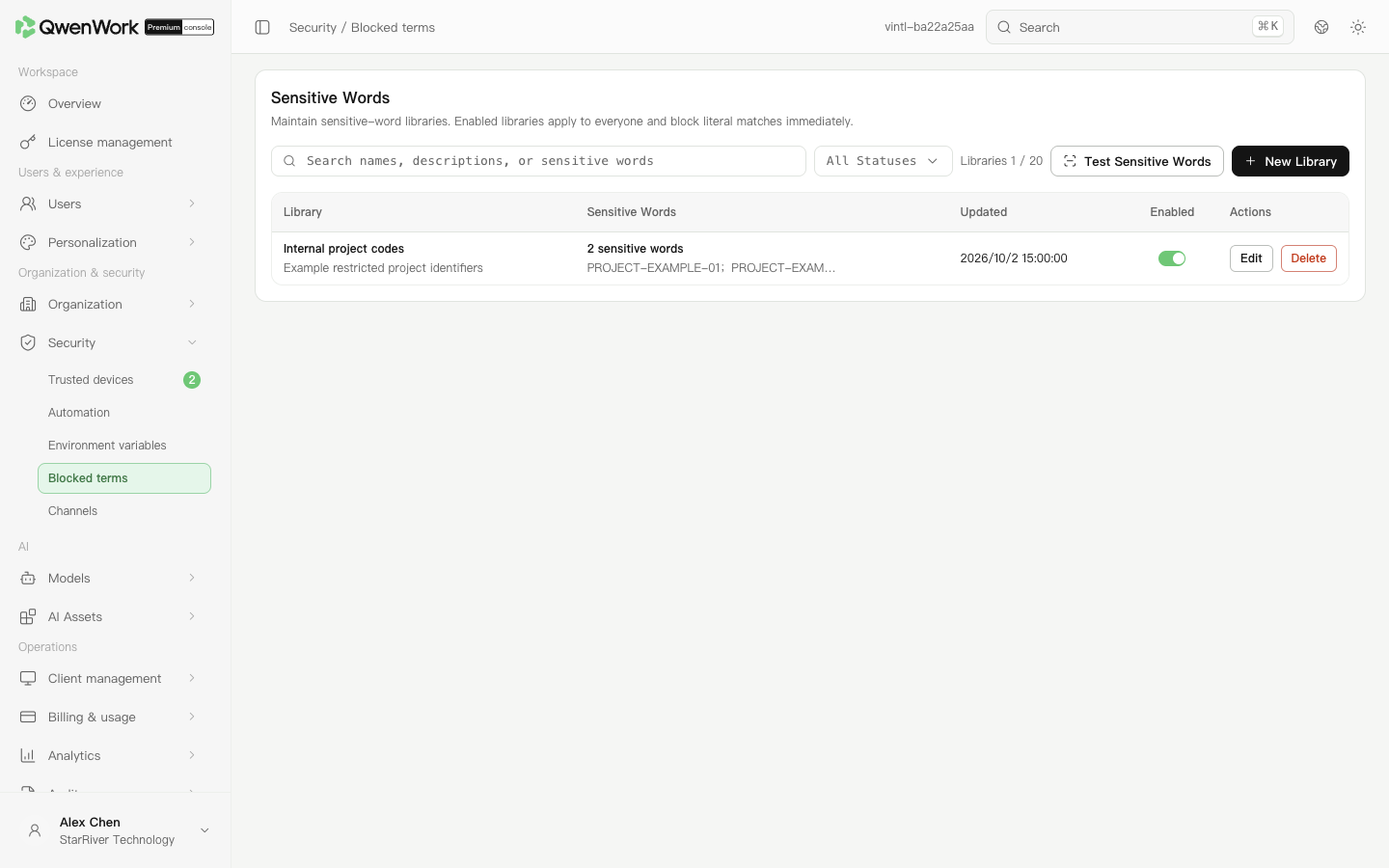 Admin console: maintain word lists and their enabled states.
Search for a list name or term, then edit it. Disable a list temporarily, or follow its deletion prompt when it is no longer needed. Run the same test afterward to confirm that list no longer participates in matching.
Return to: Security overview
Create and enable a list
- Open Organization & security → Security → Blocked terms and add a word list.
- Enter a recognizable name and the terms required by the input area.
- Check duplicates, blank lines, and excessive length, then save.
- Verify the term count and enabled state in the list. Enable the list when it should take effect.
Test for false positives
- Open the sensitive word test, enter text containing a target term, and run the check.
- Inspect the matching lists and terms and confirm the result is expected.
- Test permitted business text too, checking whether common words contain a short blocked term.
- If legitimate text is blocked, edit short or overly broad terms, save, and test again.