
Trusted Devices registers terminals for individual users and uses policies to determine who must verify their device.
Trusted Devices registers terminals for individual users and uses policies to determine who must verify their device. Register devices first, choose the user scope, then enable verification.
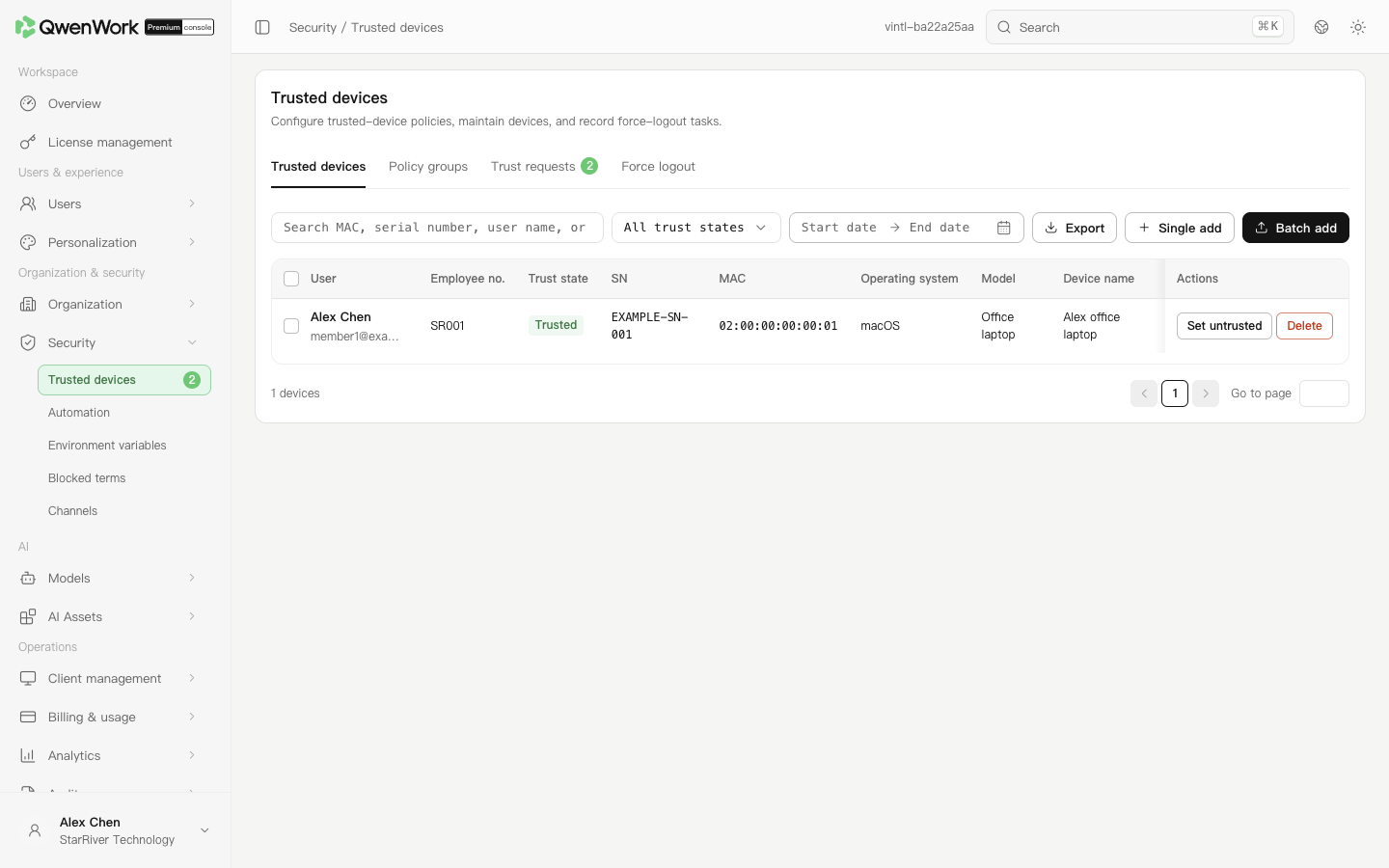 Admin console: register devices and verify their users and identifiers.
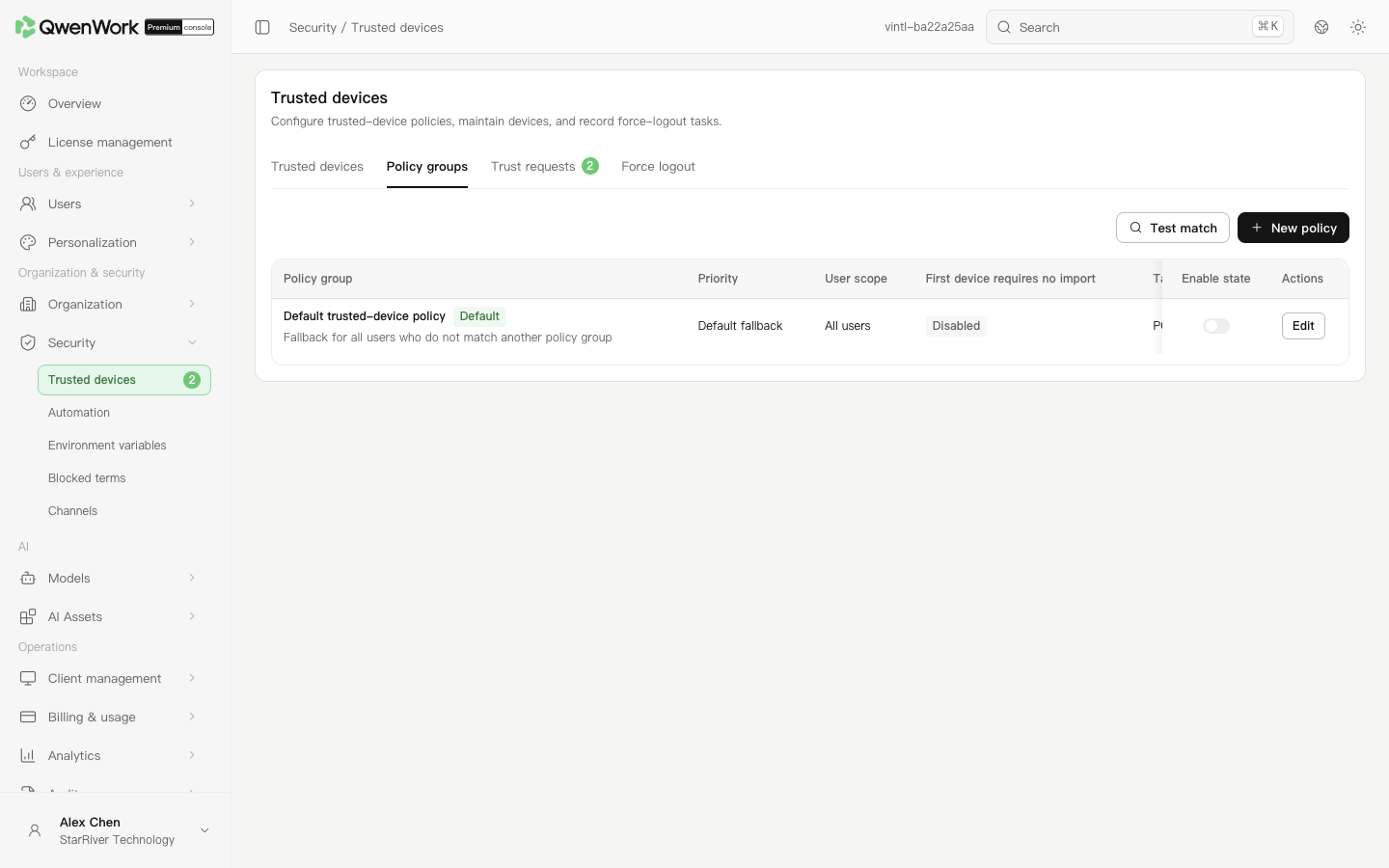 Admin console: check policy scope and priority.
Search the device list, confirm the member and identifier, then mark it untrusted. Use the corresponding trusted-state action to restore it. Before deleting a registration, check affected members. Whether sign-in is restricted also depends on their matched device policy.
Register devices
- Open Organization & security → Security → Trusted Devices and select the Trusted devices tab.
- Click Single add. Select an existing user, enter a device name, and provide its SN or MAC address. SN means serial number; MAC identifies a network interface. Provide at least one device identifier.
- Enter the operating system, model, and login username as needed, then click Save.
- Search for the user or identifier and confirm the device is trusted.
Enable verification for selected members
- Switch to Policy groups and add a policy group.
- Enter its name, description, and priority, then select users, departments, or user groups. Lower priority numbers match first; priorities must be unique.
- Enable trusted device verification and configure the first-device exemption. With the exemption enabled, a member's first sign-in device can be added automatically to the trusted list.
- Select the affected client types and user scope, then save.
- Use match verification to select a member and check the matched policy and effective rules. If several policies match, the highest-priority policy applies. The default applies when no other policy matches.
Mark a device as untrusted
Search the device list, confirm the member and identifier, then mark it untrusted. Use the corresponding trusted-state action to restore it. Before deleting a registration, check affected members. Whether sign-in is restricted also depends on their matched device policy.
Force users to sign out
- Open the Force logout tab and create a sign-out task.
- Enter the reason, select the scope, client types, and execution time, then confirm and submit.
- Edit or cancel a pending task in the list. After execution, open its details to inspect results for each user.