
User feedback reviews what members reported, their attachments, and optional submission to QwenWork support.
Open Audit → User feedback to read what members reported and view their attachments. If you need help from QwenWork support, you can send selected feedback with the relevant diagnostics.
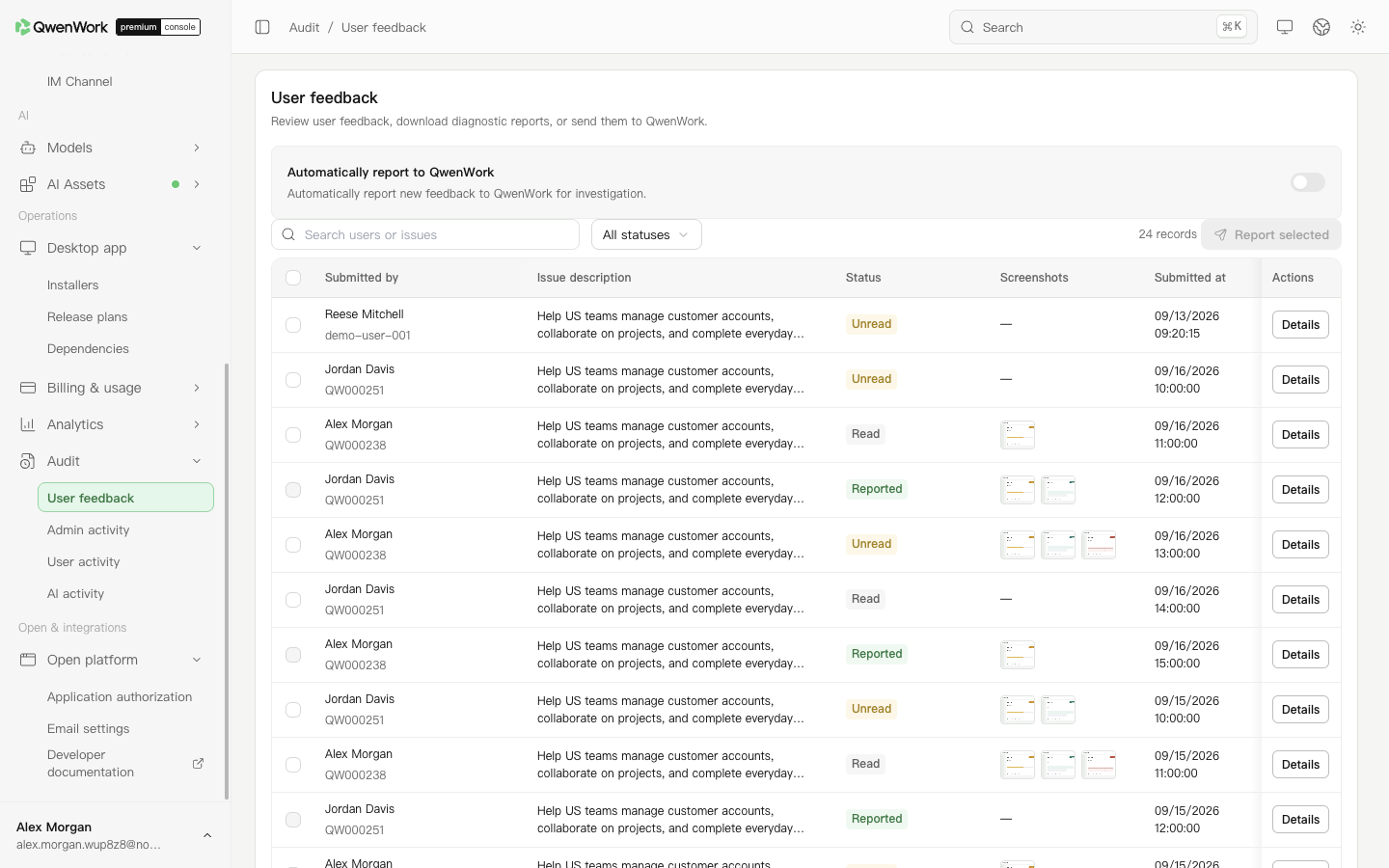 Admin console: filter feedback and inspect its reporting status.
The console excludes automatically generated crash reports and feedback submitted as silent from lists, searches, counts, and pagination. A member's own crash report remains ordinary feedback when it is not marked silent. Hidden records are retained: an authorized administrator with the feedback ID can still read details, download existing attachments, or explicitly submit the record to support. These records are also hidden from the member's own feedback history.
Review the feedback and all logs and screenshots that will be included. Use the submission action and read the authorization confirmation before proceeding.
Check whether the result is submitting, submitted, or failed. Keep the official issue number when one is returned. For a batch submission, inspect the result for each selected item.
Warning: Submission sends the problem, logs, and screenshots to QwenWork support. Confirm that the data scope is permitted by your enterprise. Submission inside the enterprise does not by itself authorize external sharing.
To enable automatic submission, use the page-level switch, review the data-sharing statement, and confirm. Wait for completion and check the final switch state. Refresh an uncertain result instead of repeatedly submitting.
The switch applies to new ordinary feedback that was not marked silent. Automatic crash reports and silent feedback are not forwarded automatically, and records already delivered are not recalled. Existing ordinary feedback retains its state and can be submitted manually. Reopen the page to confirm the final switch state.
Read the status and error. Do not repeatedly submit items already submitted or still processing. Check skipped and failed items separately. Keep the feedback ID, time, and official issue number for follow-up.
Open the report in User feedback. An authorized administrator can review its details and attachments. Check what will be included before reporting it to support.
It applies to reports submitted after you turn it on. To report an older item, open it, review it, and report it manually.
Return to: Audit overview
Review feedback
- Search or filter by member, description, or status. Check the submitter, feedback ID, and submission time.
- Open details and review the problem, screenshots, and diagnostic logs.
- Download attachments only when needed and handle them according to enterprise data requirements.
- Return to the list and check the read state and update information.