
Capture app screenshots and readable context for QwenWork.
Capture a screenshot and readable text of the frontmost app as conversation context.
App Snapshots lets you bring whatever you're currently working on straight into a conversation without switching windows. Press the global shortcut, and QwenWork captures both a screenshot and the readable text of the frontmost app and inserts them into the input box — going from "seeing the problem" to "asking about it" takes just one step.
Typical scenarios: an error message in your browser, a UI detail in a design tool you want to give feedback on, or terminal output you're unsure about — instead of taking a screenshot manually, pasting it, and then describing it, just press the shortcut. The screenshot and text are attached to the conversation together, and the AI immediately has the full context.
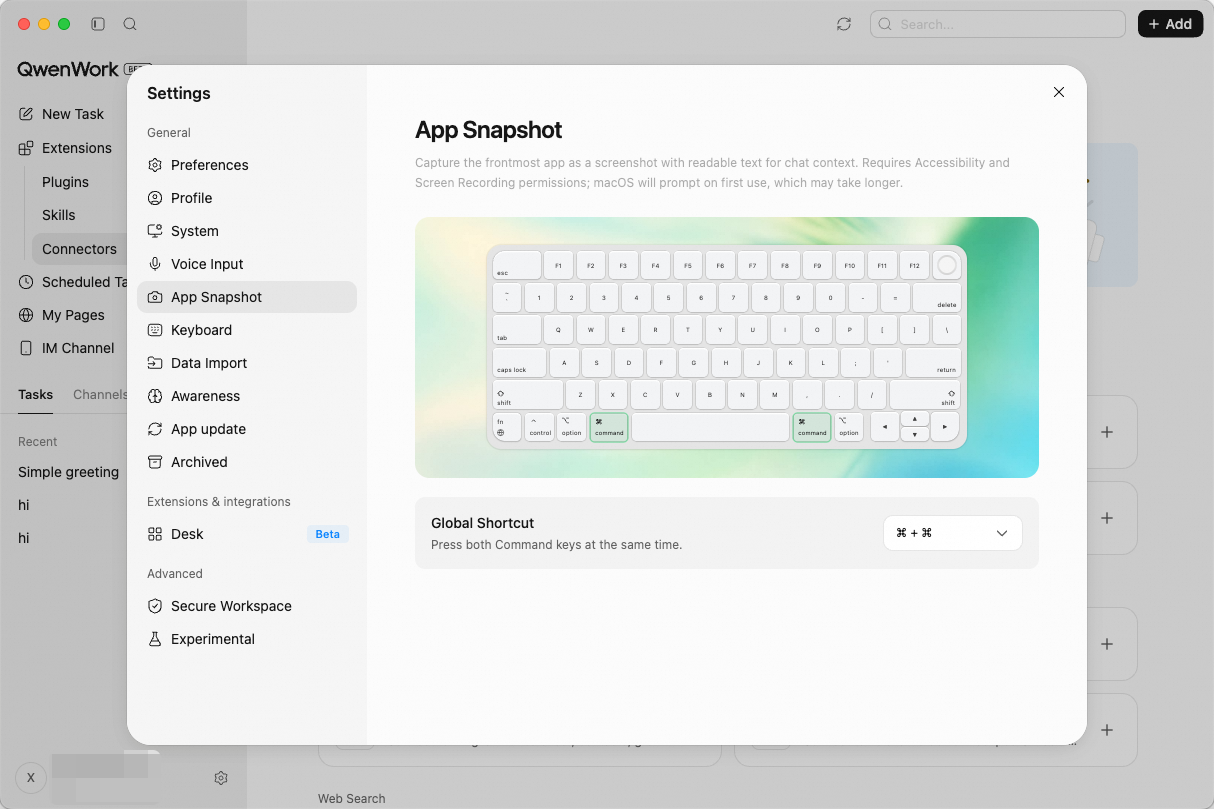 Go to Settings → App Snapshots and choose the trigger in the "Global Shortcut" dropdown menu (for example, pressing the left and right Option keys at the same time).
Once configured, the shortcut works globally — no matter whether QwenWork is in the foreground or which app currently has focus, pressing it triggers a capture. The captured screenshot and readable text are inserted automatically into the input box of the current conversation. You can add your explanation and send right away, or review the capture first and decide whether to add more detail.
Go to Settings → App Snapshots and choose the trigger in the "Global Shortcut" dropdown menu (for example, pressing the left and right Option keys at the same time).
Once configured, the shortcut works globally — no matter whether QwenWork is in the foreground or which app currently has focus, pressing it triggers a capture. The captured screenshot and readable text are inserted automatically into the input box of the current conversation. You can add your explanation and send right away, or review the capture first and decide whether to add more detail.
App Snapshots requires two macOS system permissions to work:
Setting Up the Shortcut
Permission Requirements
App Snapshots requires two macOS system permissions to work:
- Accessibility — used to read the interface text and structure of the frontmost app and extract text content the AI can understand.
- Screen Recording — used to capture a screenshot of the current screen.