
Create and manage scheduled tasks in the desktop app.
How much of your work is simply "due at a set time"? Checking the data every morning, pulling together a weekly report every week, consolidating monthly summaries — the tasks themselves aren't hard. What really drains your energy is remembering to do them, doing them on time, and doing them right every single time.
Scheduled Tasks turn QwenWork from "it only moves when you ask" into "it gets to work on its own, right on time." You set the time and the task, and QwenWork runs automatically, exactly on time. The results appear as a new conversation task in the sidebar, ready for you to review at any time.
The execution model for Scheduled Tasks is simple: when the scheduled time arrives → a new conversation task is created automatically → it runs according to the prompt you wrote → the result is saved in that conversation.
Each time a task is triggered, QwenWork has exactly the same capabilities as when you start a conversation manually — it can call MCP tools, use Connectors (browser automation, native macOS apps), run Skills, and read and write local files. In other words, anything you can do in a conversation, a scheduled task can do.
Each run creates a separate conversation and consumes Credits just like a manual conversation. It's a good idea to test a complex task manually first to estimate how many Credits a single run will consume.
QwenWork offers two ways to create a task — choose the one that suits you.
The most natural way — in any conversation, just say in plain language "what to do and when," and QwenWork will create and configure the task for you automatically.
The advantage of this approach is zero learning cost. You don't need to know what a cron expression is, and you don't need to fill in any forms — QwenWork infers the frequency, the time, and the task content from your description automatically.
Ideal for users who prefer visual operations or need precise control over the scheduling parameters.
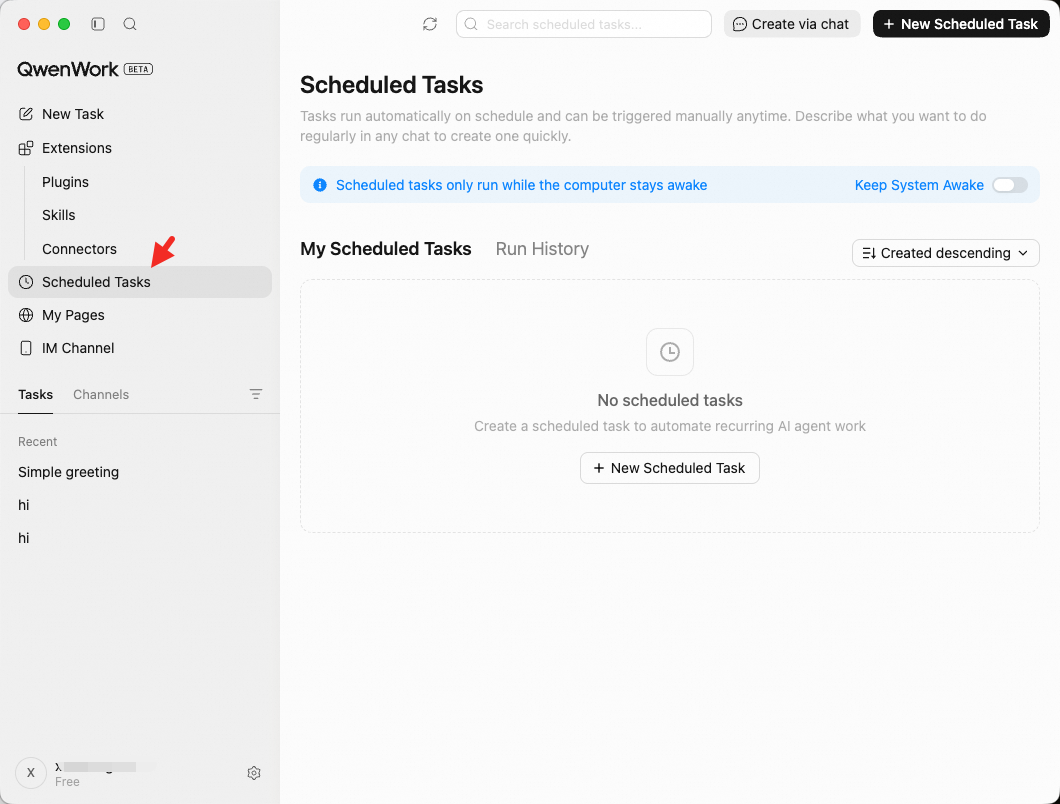
Go to the Scheduled Tasks Page
Click Scheduled Tasks in the left sidebar to open the management page.
 Create a New Task
Click + New Scheduled Task in the top-right corner.
Create a New Task
Click + New Scheduled Task in the top-right corner.
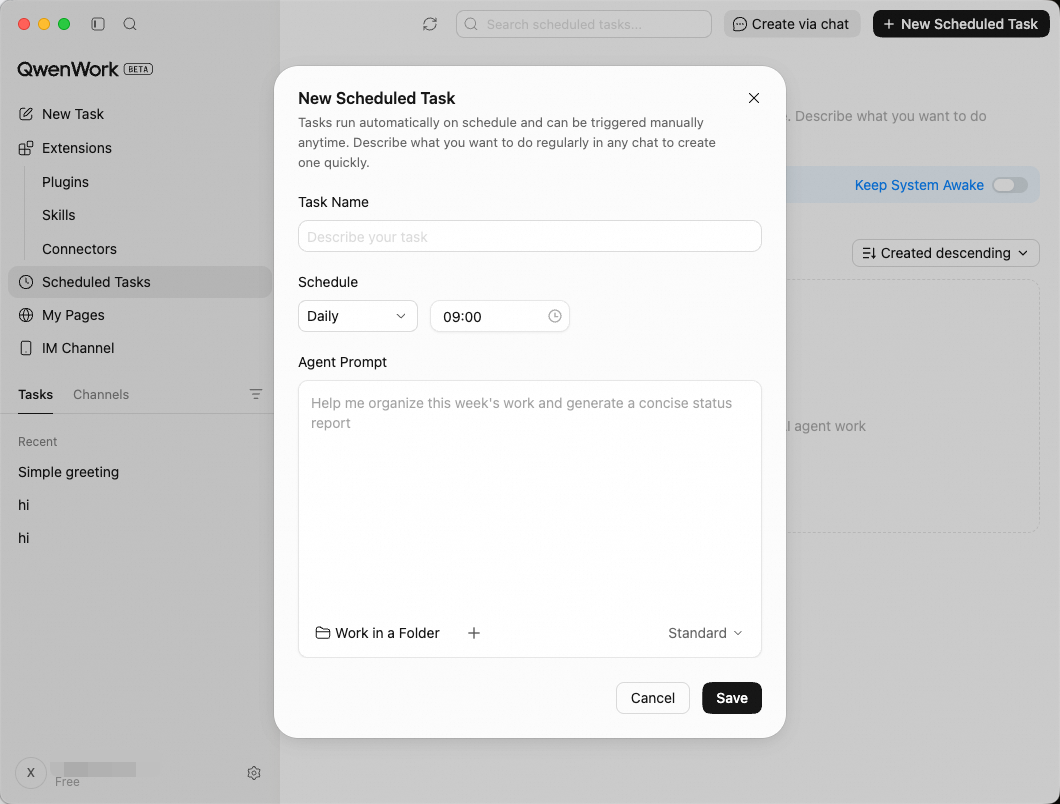 Fill in the Task Details
Fill in the fields in the form that appears:
Fill in the Task Details
Fill in the fields in the form that appears:
Automatically process the latest data every day and produce analysis conclusions — no more time spent running numbers by hand.
Automatically fetch industry news every morning and organize it into a briefing — the information is ready by the time you get to your desk.
Keep an eye on competitor developments on a regular basis and stay on top of the market.
Automatically clean up the Downloads folder before you leave work and keep your digital workspace tidy.
Automatically summarize unread emails every day and extract the key information, so you never miss what matters.
Automatically prepare materials ahead of important events.
Each time a task is triggered, QwenWork automatically creates a new conversation in the sidebar. Open it to see the full AI execution process and the final result — the experience is exactly the same as starting a conversation manually. You can also keep asking questions or request changes in that conversation.
On the Scheduled Tasks page in the left sidebar, you can manage all your automated tasks in one place:
In the Execution History area of the management page, you can view the execution history of all tasks:
This is the single most important piece of advice. For complex tasks, run the task once in full in a regular conversation first, and refine the prompt until the output meets your expectations — then convert it into a scheduled task. This avoids automated runs producing large amounts of results that miss the mark.
No one is there to course-correct while a scheduled task runs, so the prompt must be specific enough. A few key points: specify the output format (Markdown / Excel / Word), identify the data source clearly (which folder, which website), state the judgment criteria (what counts as an "anomaly," what counts as "important"), and define the output location (which directory to save to).
When you specify a working directory at task creation, the AI gets a fixed context environment. This is especially useful for scenarios that need to process a specific folder on a regular basis (e.g., "This month's sales data" or "Contract archive"). As you keep adding new files to the folder, the scheduled task always reads the latest content.
A scheduled task itself is a scheduler — its power depends on the capabilities you give it. With the browser Connector enabled, a scheduled task can scrape web data automatically; with the macOS app connector enabled, it can read and write Calendar and Mail; combined with Skills, it can reuse proven workflows. Stacked together, these capabilities cover the vast majority of automation scenarios.
Scheduled Tasks are scheduled on the local client and only run while the computer is awake. If you have high-priority tasks (for example, an 8 AM daily briefing), turn on Keep System Awake in the top-right corner of the Scheduled Tasks page to avoid missing tasks because the device went to sleep.
Can Scheduled Tasks use browser automation?
Yes. As long as you've enabled the browser under Extensions → Connectors in the left sidebar and keep Chrome running, scheduled tasks can use browser automation when they run. Note, however, that login sessions expire — if your login on the target site has expired, the AI will hit a login page and won't be able to continue.
If my computer was asleep, will missed tasks run later?
They won't run automatically. If the device is asleep or shut down when a task is triggered, that run is skipped. You'll see a "Not run" status in the execution history, and you can catch up manually with "Run Now."
What if the results don't meet expectations?
There are usually two reasons. First, the prompt isn't specific enough (e.g., "analyze the data for me" is too vague — you should specify which fields to analyze and what format to output). Second, the underlying data source has changed (e.g., the Excel column names were changed). Open the conversation from the execution history to see the AI's full execution process, then optimize the prompt or the data source once you've pinpointed the problem.
How many Scheduled Tasks can run at the same time?
There's no hard limit, but each task creates a new conversation when triggered and consumes Credits. Configure tasks based on actual needs, and avoid triggering too many tasks at the same time.
Is there a time limit on task execution?
Just like regular conversations, there's no fixed time limit, but execution is constrained by your Credits balance. Complex tasks may consume more Credits — test manually once first to estimate the cost.
How do I change the execution time of an existing task?
On the Scheduled Tasks page, find the task card, click
How It Works
The execution model for Scheduled Tasks is simple: when the scheduled time arrives → a new conversation task is created automatically → it runs according to the prompt you wrote → the result is saved in that conversation.
Each time a task is triggered, QwenWork has exactly the same capabilities as when you start a conversation manually — it can call MCP tools, use Connectors (browser automation, native macOS apps), run Skills, and read and write local files. In other words, anything you can do in a conversation, a scheduled task can do.
Each run creates a separate conversation and consumes Credits just like a manual conversation. It's a good idea to test a complex task manually first to estimate how many Credits a single run will consume.
Creating a Scheduled Task
QwenWork offers two ways to create a task — choose the one that suits you.
Option 1: Create Directly in a Conversation (Recommended)
The most natural way — in any conversation, just say in plain language "what to do and when," and QwenWork will create and configure the task for you automatically.
Option 2: Create from the Panel
Ideal for users who prefer visual operations or need precise control over the scheduling parameters.
Go to the Scheduled Tasks Page
Click Scheduled Tasks in the left sidebar to open the management page.
- Task Name: Give the task a name that's recognizable at a glance, e.g., "Daily Competitor Briefing" or "Friday Weekly Report Draft."
- Scheduled Time: Choose the frequency (Does not repeat / Interval / Hourly / Daily / Weekly / Monthly) and the exact time. It supports a range of scheduling strategies, from one-off reminders to complex cycles:
| Type | Description | Use cases |
|---|---|---|
| Does not repeat | Runs once at the specified date and time | Preparing materials before a meeting, pre-deadline checks, scheduled sending |
| Interval | Runs at a fixed interval | Price monitoring, progress polling, data collection |
| Hourly | Runs every hour at the specified minute | Monitoring alerts, service health checks, status sync |
| Daily | Runs every day at the specified time | Daily briefings, data reports, end-of-day cleanup |
| Weekly | Runs on a specified day of the week, at a specified time | Weekly report drafts, competitor tracking, recurring meeting materials |
| Monthly | Runs on a specified day of the month, at a specified time | Monthly business analysis, billing summaries, monthly reviews |
- Have QwenWork do...: Describe in natural language what you want QwenWork to do — exactly the same as writing a prompt in a conversation.
- Working Directory (optional): Specify the directory where the task reads and writes files during execution.
- Attachments (optional): Upload files that the task needs to reference.
Typical Scenarios
Daily Data Report
Automatically process the latest data every day and produce analysis conclusions — no more time spent running numbers by hand.
Daily Industry Briefing
Automatically fetch industry news every morning and organize it into a briefing — the information is ready by the time you get to your desk.
Weekly Competitor Tracking
Keep an eye on competitor developments on a regular basis and stay on top of the market.
Daily File Cleanup
Automatically clean up the Downloads folder before you leave work and keep your digital workspace tidy.
Email Digest
Automatically summarize unread emails every day and extract the key information, so you never miss what matters.
Timely Reminders and Preparation
Automatically prepare materials ahead of important events.
Managing Tasks
Viewing Execution Results
Each time a task is triggered, QwenWork automatically creates a new conversation in the sidebar. Open it to see the full AI execution process and the final result — the experience is exactly the same as starting a conversation manually. You can also keep asking questions or request changes in that conversation.
Managing the Task List
On the Scheduled Tasks page in the left sidebar, you can manage all your automated tasks in one place:
- Enable / Disable: Use the toggle in the top-left corner of a card to control whether the task keeps running on schedule. If you don't need it temporarily, disable it first and re-enable it any time.
- Edit: Change the task name, execution time, or prompt content — click a card to edit it directly.
- Run Now: Can't wait for the next scheduled trigger? Click
...→ Run Now to trigger it manually once. Perfect for debugging prompts or when you need results right away. - Delete: For tasks you no longer need, click
...→ Delete Task. Deletion is permanent — use with care.
Execution History
In the Execution History area of the management page, you can view the execution history of all tasks:
| Status | Meaning |
|---|---|
| Succeeded | The task was triggered normally and finished |
| Running | Still running. Open the conversation to see live progress |
| Failed | An error occurred during trigger or execution. View the details to troubleshoot |
Best Practices
Test Manually First, Then Automate
This is the single most important piece of advice. For complex tasks, run the task once in full in a regular conversation first, and refine the prompt until the output meets your expectations — then convert it into a scheduled task. This avoids automated runs producing large amounts of results that miss the mark.
Writing a Good Prompt Is Key
No one is there to course-correct while a scheduled task runs, so the prompt must be specific enough. A few key points: specify the output format (Markdown / Excel / Word), identify the data source clearly (which folder, which website), state the judgment criteria (what counts as an "anomaly," what counts as "important"), and define the output location (which directory to save to).
Make Good Use of the Working Directory
When you specify a working directory at task creation, the AI gets a fixed context environment. This is especially useful for scenarios that need to process a specific folder on a regular basis (e.g., "This month's sales data" or "Contract archive"). As you keep adding new files to the folder, the scheduled task always reads the latest content.
Combine with Connectors and Skills
A scheduled task itself is a scheduler — its power depends on the capabilities you give it. With the browser Connector enabled, a scheduled task can scrape web data automatically; with the macOS app connector enabled, it can read and write Calendar and Mail; combined with Skills, it can reuse proven workflows. Stacked together, these capabilities cover the vast majority of automation scenarios.
Keep the Device Awake
Scheduled Tasks are scheduled on the local client and only run while the computer is awake. If you have high-priority tasks (for example, an 8 AM daily briefing), turn on Keep System Awake in the top-right corner of the Scheduled Tasks page to avoid missing tasks because the device went to sleep.
FAQ
Can Scheduled Tasks use browser automation?
Yes. As long as you've enabled the browser under Extensions → Connectors in the left sidebar and keep Chrome running, scheduled tasks can use browser automation when they run. Note, however, that login sessions expire — if your login on the target site has expired, the AI will hit a login page and won't be able to continue.
If my computer was asleep, will missed tasks run later?
They won't run automatically. If the device is asleep or shut down when a task is triggered, that run is skipped. You'll see a "Not run" status in the execution history, and you can catch up manually with "Run Now."
What if the results don't meet expectations?
There are usually two reasons. First, the prompt isn't specific enough (e.g., "analyze the data for me" is too vague — you should specify which fields to analyze and what format to output). Second, the underlying data source has changed (e.g., the Excel column names were changed). Open the conversation from the execution history to see the AI's full execution process, then optimize the prompt or the data source once you've pinpointed the problem.
How many Scheduled Tasks can run at the same time?
There's no hard limit, but each task creates a new conversation when triggered and consumes Credits. Configure tasks based on actual needs, and avoid triggering too many tasks at the same time.
Is there a time limit on task execution?
Just like regular conversations, there's no fixed time limit, but execution is constrained by your Credits balance. Complex tasks may consume more Credits — test manually once first to estimate the cost.
How do I change the execution time of an existing task?
On the Scheduled Tasks page, find the task card, click ... in the top-right corner → Edit, change the scheduled time, and save. You can also just say in a conversation, "Change the XX task to run every Tuesday."