
Configure preferences, shortcuts, workbench, security, and experimental features.
An overview of all QwenWork settings: Preferences, Profile, System, Voice, Shortcuts, Workbench, Security, and Experimental features.
Click the ⚙ Settings icon at the bottom of the left sidebar to open the Settings panel. Settings are organized into three groups: General, Extensions & Integrations, and Advanced.
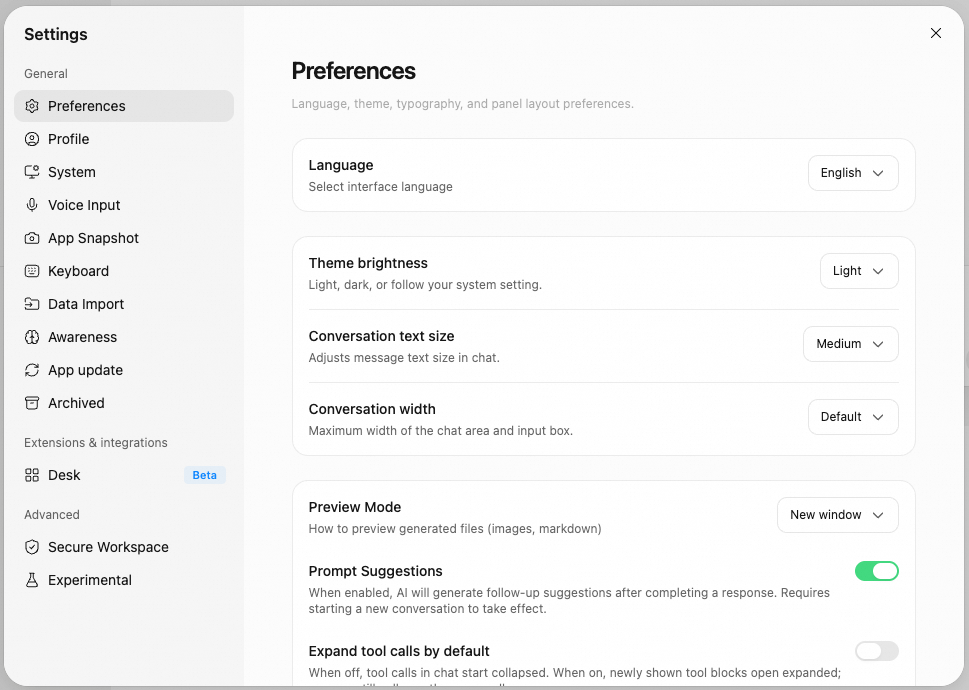
Personalize the interface appearance and conversation experience:
Manage your avatar and account information:
System-level options such as auto-start, keep-awake, and notifications:
System Permissions — the following permissions can be granted in your system settings:
Data Sharing — your data is never used for product improvement; it is only used to provide core services. You can enable Privacy Mode here. For enterprise accounts, only administrators can change this setting in the enterprise admin console.
Global voice-input shortcut and transcription settings (see Voice Input for details):
Capture a screenshot and readable text of the frontmost app as conversation context (see App Snapshots for details):
View and customize keyboard shortcuts. Search, or click any entry to record a new combination.
General
Tasks
Conversation
QuickPick — a global quick-task window that lets you submit tasks at any time without switching to the main window. It supports two trigger modes: a key combination (e.g., ⌥ Space), or double-tapping a modifier key.
Customize collaboration style and work manual, with cross-session memory and skill evolution.
Check for and install new versions of QwenWork — the same as "Check for Updates" in the menu bar. When a new version is available, a prompt appears, and the download and restart happen only after you confirm. If you are already up to date, it simply shows "You're on the latest version".
A central place to manage your archived tasks. Each archived task can be restored or permanently deleted individually, or you can click "Delete All" in the top-right corner to clear them all at once.
Configure work modes and the default mode for new tasks.
Slide Templates — manage built-in and custom slide templates here. You can also import your own templates.
Carves out a dedicated, isolated space on your computer for running tasks — execution is faster and more stable, and all files and data stay on your device:
Get early access to new features. Some are still being polished:
General
Preferences
Personalize the interface appearance and conversation experience:
| Setting | Description |
|---|---|
| Language | Choose the interface language (Chinese / English). The change takes effect immediately |
| Theme brightness | Light, Dark, or Auto (follows the system) |
| Conversation text size | Small,Medium,Large |
| Conversation Width | Default,Wide |
| Preview Mode | How generated files (images, Markdown) are previewed:New window , Right sidebar |
| Prompt Suggestions | When enabled, the AI automatically suggests next steps after each reply. Takes effect in new conversations |
| Expand Tool Calls by Default | When enabled, newly shown tool blocks are expanded by default. You can collapse them manually at any time |
| Show Tool Call Progress in IM Channels | When enabled, IM channels show each tool execution step as it happens. When disabled, only the final reply is shown |
| Tool execution limit | Automatically pause when tool calls reach the set count in a single turn, and wait for your confirmation before continuing. Helps prevent runaway loops from consuming credits. |
| Auto-allow repeated tool calls | When enabled, repeated tool call confirmations are automatically allowed without showing a card. |
Profile
Manage your avatar and account information:
- Avatar — customize the background color (11 colors to choose from) and the icon (the first letter of your username, or an emoji).
- Account UID — displays the unique user ID of the current account. It can only be viewed and copied.
- Subscription — shows the current plan of your account. Click "View Plans & Pricing" to open the plans page.
- Log Out — sign out on this device. You can sign back in at any time.
System
System-level options such as auto-start, keep-awake, and notifications:
| Setting | Description |
|---|---|
| Launch at Login | Automatically start QwenWork when you log in to your computer |
| Keep System Awake | Prevents your computer from sleeping while the Agent is working |
| Desktop Notifications | Sends a system notification when the Agent is waiting for your reply or has finished its work |
| Dock unread status | Shows a red badge with the unread task count on the Dock/taskbar |
| Task Unread Status | A one-time action on unread status |
| Sound Notifications | Plays a sound when the Agent finishes its work |
| Network Proxy | Configures the app's proxy settings (follow system / custom) |
| Network diagnostics | Check QwenWork service connectivity and help locate connection issues |
| Permission | Purpose |
|---|---|
| Full Disk Access | Reading and writing project files, and similar operations |
| Screen & System Audio Recording | Screen content recognition, feedback screenshots, and more |
| Accessibility | Listening for global shortcuts, used for quick launch and more |
| Microphone | Voice input and more |
| Automation | Working with system apps — creating reminders, viewing calendar events, editing notes, and more |
| Notifications | Sending desktop notifications for task completion, message alerts, and similar scenarios |
| Location Services | Handling location-based tasks |
Voice Input
Global voice-input shortcut and transcription settings (see Voice Input for details):
- Enable Voice Input — enables the global voice-input shortcut. Press once to start recording, press again to stop and transcribe.
- Shortcut Mode — choose how voice recording is triggered: a single key, or a key combination (e.g., Ctrl+Shift+Space).
- Trigger Key — the chosen key triggers voice input only when pressed on its own. Normal key combinations are not affected.
App Snapshots
Capture a screenshot and readable text of the frontmost app as conversation context (see App Snapshots for details):
- Global Shortcut — choose the trigger here (e.g., pressing the left and right Option keys at the same time).
Keyboard Shortcuts
View and customize keyboard shortcuts. Search, or click any entry to record a new combination.
General
| Action | macOS | Windows |
|---|---|---|
| Open Settings | ⌘ , | Ctrl , |
| Toggle Sidebar | ⌘ \ | Ctrl \ |
| Toggle Task Monitor | ⌘ / | Ctrl / |
| Action | macOS | Windows |
|---|---|---|
| Quickly Switch Tasks | ⌃ Tab | Ctrl Tab |
| New Task | ⌘ N | Ctrl N |
| Search All Tasks | ⌘ G | Ctrl G |
| Search in Current Task | ⌘ F | Ctrl F |
| Action | macOS | Windows |
|---|---|---|
| Send Message | ↵ or ⌘ ↵ | ↵ or Ctrl ↵ |
| Insert Line Break | ⇧ ↵ or ⌃ ↵ | Shift ↵ |
Awareness
Customize collaboration style and work manual, with cross-session memory and skill evolution.
App Updates
Check for and install new versions of QwenWork — the same as "Check for Updates" in the menu bar. When a new version is available, a prompt appears, and the download and restart happen only after you confirm. If you are already up to date, it simply shows "You're on the latest version".
Archived
A central place to manage your archived tasks. Each archived task can be restored or permanently deleted individually, or you can click "Delete All" in the top-right corner to clear them all at once.
Extensions & Integrations
Desk
Configure work modes and the default mode for new tasks.
| Workbench | Description |
|---|---|
| General | Chat with the AI assistant (default) |
| Design | Design with canvas |
| Slides | Create slide decks with AI Slides |
| Writing | Write, edit, and polish documents |
Advanced
Secure WorkSpace
Carves out a dedicated, isolated space on your computer for running tasks — execution is faster and more stable, and all files and data stay on your device:
- Enable Secure Work Space— when enabled, tasks run in an isolated work environment. They won't affect other files on your computer or touch the real system.
- Clean Up Work Space Files to Free Up Space — removes the downloaded work environment files, but never deletes your conversation history or work outputs.
Experimental Features
Get early access to new features. Some are still being polished:
| Feature | Description |
|---|---|
| Generative UI | Allows the AI to render interactive HTML components (charts, dashboards, forms, etc.) in chat. Takes effect in new conversations |
| Pop-out Window | Runs a task in its own detached window. Right-click a task in the sidebar to pop it out |
| Assistant Process Folding | Adjust how thinking, tool execution, and process notes collapse in conversations. |