
Use voice input to communicate with QwenWork.
Voice Input lets you talk to QwenWork instead of typing everything word by word. Whether you're describing a complex task, dictating long-form content, or issuing quick instructions hands-free, Voice Input makes communicating with the AI more natural and fluid.
Voice Input is especially handy when it's easier to say what you need than to type it — for example, describing a visual layout, walking through a multi-step workflow, or casually adding tweaks while reviewing results.
Before using Voice Input, check the following:
 1. Start recording
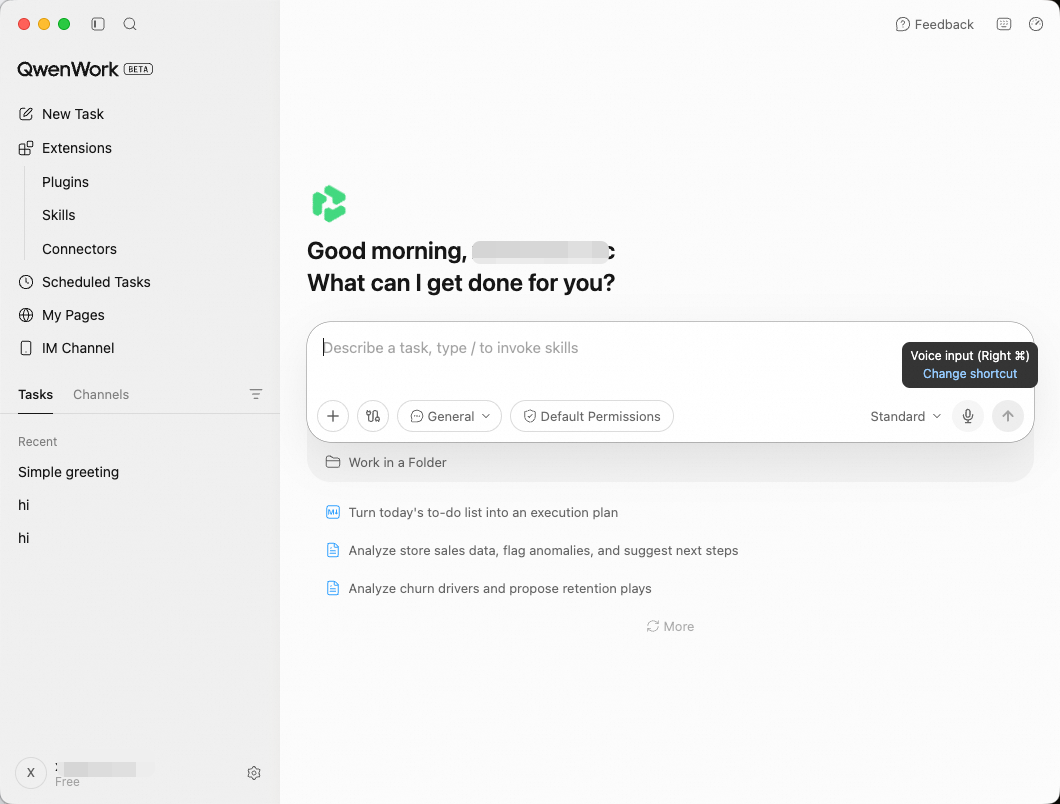
By default, press and hold the Right ⌘ shortcut to start voice input — no need to click an icon. You can also click the microphone icon on the right side of the chat input box. The icon changes to show that recording is in progress.
2. Say what you need
Speak clearly at a natural pace. You can describe tasks, ask questions, or dictate content. There's no strict time limit — take as long as you need.
3. Check the transcription
When you stop speaking, your speech is automatically transcribed into text and shown in the input box. Check that the content is accurate.
4. Edit as needed
You can freely edit the transcription — fix misrecognized words, add punctuation, or adjust wording.
5. Send
Once you're happy with the content, press Enter or click the Send button. QwenWork handles a voice-transcribed message just like typed input.
1. Start recording
By default, press and hold the Right ⌘ shortcut to start voice input — no need to click an icon. You can also click the microphone icon on the right side of the chat input box. The icon changes to show that recording is in progress.
2. Say what you need
Speak clearly at a natural pace. You can describe tasks, ask questions, or dictate content. There's no strict time limit — take as long as you need.
3. Check the transcription
When you stop speaking, your speech is automatically transcribed into text and shown in the input box. Check that the content is accurate.
4. Edit as needed
You can freely edit the transcription — fix misrecognized words, add punctuation, or adjust wording.
5. Send
Once you're happy with the content, press Enter or click the Send button. QwenWork handles a voice-transcribed message just like typed input.
Voice Input combines seamlessly with other QwenWork capabilities:
Voice + file attachments. Attach a file first, then describe by voice what you want to do with it. For example, after attaching a PDF, say "Summarize the key points and list the action items."
Voice follow-ups. After QwenWork delivers a result, give quick feedback by voice: "Make the title bigger" or "Add a section on risks."
Prerequisites
Before using Voice Input, check the following:
- Microphone permission: QwenWork needs access to your system microphone. The first time you use it, your system prompts you to grant permission. You can also enable it manually in your system settings (macOS: System Settings > Privacy & Security > Microphone).
- System speech recognition: Voice Input relies on your operating system's built-in speech recognition engine. The supported languages depend on the language packs installed on your system.
How to Use
Best Practices
- Speak at a moderate pace and enunciate clearly. Speaking too fast or mumbling easily leads to transcription errors. A normal conversational pace is ideal.
- Pause briefly between sentences. This helps the speech recognition engine segment sentences correctly and improves automatic punctuation.
- Draft by voice, refine by keyboard. Get your ideas out quickly by voice, then use the keyboard for precise edits and polishing.
- The perfect match for long descriptions. Multi-paragraph requirements, detailed step-by-step instructions, complex explanations — these are much faster to say than to type.
- Reduce background noise. Use Voice Input in a relatively quiet environment and recognition accuracy improves significantly.
Example Scenarios
| Scenario | Example voice input |
|---|---|
| File organization | "Sort the files on my desktop into folders — PDFs in one folder, images in another, and documents in a third." |
| Document creation | "Write a Q2 project status report with three sections: progress, blockers, and next steps." |
| Browser tasks | "Open the company intranet, find the latest expense report template, and download it to my Documents folder." |
| Data analysis | "Open the sales data spreadsheet on my desktop and create a chart showing this year's monthly revenue trend." |
| Quick follow-up | "Change it to a bar chart, and add value labels on each bar." |