
Create and use local skills in the desktop app.
What is a Skill?
In daily work, we often handle similar tasks over and over: writing weekly reports, organizing documents, generating infographics, and so on. Having to re-explain your requirements, preferences, and workflows to the AI every time is not only time-consuming but also makes it easy to miss key details.
Skills are designed to solve exactly this problem. A Skill is a pre-written working guide that tells QwenWork, for a certain type of task: what steps to follow, what format to output, and what details to watch out for. Define it once, and QwenWork will automatically recognize and apply it in every subsequent conversation, completing the work as steadily and consistently as a well-trained assistant.
From a technical perspective, each Skill is essentially a folder containing a SKILL.md file, stored under the ~/.qwenwork/skills/ directory. SKILL.md describes the skill's name, trigger conditions, and execution steps in natural language — no coding required; just express your working experience and process clearly in words.
What do Skills bring you?
No more repeated explanations
Every new conversation takes time to describe your requirements and preferences. With a Skill, this information is locked in once — later, a single sentence triggers it, and it can even be recognized and applied automatically, saving large amounts of time spent on repetitive communication.
Consistent output
When your team has clear format or style requirements for a certain type of output (such as which sections a weekly report must include), a Skill ensures that every output meets the established standard, with no quality fluctuation caused by communication gaps or different executors.
Turn personal experience into reusable assets
The best practices, handling techniques, and judgment criteria you accumulate at work can all be distilled into Skills. They serve not only their creators but can also be shared with team members, letting experience circulate and be reused across the organization instead of staying in one person's head.
Turn the AI from a generalist into a specialist
QwenWork itself has broad general capabilities, and Skills are like adding professional modules to it — a document-processing expert, a design assistant, a data analyst, and more. With different combinations of Skills, QwenWork can adapt to almost any scenario at work.
Getting Skills
QwenWork provides multiple acquisition channels, taking you from discovery to installation in one step.
Search and install in conversation
Simply describe your need in natural language, and QwenWork uses the built-in find-skill feature to search the skill library and recommend the best-matching Skills. For example:
Help me find a skill that can automatically turn web page content into Markdown notesQwenWork lists the matching results with brief descriptions. Once you confirm, QwenWork can install it into the
~/.qwenwork/skills/ directory with one click — no need to leave the conversation window at any point.
Browse and install in the Skill Plaza
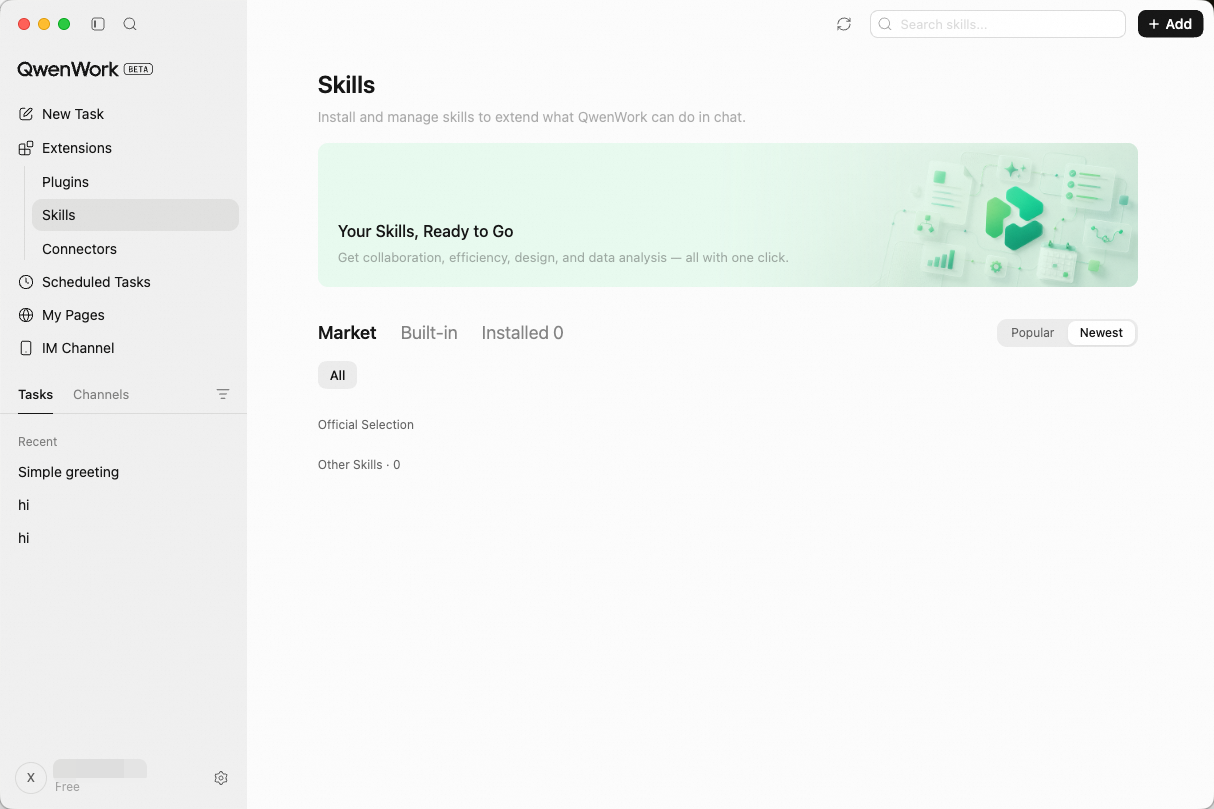
Under Extensions in the left sidebar, click Skills to enter the Skill Plaza — QwenWork's built-in skill marketplace, gathering all kinds of official and community-contributed Skills. Browse by category or search by keyword; once you find one, click install to start using it.
Get from open-source communities
Platforms like GitHub host large numbers of community-shared Skills. Just send the repository link to QwenWork and ask it to install, for example:
Please download `<skill source URL>` and place it in the ~/.qwenwork/skills/ directoryQwenWork automatically completes the cloning, file placement, and loading — no need to run any commands manually.
Manually upload local files
If you already have a Skill file ready (for example, obtained from a colleague), under Extensions in the left sidebar, click Skills, then click Install Skill to upload SKILL.md and its auxiliary files directly. After the upload, it is recognized and loaded automatically, ready to use in relevant scenarios.
Using Skills
After a Skill is installed, you can invoke it in conversation in the following ways.
Automatic triggering
Just describe your need, and QwenWork automatically determines whether there is a matching Skill and activates it. For example, after installing a "Resume Optimization" Skill:
Optimize my resume based on the job JDQwenWork recognizes and invokes the corresponding Skill.
/ shortcut invocation
Type / in the conversation input box, and QwenWork shows the list of installed Skills — select one to invoke it.
@ to add context
Type @ in the conversation input box to add context information (such as files or folders), helping QwenWork understand your need better. @ is for supplementing context, not for invoking Skills.
Invoke by name in conversation
Name a specific Skill directly in the conversation, for example:
Use the kancolle-infographic skill to generate an image seriesQwenWork loads the specified Skill, executes it, and presents the generated results directly in the conversation.
Managing Skills
Operate via the file system
All Skills are stored under the ~/.qwenwork/skills/ directory. Each Skill is an independent folder (containing SKILL.md and optional auxiliary files), which you can add, delete, and edit directly in the file system.
Built-in Skills
QwenWork comes with a set of pre-installed built-in Skills, ready to use out of the box:
| Skill name | Function | How it is triggered |
|---|---|---|
| create-skill | Guides the creation of QwenWork skills, including skill structure, best practices, and writing SKILL.md | Triggered when you mention creating, writing, or designing a Skill, or ask about SKILL.md |
| docx | Creates, reads, and edits Word documents, supporting template filling, layout, revisions, comments, and image replacement | Triggered when you mention Word, .docx, Word reports, contracts, letters, meeting minutes, or converting Markdown to Word |
| find-skills | Searches for and installs professional skills from the official marketplace, the community, and enterprise skill marketplaces | Prioritized before handling non-trivial tasks; triggered directly when you mention finding or installing skills |
| Reads, creates, merges, splits, and rotates PDFs, supporting watermarks, forms, encryption, image extraction, and OCR | Triggered when you mention PDF, .pdf, or ask to generate or process PDFs | |
| plugin-creator | Creates, customizes, or modifies the QwenWork plugins, including the skills and commands within a plugin | Triggered when you mention creating, customizing, or editing plugins |
| pptx | Creates, reads, and edits presentations, supporting templates, layouts, speaker notes, comments, merging, and splitting | Triggered when you mention PPT, .pptx, slides, presentations, decks, or similar terms |
| qwenwork-guidance | Queries and manages QwenWork's own capabilities, including settings, Connectors, Skills, plugins, tasks, Scheduled Tasks, and credits | Triggered when you ask about QwenWork's settings, feature status, Connectors, Skills, plugins, task progress, or credits |
| xlsx | Creates, reads, and edits spreadsheets, supporting formulas, formatting, charts, data cleaning, and spreadsheet format conversion | Triggered when you mention .xlsx, .xlsm, .csv, .tsv, or ask to generate or process spreadsheets |
Skill UI — Interactive Interfaces
Some advanced Skills support rendering interactive HTML components — forms, charts, configuration panels, and more. These components are embedded directly in the conversation flow, letting you complete operations without leaving the conversation.
For example, when using the frontend-design skill, the generated web page preview is displayed directly in the conversation, so you can review the effect instantly and give feedback for revisions.