
Use QwenWork through supported instant messaging channels.
QwenWork conversations and tasks run on the desktop by default. But most of your work communication happens in IM — with IM Channels, QwenWork plugs into the chat tools you already use. On the go or between meetings, just @mention the AI in your IM and it can run tasks, query data, and organize documents, with results coming back straight to the current chat window.
The desktop app remains mission control: every IM conversation has a corresponding conversation window on desktop, where you can check progress, take over, or adjust settings such as MCP, Skills, and Connectors at any time — these settings apply to all your IM conversations as well.
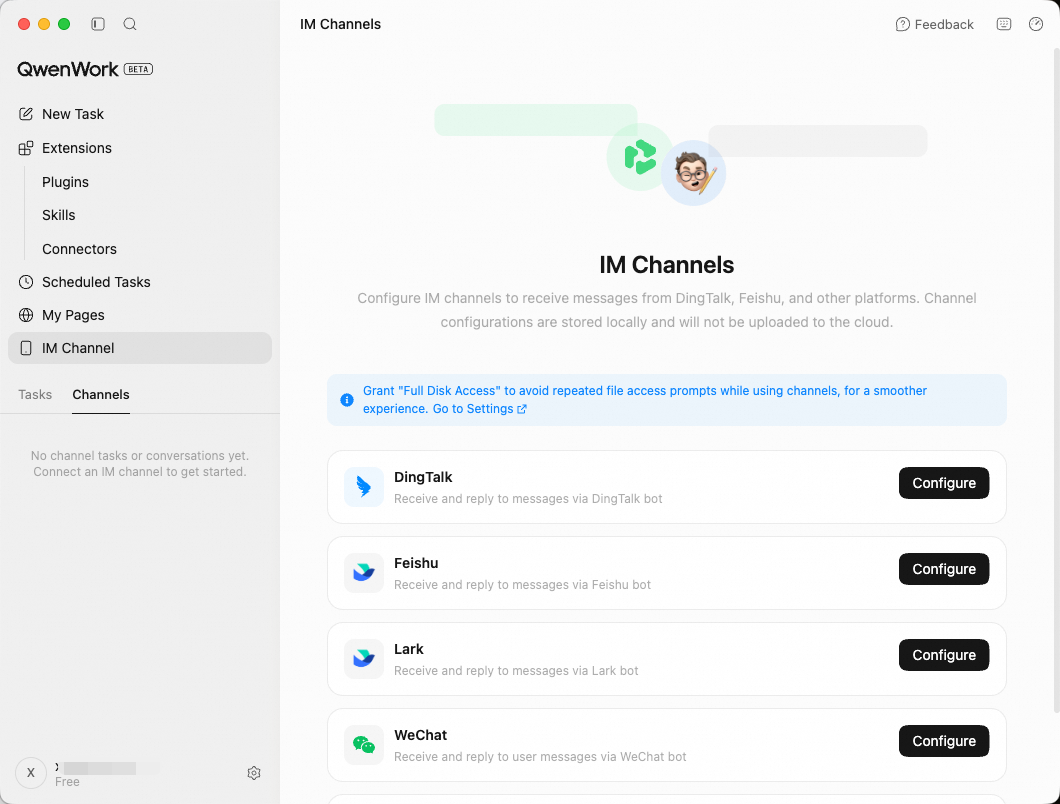
QwenWork currently supports the following IM platforms:
All IM channels are managed on the IM Channels page.
IM integration follows one core principle: where it comes from, it goes back.
Messages you send in an IM chat window are processed by QwenWork, and the results are automatically returned to the same chat window. Results of tasks created directly on desktop stay on desktop and are never pushed to any IM. Each IM conversation maps to a separate conversation window in the QwenWork desktop app, with fully isolated context — different IM platforms and chat windows don't interfere with each other. You can view the history and status of all IM conversations on desktop, and continue working in the corresponding desktop conversation window; the output is still synced back to IM.
In any connected IM channel, you can send the following types of messages:
When you send multiple messages in a row, they are processed in order — no messages are lost or reordered.
Open mode is great for quickly rolling out the bot inside a team. Pairing mode fits scenarios where you need to control who can use it — for example, limiting it to specific people.
In pairing mode, pairing requests are triggered automatically when a user sends the bot a direct message or @mentions it in a group. You can approve a request by clicking Allow in Pairing Management on the channel card. Pairing is per conversation: approving a direct message lets that user chat, and approving a group chat lets every member of the group chat.
QwenWork can receive and reply to user messages through a DingTalk bot. You connect the DingTalk bot by configuring it in QwenWork.
Open the DingTalk configuration page
In QwenWork, go to IM Channels, find the DingTalk card, and click Configure.
Scan the QR code to complete binding
In the "Configure DingTalk" window that appears, the QR code screen is shown by default.
Open DingTalk and scan the QR code to complete app registration and binding. If the QR code expires, click Refresh QR Code at the bottom.
Choose an access policy
After binding succeeds, choose an access policy:
Direct message: search for the bot's name in the search box at the top of DingTalk, click to open the conversation window, and send messages directly.
Group chat: add the bot to a group chat, then @mention the bot to send messages. To add it, click Group Settings (top right) → Bots → Add Bot → search for and select the bot you created.
Open the configuration page
In QwenWork, go to IM Channels, find the Feishu or Lark card, and click Configure.
Scan to authorize
A QR code is shown at the top of the page. Open the Feishu / Lark app, scan the QR code, and confirm authorization. The system automatically creates an app under your organization and configures the required permissions and event callbacks.
Choose an access policy
After authorization succeeds, choose an access policy:
Direct message: search for the bot's name in the Feishu / Lark search box and click to open the conversation window.
Group chat: add the bot to a group chat and @mention the bot to send messages.
Scan a QR code to complete binding — no additional configuration required.
Open the WeChat configuration page
In QwenWork, go to IM Channels, find the WeChat card, and click Configure.
Scan to authorize
The page shows a QR code. Open WeChat, scan the QR code, and confirm authorization.
Start using it
After binding completes, wait for the status to change to "Connected", then send messages directly to QwenWork in WeChat to start chatting.
QwenWork can receive and reply to user messages through a WeCom bot. There are two ways to connect a WeCom bot: quick binding and manual configuration.
The simplest and fastest way to connect — just scan a QR code to complete binding.
Open the WeCom configuration page
In QwenWork, go to IM Channels, find the WeCom card, and click Configure.
Scan the QR code to complete binding
In the "Configure WeCom" window that appears, select Quick Binding (Recommended).
Open WeCom and scan the QR code to complete bot creation and binding. If the QR code expires, click Refresh QR Code at the bottom.
Get the bot credentials
Create a bot in the WeCom admin console, and get the bot's Bot ID and Secret.
Enter the configuration
In QwenWork's "Configure WeCom" window, select Manual Configuration, enter the Bot ID and Secret you obtained, and click Save.
To receive and reply to Slack messages, you need the Bot Token and App-Level Token from Slack.
Open the Slack configuration page
In QwenWork, go to IM Channels, find the Slack card, and click Configure.
Enter the tokens
Enter the following two tokens in the "Configure Slack" window (both come from the app you created in Slack):
Open the WhatsApp configuration page
In QwenWork, go to IM Channels, find the WhatsApp card, and click Configure.
QR code binding
Open WhatsApp on your phone and scan the QR code shown in QwenWork to complete binding.
Finish setup
After binding completes, wait for the status to change to "Connected", then send messages directly to the bot in WhatsApp to start chatting.
The configuration and status of all IM channels are managed in one place on the IM Channels page.
Each channel card has a toggle. When the toggle is on, the status shows "Connected" and the channel works normally on the IM side. When it's off, messages sent from the IM side no longer receive replies. Turning the toggle off doesn't clear the configuration — turn it back on to restore.
To completely remove a channel's configuration, click Remove Configuration on the channel card. After removal, all of the channel's configuration is cleared and the IM side no longer responds. To use it again, configure it from scratch.
DingTalk, Feishu, and Lark channels can switch between open mode and pairing mode at any time:
You can enable all IM channels at the same time. Channels are fully independent and don't interfere with each other — DingTalk, Feishu, Lark, and WeChat conversations each have their own isolated context and history.
QwenWork lets you step into regular desktop tasks from IM and interact with a running task remotely — so you can operate QwenWork wherever you are.
Prerequisites:
Ask the bot directly in IM — well suited to simple Q&A and quick lookups:
The bot calls your configured MCP tools and data sources, and replies with the result directly in IM.
Images and files you receive or shoot on your phone can be sent straight to the bot for processing:
Supported capabilities include OCR text recognition, background replacement, receipt information extraction, file summarization, format conversion, and data analysis.
When you're away from your desk and want the QwenWork on your computer to do something:
QwenWork runs in the background, and when it finishes, automatically sends the result summary and the file back to the IM conversation.
Combined with Scheduled Tasks, execution results can be pushed to IM automatically:
@mention the bot in a team group chat and every member can use it:
| Platform | Connection method | Best for |
|---|---|---|
| DingTalk | QR code binding | Enterprise team collaboration |
| Feishu | Scan the QR code and the app is created automatically | Quick onboarding for individuals or teams |
| Lark | Scan the QR code and the app is created automatically | Quick onboarding for individuals or teams (international) |
| QR code binding, ready to use instantly | Lightweight mobile interactions | |
| WeCom Bot | Quick QR code binding or manual configuration | Enterprise collaboration and automation |
How It Works
IM integration follows one core principle: where it comes from, it goes back.
Messages you send in an IM chat window are processed by QwenWork, and the results are automatically returned to the same chat window. Results of tasks created directly on desktop stay on desktop and are never pushed to any IM. Each IM conversation maps to a separate conversation window in the QwenWork desktop app, with fully isolated context — different IM platforms and chat windows don't interfere with each other. You can view the history and status of all IM conversations on desktop, and continue working in the corresponding desktop conversation window; the output is still synced back to IM.
Supported Message Types
In any connected IM channel, you can send the following types of messages:
| Message type | Description |
|---|---|
| Text message | Send text instructions directly |
| Image | Send images — supports OCR recognition, background replacement, and more |
| File | Supports common formats such as PDF, Excel, PPT, Word, CSV, and TXT |
| Voice message | Send a voice message — its content is recognized automatically and acted upon |
| Combined forward message | Multiple forwarded messages are parsed correctly |
| Image + text combination | The image and text instruction are understood together — for example, send an image with "Extract the table" |
Access Policy
| Policy | Description |
|---|---|
| Open mode | Anyone and any group can talk to the bot directly, with no extra steps |
| Pairing mode | A conversation can use the bot only after you approve it |
Connect DingTalk
QwenWork can receive and reply to user messages through a DingTalk bot. You connect the DingTalk bot by configuring it in QwenWork.
Configure in QwenWork
Open the DingTalk configuration page
In QwenWork, go to IM Channels, find the DingTalk card, and click Configure.
Scan the QR code to complete binding
In the "Configure DingTalk" window that appears, the QR code screen is shown by default.
Open DingTalk and scan the QR code to complete app registration and binding. If the QR code expires, click Refresh QR Code at the bottom.
Choose an access policy
After binding succeeds, choose an access policy:
- Open mode: anyone / any group can chat directly
- Pairing mode: a conversation can use the bot only after you approve it
Usage
Direct message: search for the bot's name in the search box at the top of DingTalk, click to open the conversation window, and send messages directly.
Group chat: add the bot to a group chat, then @mention the bot to send messages. To add it, click Group Settings (top right) → Bots → Add Bot → search for and select the bot you created.
Connect Feishu / Lark
Configure in QwenWork
Open the configuration page
In QwenWork, go to IM Channels, find the Feishu or Lark card, and click Configure.
Scan to authorize
A QR code is shown at the top of the page. Open the Feishu / Lark app, scan the QR code, and confirm authorization. The system automatically creates an app under your organization and configures the required permissions and event callbacks.
Choose an access policy
After authorization succeeds, choose an access policy:
- Open mode: anyone / any group can chat directly
- Pairing mode: a conversation can use the bot only after you approve it
Usage
Direct message: search for the bot's name in the Feishu / Lark search box and click to open the conversation window.
Group chat: add the bot to a group chat and @mention the bot to send messages.
Connect WeChat
Scan a QR code to complete binding — no additional configuration required.
Open the WeChat configuration page
In QwenWork, go to IM Channels, find the WeChat card, and click Configure.
Scan to authorize
The page shows a QR code. Open WeChat, scan the QR code, and confirm authorization.
Start using it
After binding completes, wait for the status to change to "Connected", then send messages directly to QwenWork in WeChat to start chatting.
Connect WeCom
QwenWork can receive and reply to user messages through a WeCom bot. There are two ways to connect a WeCom bot: quick binding and manual configuration.
Option 1: QR code binding (recommended)
The simplest and fastest way to connect — just scan a QR code to complete binding.
Open the WeCom configuration page
In QwenWork, go to IM Channels, find the WeCom card, and click Configure.
Scan the QR code to complete binding
In the "Configure WeCom" window that appears, select Quick Binding (Recommended).
Open WeCom and scan the QR code to complete bot creation and binding. If the QR code expires, click Refresh QR Code at the bottom.
Option 2: Manual configuration
Get the bot credentials
Create a bot in the WeCom admin console, and get the bot's Bot ID and Secret.
Enter the configuration
In QwenWork's "Configure WeCom" window, select Manual Configuration, enter the Bot ID and Secret you obtained, and click Save.
Connect Slack
To receive and reply to Slack messages, you need the Bot Token and App-Level Token from Slack.
Open the Slack configuration page
In QwenWork, go to IM Channels, find the Slack card, and click Configure.
Enter the tokens
Enter the following two tokens in the "Configure Slack" window (both come from the app you created in Slack):
- Bot Token (starts with
xoxb-) - App-Level Token (starts with
xapp-)
- Pairing: a conversation can use the bot only after you approve it
- Open: anyone can chat directly
Connect WhatsApp
Open the WhatsApp configuration page
In QwenWork, go to IM Channels, find the WhatsApp card, and click Configure.
QR code binding
Open WhatsApp on your phone and scan the QR code shown in QwenWork to complete binding.
Finish setup
After binding completes, wait for the status to change to "Connected", then send messages directly to the bot in WhatsApp to start chatting.
Manage IM Channels
The configuration and status of all IM channels are managed in one place on the IM Channels page.
Enable and disable
Each channel card has a toggle. When the toggle is on, the status shows "Connected" and the channel works normally on the IM side. When it's off, messages sent from the IM side no longer receive replies. Turning the toggle off doesn't clear the configuration — turn it back on to restore.
Remove a channel
To completely remove a channel's configuration, click Remove Configuration on the channel card. After removal, all of the channel's configuration is cleared and the IM side no longer responds. To use it again, configure it from scratch.
Switch access policy
DingTalk, Feishu, and Lark channels can switch between open mode and pairing mode at any time:
- From open to pairing: after switching, previously unpaired users can no longer use the bot — they need to trigger a pairing request again and be approved.
- From pairing to open: after switching, all users can use it directly, no pairing required.
Multiple channels in parallel
You can enable all IM channels at the same time. Channels are fully independent and don't interfere with each other — DingTalk, Feishu, Lark, and WeChat conversations each have their own isolated context and history.
Task Binding (Remote Takeover)
QwenWork lets you step into regular desktop tasks from IM and interact with a running task remotely — so you can operate QwenWork wherever you are.
Prerequisites:
- You've enabled at least one IM channel (such as DingTalk or WeChat).
- A regular task has been created and exists in the QwenWork desktop app.
/bind: view the list of tasks available to bind. Reply with/bind <number>(for example,/bind 1) to bind the current IM conversation to the specified desktop task. Once bound, messages you send in IM are forwarded directly to that task, and the task's replies are synced back to IM in real time./unbind: unbind the current IM conversation from the desktop task. After unbinding, the IM conversation becomes a regular, independent conversation again.