
Personalization policies give different member groups their own home page, navigation, and credit messages.
Use a personalization policy when different groups need different home pages, navigation, or credit messages. Set the enterprise sign-in screen separately under Personalization → Login page.
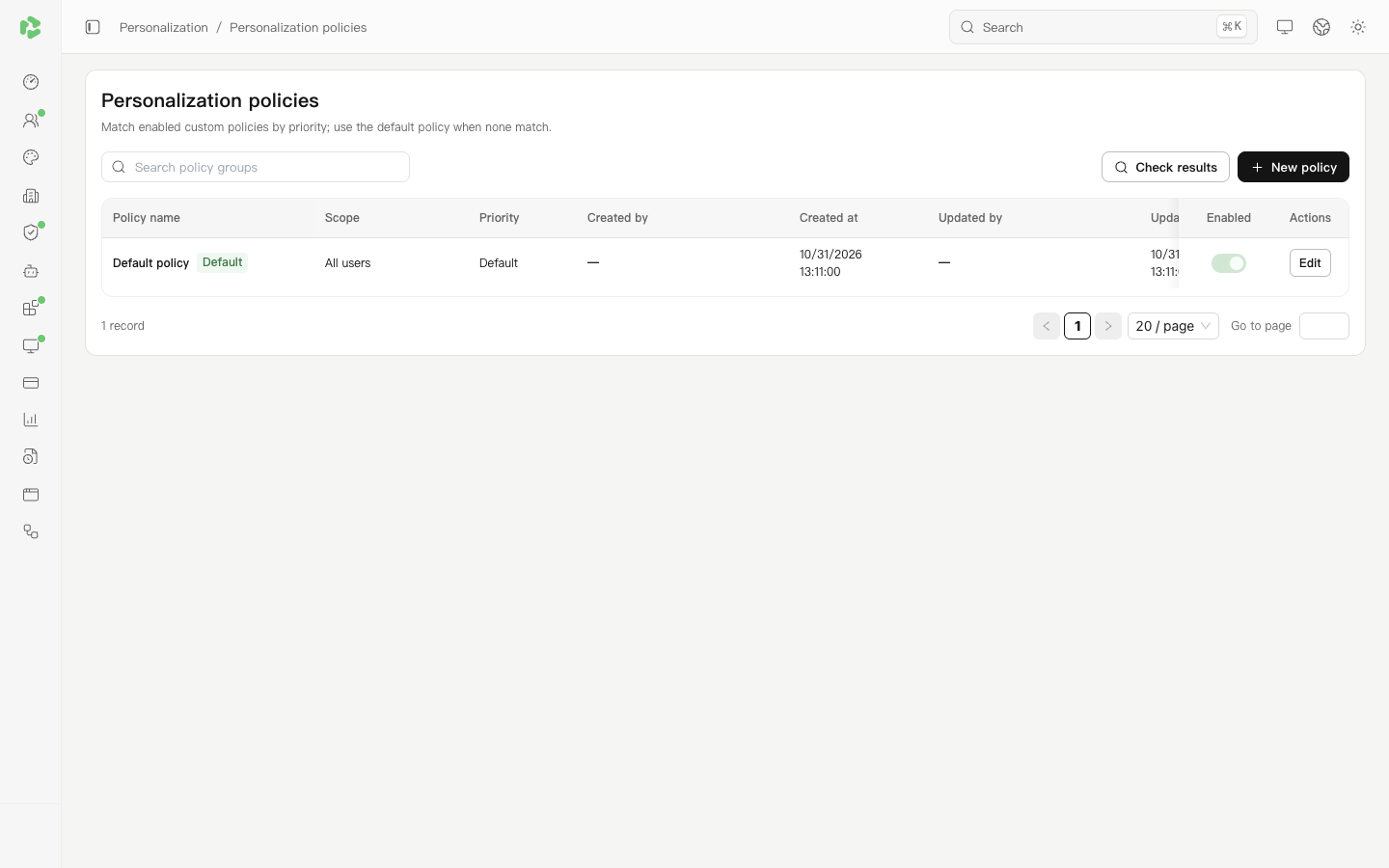 Admin console: review each policy's scope, priority, and enabled state.
Enabled custom policies are checked in priority order. A smaller number has higher priority. If no custom policy applies to a user, the default policy is used. A user receives the configuration from the selected policy; settings from several policies are not merged.
The default policy applies to everyone, remains enabled, and cannot be deleted. Create a custom policy when only part of the organization needs different settings.
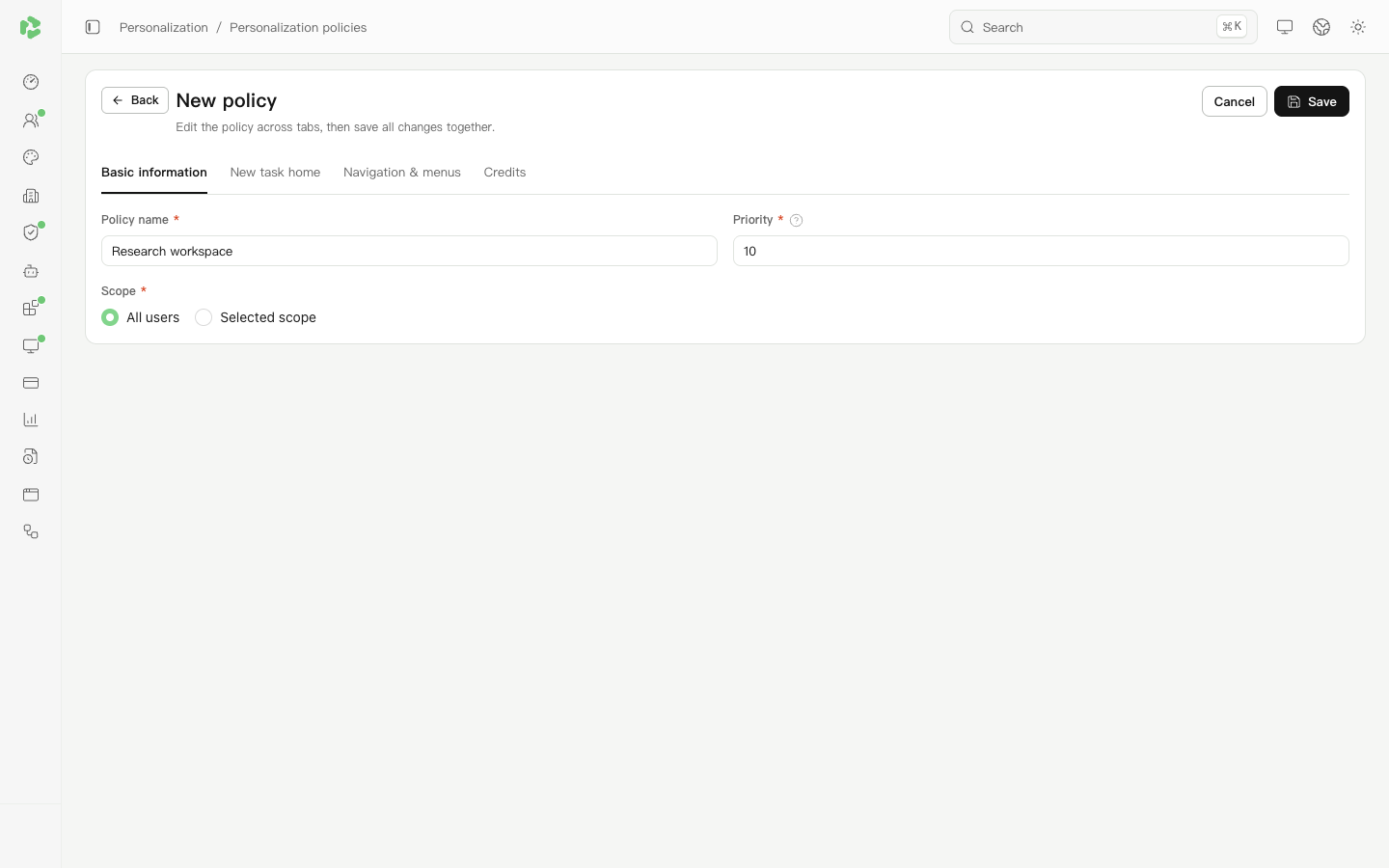 Admin console: set the policy name, priority, and user scope before saving the complete policy.
Use the policy verification action in the list, choose a test user, and check the returned policy name and priority. Test users inside and outside the intended scope, including a user who matches several policies.
Policy verification checks saved rules. The client preview in the editor checks appearance and text. After saving, ask a test member to open the relevant desktop app page and check the actual result.
Hover over, click, or use the keyboard to focus an underlined scope count. Scope details lists the selected users, departments, and groups separately, up to 100 per category, and shows how many were omitted. A department or group counts as one selected item; its members are not expanded.
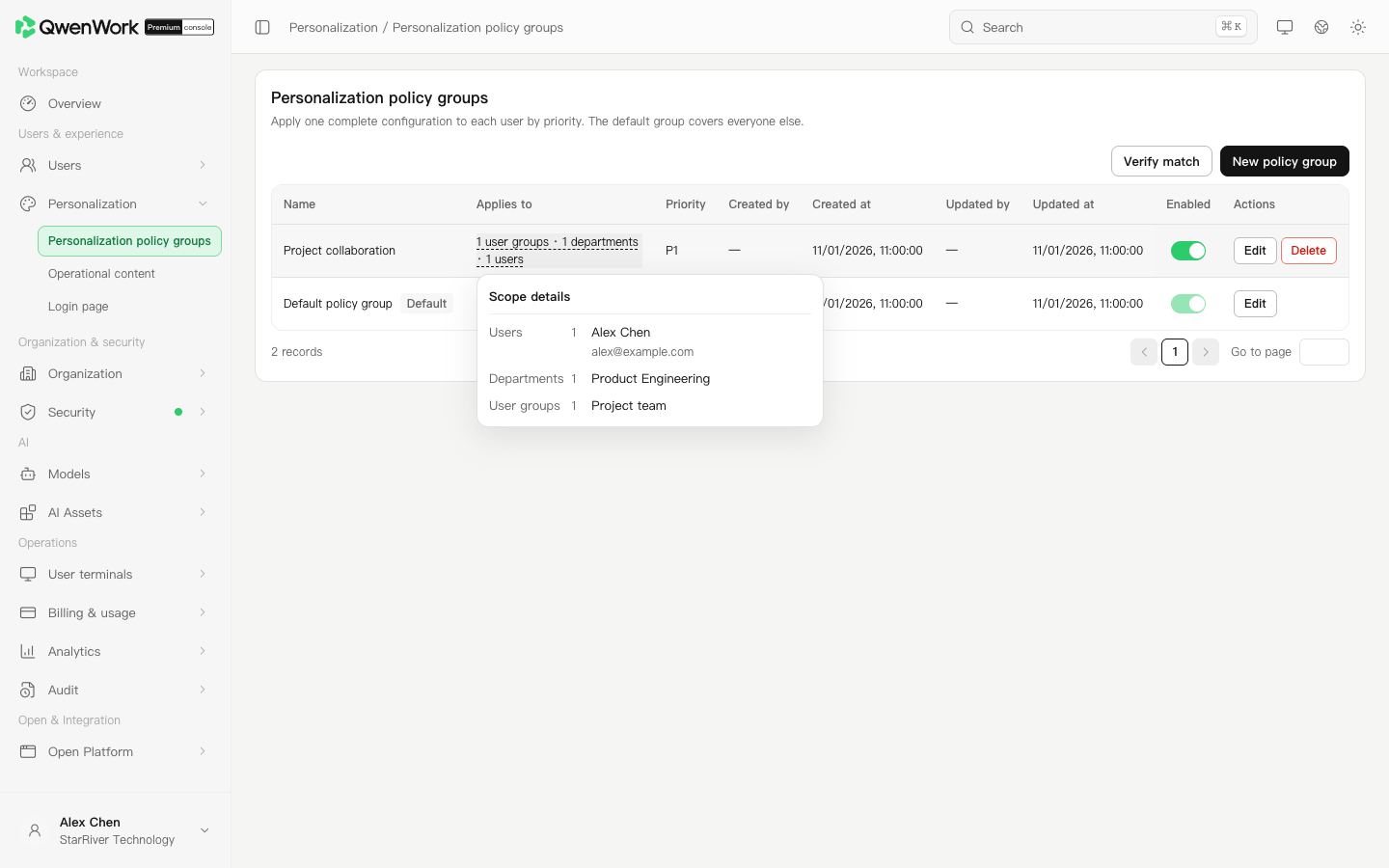 Scope details for a personalization policy with specific users, departments, and groups.
Names are shown only when your account can read the directory. If a selected entry has been deleted or is no longer visible, its name is unavailable. Opening the details does not edit the policy.
Edit the policy and click the top Save button. Before disabling or deleting a custom policy, check which policy its users will receive next: another matching custom policy or the default.
The default policy's all-user scope and default priority are fixed. If another administrator changed the configuration, reopen it, review the saved content, and apply your changes again.
An enterprise service can manage policies through the APIs. Grant policy group read or management access in Open Platform → App authorizations according to the service's tasks. See Open Platform → App authorizations.
API calls and the admin console maintain the same policies. After an application changes a policy, reopen it in the console to check its scope, priority, enabled state, and configuration, then verify which policy applies to a test user.
One update can save several configuration sections together. If any section fails validation, that update is not partially saved. If the configuration has changed, read the latest values and review changes by other administrators or applications before submitting again. The default policy's protection rules also apply to API calls.
The enabled custom policy with the lowest priority number applies. If none applies, the default policy is used. Check the employee in the policy match tool.
Select Save in the policy editor to apply the group's settings. Have an employee in the audience check the affected screens.
Return to: Personalization overview
How a policy is selected
Enabled custom policies are checked in priority order. A smaller number has higher priority. If no custom policy applies to a user, the default policy is used. A user receives the configuration from the selected policy; settings from several policies are not merged.
The default policy applies to everyone, remains enabled, and cannot be deleted. Create a custom policy when only part of the organization needs different settings.
Create a policy
- Open Personalization → Personalization policy groups and choose the create action.
- On the basic information tab, enter a name and an integer priority from 1 to 999. Use a different priority for each custom policy.
- Choose all users or select users, departments, and user groups. A specified scope must contain at least one selection.
- Under New task home, edit welcome messages, recommendations, and input placeholders. Under Navigation & menus, edit navigation, the user menu, consultation links, and help notices. Under Credits, edit shortage messages and usage display.
- Review the tabs, then click Save at the top of the page to submit the policy together.
- Return to the list and check its name, scope, priority, and enabled state.
Verify the selected policy
Use the policy verification action in the list, choose a test user, and check the returned policy name and priority. Test users inside and outside the intended scope, including a user who matches several policies.
Policy verification checks saved rules. The client preview in the editor checks appearance and text. After saving, ask a test member to open the relevant desktop app page and check the actual result.
Hover over, click, or use the keyboard to focus an underlined scope count. Scope details lists the selected users, departments, and groups separately, up to 100 per category, and shows how many were omitted. A department or group counts as one selected item; its members are not expanded.
Verify a home page change and a navigation change together
- In one pilot policy, change the home greeting and one navigation item. Save the policy.
- Check that the pilot policy applies to a test employee.
- Ask that employee to check the greeting and navigation in the desktop app.