
WeCom SSO lets enterprise members sign in to QwenWork with their WeCom account.
Members can sign in with their WeCom account once you configure the provider. You need Authentication management permission and the Corp ID, Agent ID and Secret from the same WeCom app.
In the WeCom admin console, record the enterprise Corp ID and the self-built app's Agent ID and Secret. Include the intended members in the app's visibility scope. Check which identity fields the app is authorized to read; a member having an email or phone number in WeCom does not mean the app can retrieve it.
The authorization callback domain, message URL, and outbound IP addresses serve different purposes. Copy each value from the corresponding field in QwenWork rather than substituting the enterprise home page or a sample URL.
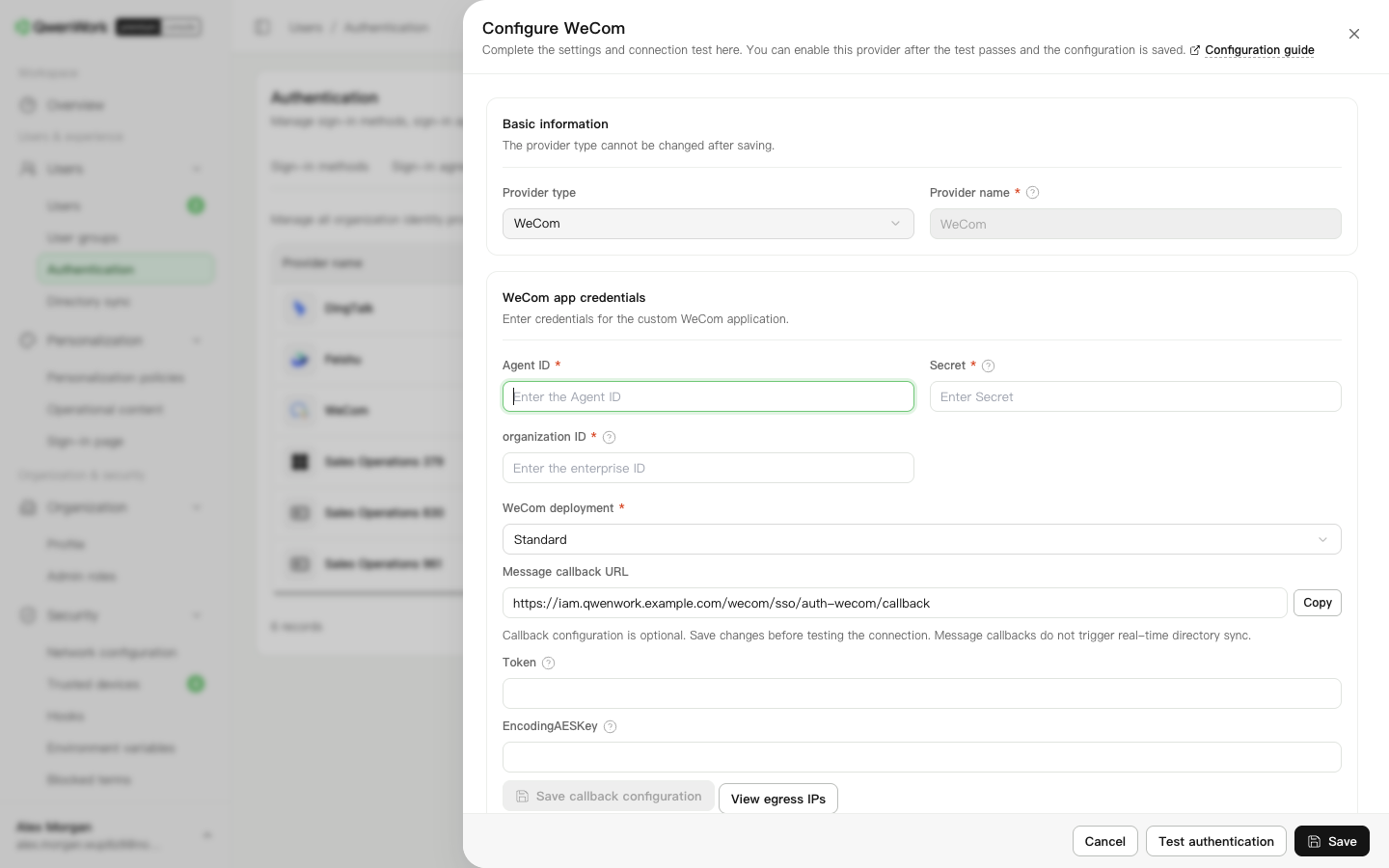 Admin console: use credentials from the same enterprise and custom app; message verification is optional.
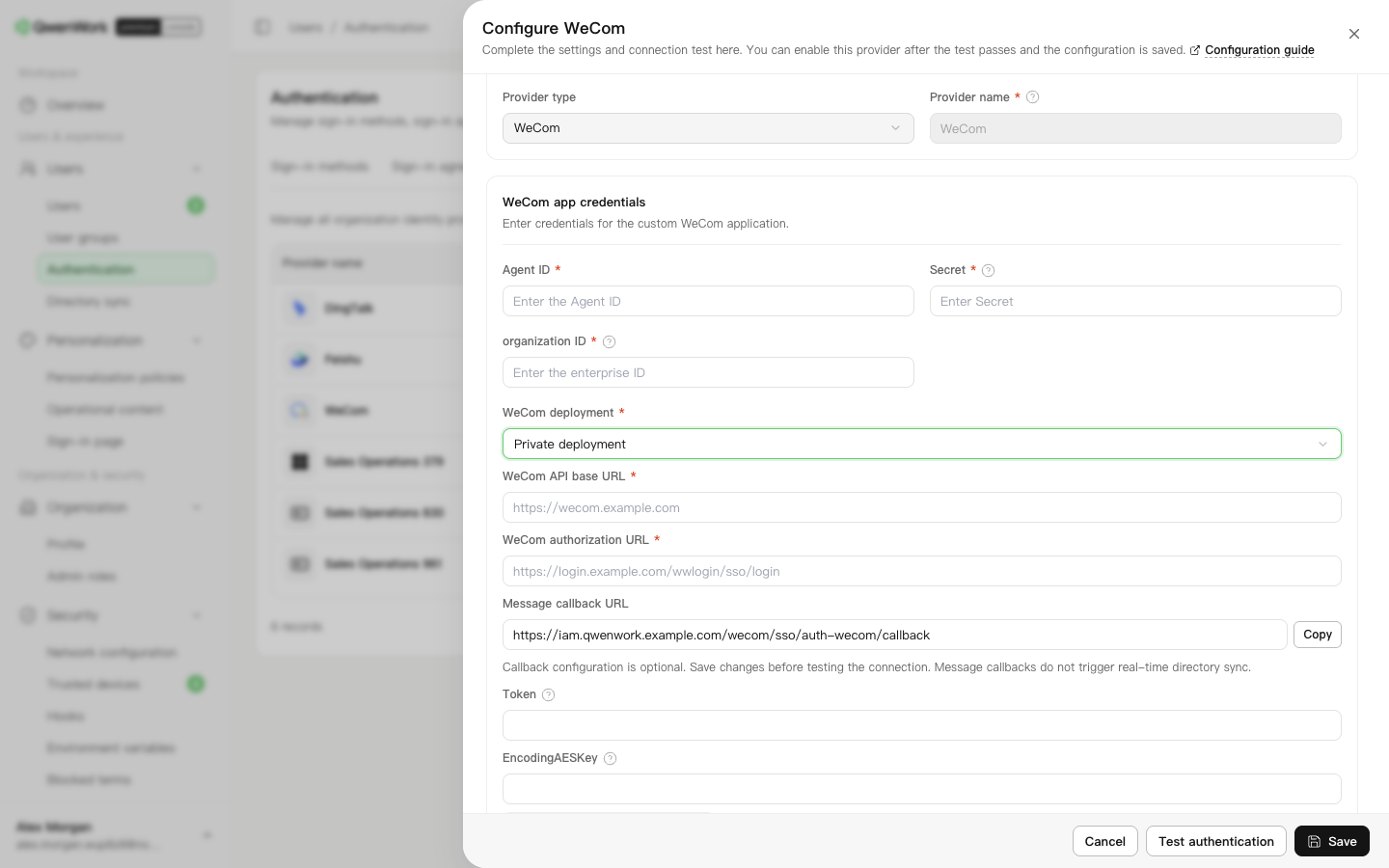 Admin console: configure the private WeCom endpoint fields when Private deployment is selected.
Message callback configuration is optional. If it is needed, generate Token and EncodingAESKey in the WeCom app, enter both values in QwenWork, and save the callback configuration first. Then register the message URL and the same keys in WeCom and complete verification.
When editing a configured callback, leaving both fields blank retains the stored values. To replace them, enter both new values. Use the explicit clear option to remove the stored configuration; blank fields alone do not clear it.
Message callbacks do not turn directory synchronization into real-time synchronization. Directory updates use the configured manual or scheduled sync process.
Check the external user ID and name mappings. The WeCom user identifier used for SSO must identify the same person as the userid used by WeCom Directory sync.
Map at least one supported account identifier in addition to the required identity fields.
When automatic user creation is enabled, the returned member data must also contain a nonempty supported identifier, such as account, email, phone, or employee number.
If email and phone are unavailable, review the account mapping and the app's actual returned fields.
Save the valid configuration before enabling the source.
Connection testing checks whether the service can obtain a WeCom access token; it does not verify the callback domain, trusted IPs, app visibility, returned member fields, or a complete sign-in. A successful connection test is not a substitute for a member sign-in test.
Enable the required source, then enable SSO in the sign-in methods settings. Only one SSO source can be enabled at a time. Keep a working alternative sign-in method while changing authentication.
Use a test member to sign in from the enterprise entry and verify the enterprise, matched user, and seat. If automatic creation is enabled, check its records and confirm that a duplicate user was not created.
The callback domain is used to check the redirect during sign-in. Trusted IPs control which service addresses can call the WeCom API. Check the two settings in their respective steps.
Sign-in handles the current employee. Set up a separate WeCom source in Directory sync to bring in departments and members.
Return to: Users / Authentication / Authentication overview.
Prepare the app
In the WeCom admin console, record the enterprise Corp ID and the self-built app's Agent ID and Secret. Include the intended members in the app's visibility scope. Check which identity fields the app is authorized to read; a member having an email or phone number in WeCom does not mean the app can retrieve it.
The authorization callback domain, message URL, and outbound IP addresses serve different purposes. Copy each value from the corresponding field in QwenWork rather than substituting the enterprise home page or a sample URL.
Configure the authentication source
- Open Users → Authentication → SSO and configure WeCom.
- Enter the Corp ID, Agent ID, and Secret for that app.
- Select the WeCom deployment type. A private deployment also requires a WeCom API base URL and an authorization URL. Use compatible HTTPS endpoints that the service can reach; do not include URL credentials, query strings, or fragments.
- Copy the authorization callback domain and register it in the same WeCom app's web authorization settings.
- Check the outbound IP addresses supplied by QwenWork and add the actual service egress addresses to the app's trusted IP configuration. Preserve other valid entries.
- Review attribute mappings and save the configuration.
Optional message verification
Message callback configuration is optional. If it is needed, generate Token and EncodingAESKey in the WeCom app, enter both values in QwenWork, and save the callback configuration first. Then register the message URL and the same keys in WeCom and complete verification.
When editing a configured callback, leaving both fields blank retains the stored values. To replace them, enter both new values. Use the explicit clear option to remove the stored configuration; blank fields alone do not clear it.
Message callbacks do not turn directory synchronization into real-time synchronization. Directory updates use the configured manual or scheduled sync process.
Match identities
Check the external user ID and name mappings. The WeCom user identifier used for SSO must identify the same person as the userid used by WeCom Directory sync.
Map at least one supported account identifier in addition to the required identity fields.
When automatic user creation is enabled, the returned member data must also contain a nonempty supported identifier, such as account, email, phone, or employee number.
If email and phone are unavailable, review the account mapping and the app's actual returned fields.
Verify and enable
Save the valid configuration before enabling the source.
Connection testing checks whether the service can obtain a WeCom access token; it does not verify the callback domain, trusted IPs, app visibility, returned member fields, or a complete sign-in. A successful connection test is not a substitute for a member sign-in test.
Enable the required source, then enable SSO in the sign-in methods settings. Only one SSO source can be enabled at a time. Keep a working alternative sign-in method while changing authentication.
Use a test member to sign in from the enterprise entry and verify the enterprise, matched user, and seat. If automatic creation is enabled, check its records and confirm that a duplicate user was not created.
Troubleshoot
| Symptom | Check first |
|---|---|
| Message verification fails | Save the same callback keys in QwenWork before WeCom verifies the message URL |
| Token retrieval fails | Corp ID, Agent ID, Secret, endpoint reachability, and trusted IPs |
| Sign-in does not return | Web authorization callback domain and the private authorization URL |
| A user cannot sign in | App visibility, returned identity fields, identity matching, and account state |
| Email or phone is empty | The app's authorization and actual returned data, rather than the connection test alone |