
WeCom Directory sync reads the departments and members visible to a WeCom self-built app and writes them to QwenWork.
To sync users from WeCom, use the enterprise Corp ID and the Agent ID and Secret from the same self-built app. The app's visibility range determines which departments and members can be read.
Grant the self-built app access to the departments and individual members you plan to sync. WeCom also expands any authorized tags into departments and members. Verify permission to read both types of records. Some fields, including email and phone, may be unavailable even when populated in WeCom.
Use the Secret of the self-built app required by this wizard. The separate Secret shown under WeCom's directory synchronization management tool is not the credential requested here.
Add QwenWork's actual outbound IP addresses to the app's trusted IP settings when required. If the same app also provides SSO, complete the SSO-specific authorization configuration separately. Directory-only synchronization does not require an SSO callback domain.
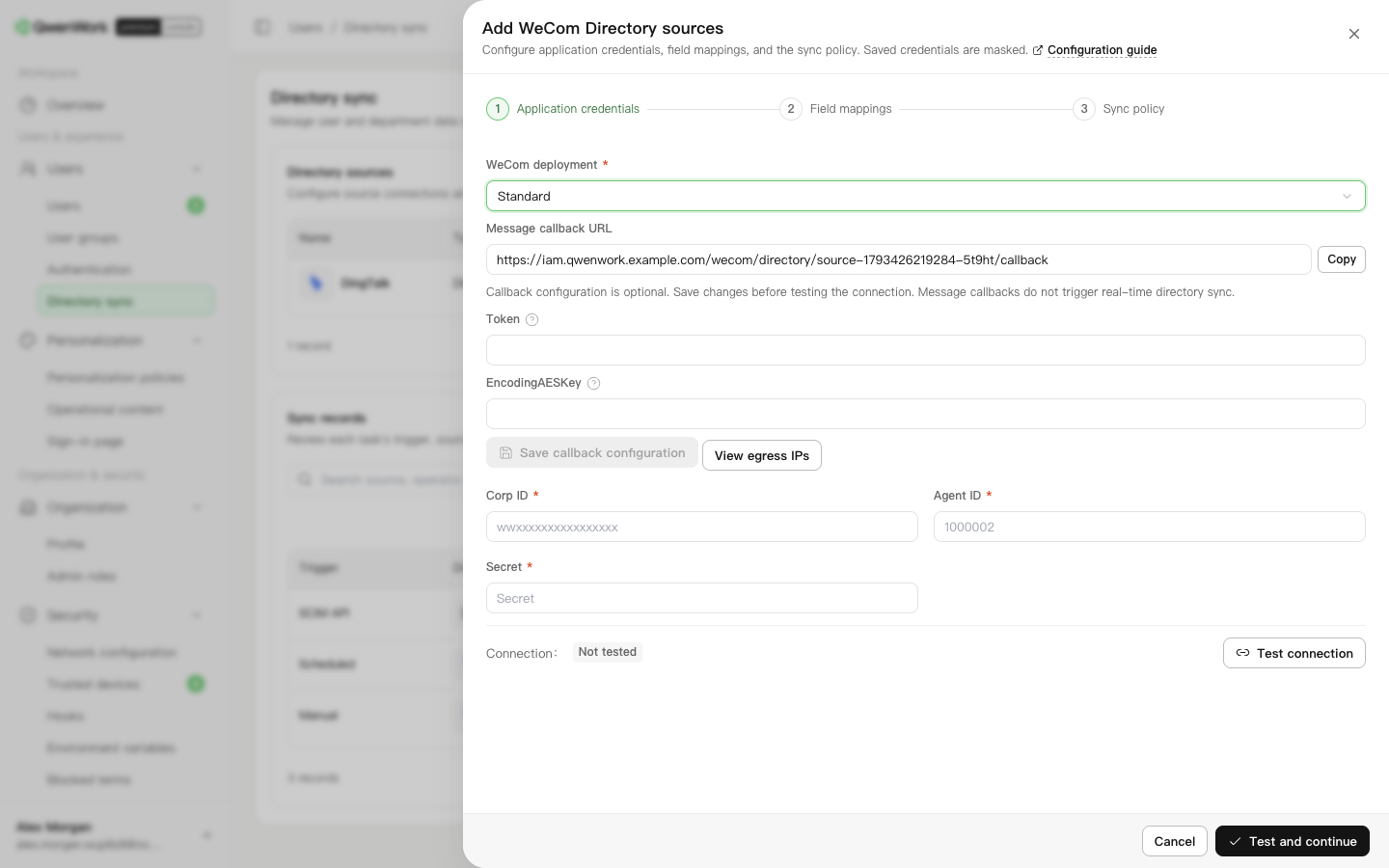 Admin console: use credentials from the same enterprise and custom app; message verification is optional.
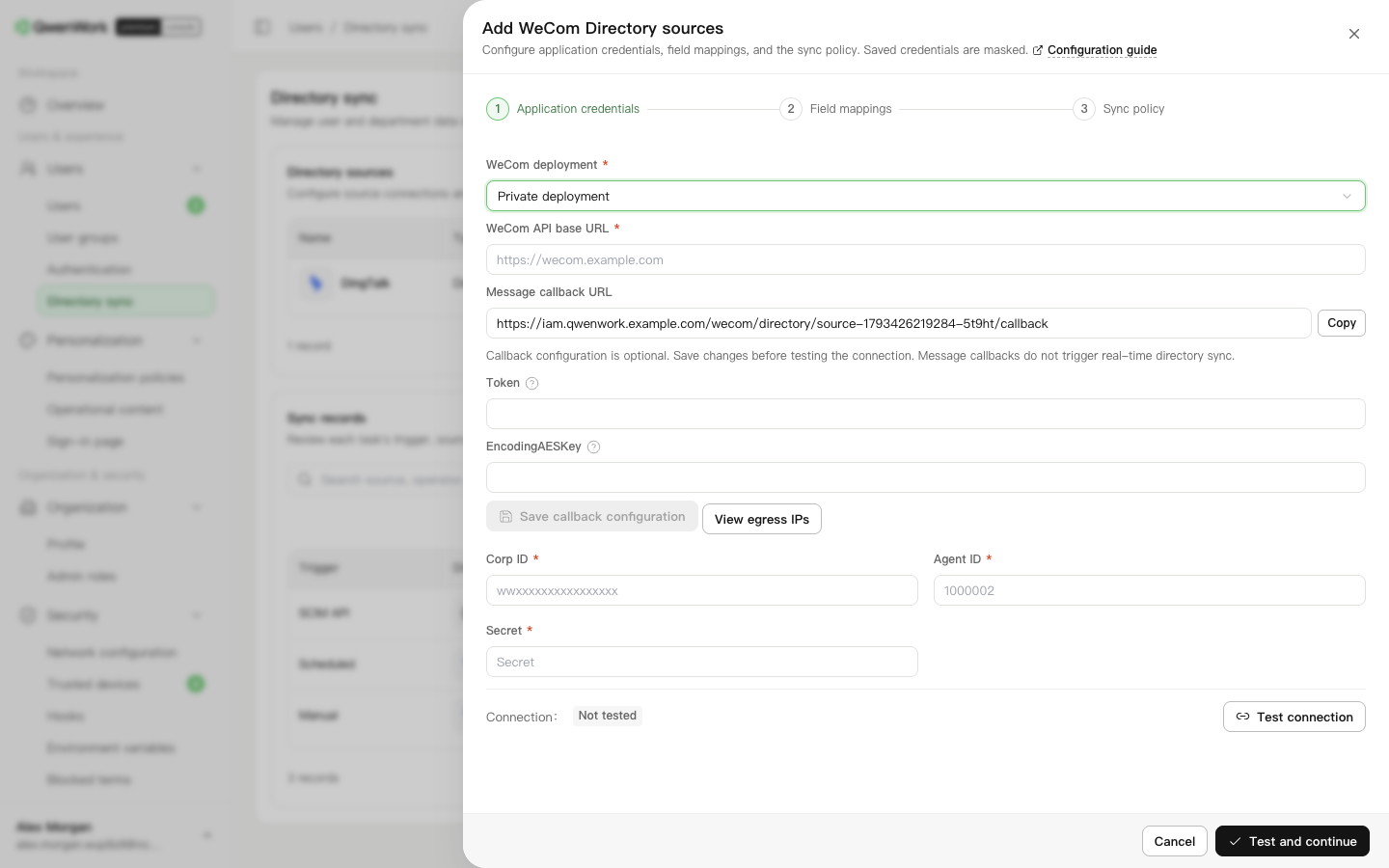 Admin console: configure the private WeCom endpoint fields when Private deployment is selected.
WeCom uses userid to identify a member and id to identify a department. Check the third-party ID, account, and employee number mappings offered by the wizard. Keep SSO and Directory sync identifiers consistent when both are used.
Review the fixed name, email, phone, department, and status mappings. The fields selectable in the wizard differ from the fixed mappings; do not assume every target can use an arbitrary source property.
Choose All to sync the app's entire visible directory, or select specific departments and their descendants within it. A directly authorized member with no readable department is placed at the local root in All mode. In selected-department mode, the member must belong to a selected branch.
A visible department with no visible parent attaches to the local root. A person granted through several departments or tags is synced once. Tags do not create local user groups.
Select manual synchronization or a daily schedule, and check the time zone shown by the wizard. Review default seat assignment and the departure action before saving.
Run one manual synchronization first. Check its status and result records, then compare sample departments and members with WeCom. Correct permission or mapping problems before relying on the daily schedule.
When Directory sync is enabled, follow the source ownership restrictions shown on the Users page. Maintain source-owned identity fields in WeCom. A successful connection test does not prove that all fields and departments are readable.
Before changing scope or departure handling, review the expected effect on existing users. After a Secret or endpoint change, save, retest, and inspect a complete sync result. Preserve result records when investigating partial failures.
When All is selected, removing access in WeCom can trigger the configured departure action on the next successful sync. With partial app access, a selected department that becomes unavailable causes a scope error. An incomplete or unstable response stops the run before changes are applied. Check the app scope, preview the departments, and run sync again.
Use the WeCom app with permission to read the intended directory and departments. Check the app and its scope before testing the connection.
Run a sync, then find the department and one of its employees in the run details. A successful connection test is only the first check.
Return to: Users / User sync / User sync overview.
Prepare access
Grant the self-built app access to the departments and individual members you plan to sync. WeCom also expands any authorized tags into departments and members. Verify permission to read both types of records. Some fields, including email and phone, may be unavailable even when populated in WeCom.
Use the Secret of the self-built app required by this wizard. The separate Secret shown under WeCom's directory synchronization management tool is not the credential requested here.
Add QwenWork's actual outbound IP addresses to the app's trusted IP settings when required. If the same app also provides SSO, complete the SSO-specific authorization configuration separately. Directory-only synchronization does not require an SSO callback domain.
Create the source
- Open Users → User sync, add a source, and choose WeCom.
- Enter Corp ID, Agent ID, and Secret from the same self-built app.
- Select the deployment type. Private WeCom requires a compatible HTTPS API base URL directly reachable by the service. It does not require the SSO authorization URL in this wizard.
- Configure the optional message callback only if needed. Save the callback keys in QwenWork before verifying the message URL in WeCom.
- Check outbound IP configuration, test the connection, and continue to mappings.